This guide explains improve IPTV streaming quality with practical, rights-aware checks you can use before changing a player, device, account, or network setting.
For the closest related workflow, continue with IPTV Troubleshooting Guide; it addresses the next decision without replacing the checks on this page.
Improve IPTV streaming quality: measure before tuning
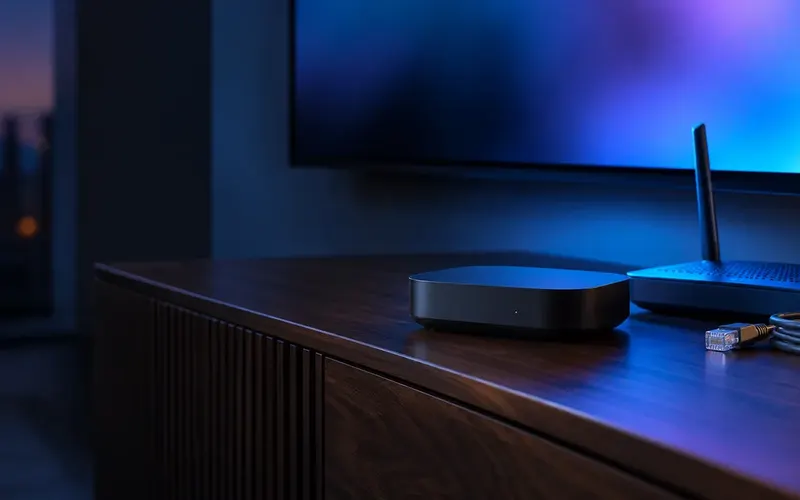
Test at the time and place where playback fails. Note whether the device is on 2.4 GHz, 5 GHz, Ethernet, or mobile data, and whether another approved video service is affected. That small record is more useful than repeatedly toggling every setting.
If Ethernet is practical and the device supports it, it offers a direct comparison point. If Wi-Fi is necessary, distance, walls, neighboring networks, and router placement can all change results, sometimes substantially between rooms and different times of day in the same home.
Build a baseline before trying to improve anything. Choose one authorized live item or on-demand item that normally shows the symptom, write down the time, and watch long enough to see whether it starts promptly, changes rendition, pauses, loses sound, or freezes. Note the display model, operating-system version, player version, and connection type. Then run one comparison: the same item on the same device closer to the access point, through a supported wired adapter, or on another approved device. Keep the account, player, and title unchanged. A comparison that removes the symptom is evidence worth following; one that makes no difference is useful too. A router’s headline plan speed, a single speed-test result, and a resolution badge are not substitutes for this controlled viewing test. They describe parts of the system, while the baseline records the experience you are trying to improve.
Make the baseline repeatable. Do not compare a quiet weekday morning with a crowded evening and call the difference a router fix. Repeat a short observation under comparable conditions, using the same display input and any receiver or soundbar normally in the chain. Note whether the device has recently changed networks, resumed from sleep, updated an app, or been moved. These facts do not identify a cause alone, but they stop a later result from being attributed to the wrong change. If you use a speed test, treat it as a snapshot from that device or router to that test destination. Pair it with the real playback observation rather than using it to overrule what the player actually does.
Stability first, resolution second

Start with a stable playback mode and let the authorized service or player’s documented adaptive behavior work. Do not assume that selecting the highest advertised resolution improves the experience on every screen or connection.
Keep the streaming device current, leave enough free storage, and close or restart a misbehaving app. Those are sensible maintenance steps—not guarantees of a cure.
Picture quality is a combination of the delivered rendition, the codec and frame rate, the player’s handling, the display’s processing, and the connection’s ability to deliver segments consistently. A higher setting can make failure more obvious if the device cannot decode that stream efficiently or if delivery varies. Apple describes HLS as using alternate streams and adapting to available wired and wireless network conditions; that adaptive behavior is useful only when compatible variants are available. Recommendation: begin with the player’s automatic or documented default behavior, then compare a lower setting only as a diagnostic. If a lower rendition remains stable while a higher one does not, record the result instead of declaring a universal bandwidth requirement. The cause may still involve the stream, local network, player, or hardware. Restore a sensible setting after the test so a temporary experiment does not become an unexplained household configuration.
Avoid confusing a sharp interface with robust media playback. Menus and program artwork may look excellent even when the device struggles with a particular high-frame-rate video, HDR mode, audio track, or subtitle type. Conversely, a modest-resolution stream can be satisfying if it starts reliably and remains stable. If a player provides a documented playback-statistics screen, use it only to observe its reported behavior; do not assume every value is comparable between apps. A useful outcome is a clear statement such as: automatic playback is stable, a specified higher mode pauses, and the same item behaves differently on a wired comparison. That is specific enough to guide the next check without claiming a configuration guarantee.
Secure the network while you optimize it
Use a unique router-admin password, current firmware, and modern wireless security appropriate for your equipment. CISA guidance emphasizes replacing factory credentials and keeping connected devices updated.
Avoid exposing management panels to the internet unless you understand the security implications. Performance changes should not require lowering basic network protections.
Do not treat security controls as performance switches. Disabling encryption, opening administration to the public internet, or using a shared default password can create a much larger problem than a pause in playback. Use the router manufacturer’s supported update process, preserve WPA2-AES or WPA3 where the equipment supports it, and give visitors a separate guest network if the router provides one. When a quality test requires a change, choose a reversible and narrow one: move the player, test a different supported band, pause a known download, or use Ethernet for comparison. Keep a note of the original setting and restore it after testing. This approach distinguishes a household-network issue from an app or source issue without turning the home network into an informal experiment with security.
Router maintenance is also a continuity task. Check which person in the household controls the account, where recovery information is held, and whether automatic updates are configured according to the maker’s guidance. Do not share administrator access merely so another person can run a playback test. A guest network can be useful for untrusted visitor devices, but it is not a magic quality setting for a television already on the home network. If you change a wireless network name or password, expect legitimate devices to require reconnection; schedule that work rather than doing it in the middle of an unresolved playback incident. Keep the scope narrow: this article recommends secure maintenance because insecure settings can create real harm, not because security changes guarantee better video.
Separate throughput, latency, jitter, and packet loss

A speed test usually emphasizes throughput, but playback also depends on how consistently data arrives. Latency describes delay, jitter describes variation in delay, and packet loss means some traffic does not arrive as expected. Adaptive video can tolerate short fluctuations with a buffer, but persistent delivery problems still interrupt playback.
Test at the viewing location during the hours you normally watch. Compare a trusted streaming app and the affected authorized stream. A good speed result to one test server does not guarantee an equally healthy path to every media server.
Use these terms as observations, not as verdicts. Throughput is the amount of data transferred over a period; latency is delay; jitter is how much that delay changes; and packet loss is traffic that does not arrive as expected. A playback buffer can conceal brief variation, but it eventually empties when delivery remains inconsistent. Conversely, a short delay number does not prove that a specific media route or device will behave well. Compare repeated tests at the same location and time, then compare the affected stream with a known-good authorized service. If several applications stutter together, the local device, Wi-Fi environment, router load, or internet connection becomes more plausible. If only one item behaves badly across different supported devices and networks, preserve the timing and ask the authorized service to investigate. Do not keep changing network settings after the result already points elsewhere.
Household activity matters because many devices share the same local radio and internet link. A backup upload, game download, cloud-camera transfer, or another video session can change the test without making any one device defective. For one controlled run, pause a known large transfer and repeat the same playback test. If the result changes, document it; do not permanently disable normal household services or assume that one pause explains every failure. Router quality-of-service features may help in some setups, but their names, behavior, and side effects vary. Consult the maker’s instructions and test one documented setting at a time. An unexplained collection of tweaks is hard to maintain and difficult to reverse.
Optimize Wi-Fi without weakening security
Place the router in an open position when practical, away from heavy obstructions and interference. A 5 GHz connection may offer useful capacity at shorter distances; 2.4 GHz may travel farther but can be crowded. The best choice depends on the room and equipment, not a universal rule.
Keep WPA2-AES or WPA3 security where supported, change default administrator credentials, and apply firmware updates. Do not disable encryption or expose router administration publicly to chase performance gains.
Change placement before chasing advanced router menus. Google’s Wi-Fi placement guidance similarly recommends avoiding obstructions and testing the resulting mesh connection. For a television or streaming box, start by checking the actual signal at that screen rather than beside the router. Elevating an access point in an open position may help in some homes; enclosing it in a cabinet, placing it behind a large television, or locating it near dense obstructions can make the comparison worse. If the device can use more than one band, test each under the same viewing conditions instead of assuming the newer-looking band wins in every room. A supported Ethernet link is especially useful as a reference: it does not prove the Wi-Fi is defective, but it removes part of the radio path from a controlled test.
When Wi-Fi is the practical long-term choice, simplify the environment before changing every radio setting. Confirm the device is joining the intended home network, remove an accidental extender loop if the router maker’s app identifies one, and update the router only through the official interface. Then repeat the normal viewing test at the usual seat. A mesh system can improve coverage, but a poorly placed point can simply move the weak link; its backhaul still needs a healthy connection. Avoid guessing channels or transmit-power levels from generic advice when the router’s own documentation does not explain them. If a change makes the player lose connection, restore the recorded baseline first. The evidence you want is modest: the same stream becomes stable, remains unstable, or changes in a describable way after one documented change.
Match quality to actual device capability
A higher resolution is not always a better experience. Frame rate, codec, HDR support, available bitrate, and display capability affect perceived quality. If the player supports adaptive playback, allow it to select a suitable variant before forcing the highest setting.
If the device becomes hot or the app repeatedly crashes, check updates, ventilation, and available storage. Test one change at a time and avoid downloading unofficial codec packs or booster utilities.
A 4K television can display a 4K image without guaranteeing that every attached stick, browser, app, codec profile, audio format, or protected stream will play as intended. Check the exact device’s official specifications and the player publisher’s requirements. Where a browser is involved, the Media Capabilities API is designed to query whether a configuration is supported and whether decoding is likely smooth and power efficient, but that is an application capability, not a promise about every website or playlist. Practical warning signs include a device becoming unusually hot, an app closing, menu response becoming sluggish, audio continuing while video fails, or the problem appearing only with one format. Those signs justify a documented compatibility check and a lower-complexity comparison—not an unofficial “codec pack,” which can add security risk without changing fixed hardware support.
A careful capability check starts with the operating-system version and model number, then the official device specification, then the player’s listing or support material. Look for the video codec, profile, resolution, frame-rate, audio, and container information only if those are actually documented for the affected content. “Supports 4K” alone is incomplete; “plays in one other application” is useful but not universal. For browser playback, support also varies by browser version and operating system. Use a supported native player or browser update where the publisher documents one, and do not assume an Android instruction applies to a television operating system or a desktop browser. The most useful finding is often a limit you can state precisely, such as a player requirement, a device generation, or a missing supported feature.
Know when the source is the bottleneck
If other authorized services work normally on the same device and network, the problem may lie in the affected delivery path, account, or player integration. If every app is affected, local network or device checks become more relevant. Neither observation is definitive by itself.
Keep a short log of playback time, network type, title, and interruptions. Share that evidence through the official support route rather than promising that a single router setting will fix every stream.
Know when to stop tuning locally. If one authorized title fails at the same point on two supported devices and two connections while other services remain stable, report that repeatable pattern to the authorized service. If all streaming applications struggle on one screen but perform normally nearby, keep the focus on that device, its Wi-Fi placement, its software, and its output chain. If every device has trouble at roughly the same household time, collect the comparison before contacting the internet provider or router maker. A short report should include the affected title, time zone, device model and version, player version, connection type, any error message, and what remained unchanged during the test. Redact account details and private playlist addresses. Good evidence cannot force an instant repair, but it prevents endless local changes after the likely bottleneck has moved outside the room.
The practical goal is a stable, supportable arrangement rather than a collection of permanent workarounds. Keep the device and player updated through their official channels, keep the router protected, and record the normal connection path so it can be restored after testing. If a supported wired connection solves a recurring room-specific problem, that can be a reasonable long-term choice; if it does not, buying hardware before identifying the actual layer may waste money. Use the comparisons in this guide to decide whether the next action belongs with the device maker, the player publisher, the internet provider, or the authorized service. That decision is the improvement: fewer guesses, less disruption, and a clearer path to a useful answer.
Before spending on a replacement router, extender, cable, or player, write down the exact result that motivates it. A purchase can be reasonable when it removes a repeatable, documented constraint, such as no supported wired connection in a room where the wireless comparison repeatedly fails. It is less defensible when it is a response to one unexplained pause. Ask whether the new item has official support for the device and operating system already in use, whether returns or support terms are clear, and whether a simpler test has already separated the network from the player. This pause protects both the budget and the troubleshooting record, and it leaves a future support conversation grounded in facts rather than a vague impression that streaming is unreliable during normal use in the household.
Improve streaming quality with controlled comparisons
| Observation | Check first | What the result suggests |
|---|---|---|
| Playback quality drops on Wi-Fi | Retest near the router with the same device and title. | Distance or interference may be relevant, but the result is not proof by itself. |
| One device looks worse | Compare the exact player version, updates, storage, and display settings. | The device or app may differ from the working setup. |
| Only one title is affected | Try another authorized title without changing the network. | The affected delivery path or entitlement may be different. |
| Problems recur at a time of day | Record household traffic and repeat one comparison at that time. | Local demand, routing, or upstream conditions may be involved. |
After completing these checks, use the improve IPTV streaming quality entry point on the Zenora IPTV homepage to compare device guidance, plan information, and support resources.
Frequently asked questions
Is Ethernet always better than Wi-Fi?
It is often a useful stability comparison, but the result still depends on the device adapter, cabling, router, and upstream connection.
How much internet speed do I need?
There is no universal number that guarantees every stream. Test the actual source and device at the time you watch.
Why does a speed test look good while video still buffers?
A speed test measures one transfer to one destination. Playback also depends on delivery consistency, the route to the media service, player behavior, and the device’s ability to decode the selected stream.
Should I lower my router security to improve streaming?
No. Keep supported encryption and current firmware. Use a controlled placement, band, or wired comparison instead of exposing the network or disabling basic protections.
Sources and further reading
For a clear next step, visit Zenora IPTV to compare the relevant device guidance, plan information, and support resources before proceeding.