This guide explains IPTV troubleshooting with practical, rights-aware checks you can use before changing a player, device, account, or network setting.
For the closest related workflow, continue with How to Improve IPTV Streaming Quality Without Guesswork; it addresses the next decision without replacing the checks on this page.
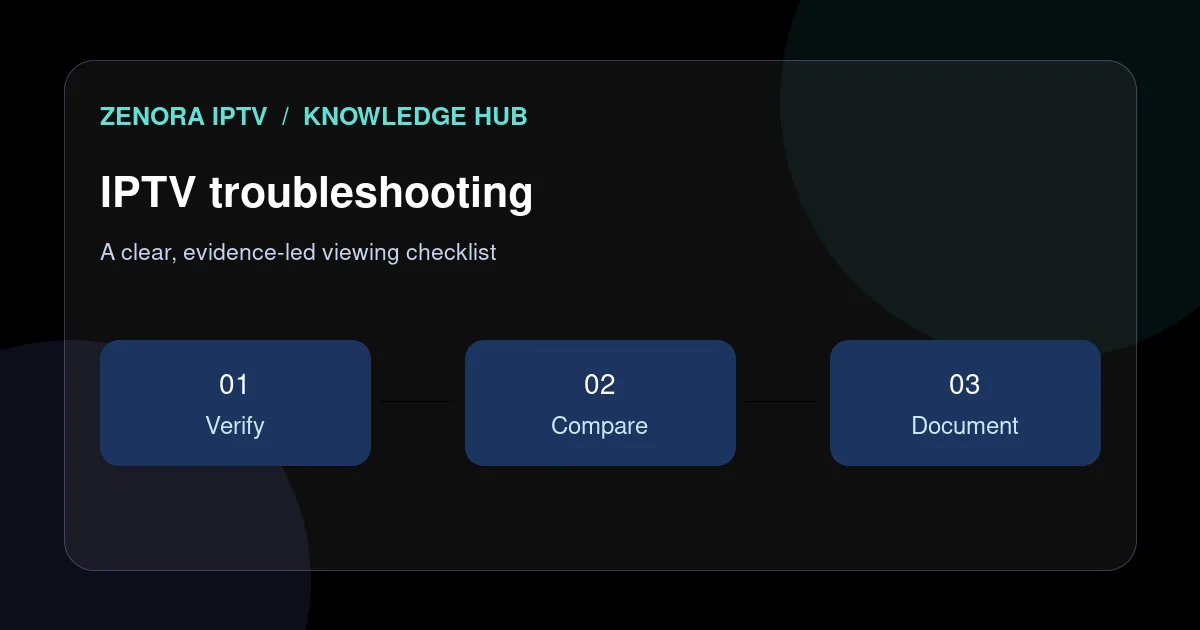
IPTV troubleshooting: use the four-check flow

1. Scope: Does the issue affect one channel, all content, or one device? 2. Compare: Does another approved device or trusted network show the same result? 3. Observe: Record the exact error, time, player version, and connection type. 4. Escalate: Share that evidence with the authorized service or player developer.
The aim is a reliable next step, not a dramatic reset. A short record of what worked alongside what failed is often the fastest route to a correct answer, especially when another person needs to reproduce the test later.
A single failed stream does not by itself identify the cause. Conversely, if every app on one device is slow, start with the device and home network rather than repeatedly re-importing credentials.
Start by putting the symptom in one of six practical buckets: the player will not install or launch; the account is rejected; a playlist or portal will not load; guide information is absent; a selected item will not start or has missing video or audio; or playback starts but becomes unstable. Then narrow the scope. Does it affect one item or every item? One player or every trusted application? One screen or every supported device? One network or a second controlled connection? The answers do not prove a cause, but they stop a viewer from applying a network fix to an authentication message or reinstalling an app because a schedule listing is missing. Keep the first observation intact long enough to record the exact wording, time, device model, operating-system version, player version, and connection type.
Work from observations that are easy to reverse. Restarting a player, noting free storage, or trying a documented refresh is usually less disruptive than deleting data or factory-resetting a device. Do not change credentials, player settings, network services, and cables all at once. If the symptom vanishes after several changes, you have restored playback but lost the clue that could prevent a repeat. The four-check flow creates a compact record that is useful even when the issue disappears: what failed, where it failed, when it failed, and what comparison did or did not reproduce it. That record also prevents a household member from repeating an unsafe suggestion simply because it was offered as a universal “fix.”
Start at the IPTV troubleshooting hub · Read the buffering diagnosis guide
Buffering or freezing

Pause other heavy downloads, move closer to the router or test Ethernet where supported, and restart the player and router one time each. Check whether the issue changes on a different legal stream or a different network.
Adaptive streaming can select variants based on available bandwidth, but it cannot compensate for every source, device, or Wi-Fi limitation. Avoid claims that one fixed speed number guarantees a particular quality level.
For a controlled buffering comparison, leave the player and authorized item unchanged and test the same situation once on the normal Wi-Fi connection and, where practical, once near the router or through a supported wired connection. Pause other large household transfers for one test, not as a permanent explanation. Check whether another trusted video application on the same screen also pauses. If multiple applications fail together, the local connection, router load, signal placement, or device health deserves attention. If one player alone pauses while a trusted app is stable, collect the player version, its error message, and the item affected before changing router settings. If only one authorized title is affected across devices, the evidence belongs with the authorized service or source path. A speed-test result can be one observation, but it does not measure every route or prove a media format will decode smoothly.
Look for timing patterns without treating them as proof. A pause only after a television wakes from sleep may be a player, app-state, or network-reconnect clue. A pause that begins when other household traffic rises is worth a controlled local-network comparison. A pause at the same point in a single on-demand item can instead be useful source evidence. Record whether the player recovers by itself, whether the picture quality changes first, and whether audio continues. Those details distinguish a rebuffer from a frozen interface or a decoding failure. They also make a later support conversation much more productive than the blanket statement that the connection is “bad.”
Login, playlist, or guide failures
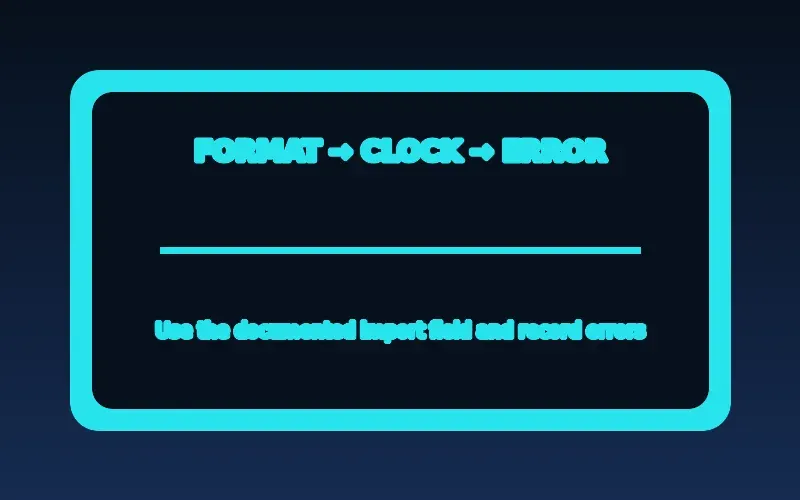
Re-enter credentials only from the provider’s current instructions. Confirm the device date and time, then capture the error before clearing the app’s data. Clearing data can remove local configuration and is best used only after you have safe copies of authorized details.
For guide problems, allow the player’s documented refresh time and confirm whether the service actually provides compatible guide data. A player cannot create schedule metadata that is not supplied.
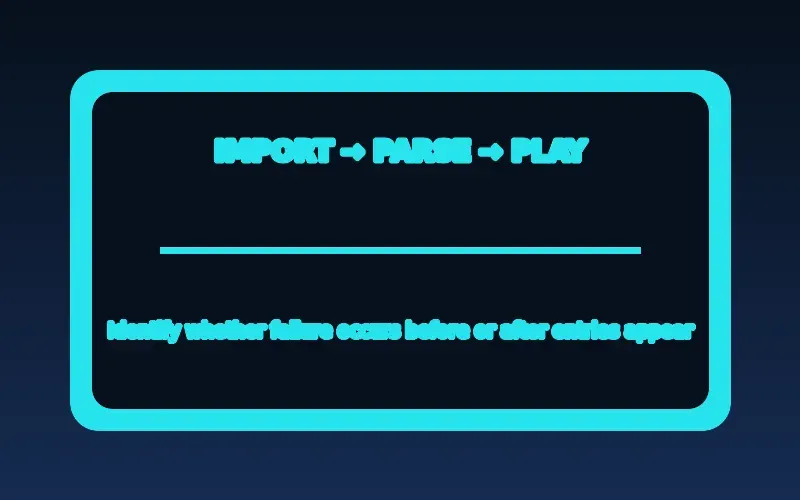
Treat account, playlist, and guide data as separate inputs. A rejected username or password should be checked once against the authorized service’s current instructions, including the exact player-supported sign-in method; it is not a reason to publish credentials in a forum or use a third-party checker. A tokenized M3U or M3U8 address can grant access, so preserve it privately and verify that the full address was entered only in the player that the service documents. If a playlist imports but entries fail, test one second authorized entry before assuming the entire list is malformed. If video works but the EPG is blank or offset, inspect the guide refresh behavior, channel mapping, and device time zone. An EPG issue is metadata troubleshooting, not evidence that the player cannot decode video.
The entry path matters. Some authorized services issue a playlist address, others use a portal address or a provider-specific sign-in route; do not substitute a similar-looking field because it appeared in a generic guide. Copy carefully rather than relying on an auto-filled field that might contain an old value, and check obvious issues such as accidental spaces only in the private app where the service directs you. An account that signs in but shows no current entitlement is a different question from an app that cannot reach the sign-in endpoint. Preserve the exact public-facing error and ask the authorized operator which input form and player versions it supports.
When to contact support

Escalate with the device model, OS version, player version, network type, approximate time, and a redacted error message. Never include passwords, full playlist URLs, payment data, or account tokens in a public post.
For a black screen or audio-only result, first identify whether the player controls still respond and whether a second authorized item shows the same behavior. Compare the television, receiver, or headphones with a known-good application before changing output settings. A device can display one format while failing a different codec profile, audio track, subtitle type, protection method, or resolution, so write down the affected item and the exact symptom. If the player crashes, will not launch, or cannot install, check free storage, system updates, the official listing, and the publisher’s supported-device guidance. Clearing cache can help stale local state, but it cannot restore a removed listing, renew an account, or add a decoder the hardware lacks. Use the smallest reversible step first and preserve the evidence needed by the app developer or authorized service.
Choose the support destination according to the evidence. A player publisher can usually answer whether a version is supported on a device and whether a documented setting changes local behavior. A device maker can address system updates, output configuration, and hardware support. The authorized content service is better placed to investigate an account, an entitlement, or one affected program. State the comparison that led you there: for example, that two authorized items worked but one did not, or that the same account behaved differently on two supported screens. This avoids sending every detail to every party and reduces the temptation to share private information in a public help channel.
Map the symptom to the correct layer
A login rejection, empty playlist, missing EPG, buffering spinner, black screen, and audio-only playback are different failure categories. Begin by identifying which one is happening and whether it affects one title, one player, one device, or the entire household. Avoid describing all failures as an internet problem.
An authentication message points toward account or entry-method checks. A player crash suggests app or device investigation. A guide-only issue suggests schedule data or mapping. A stream that pauses on several apps may justify a network comparison.
A useful layer map has four parts: service data and entitlement, the network path, the player application, and the output device. A symptom can cross layers, but start where the symptom is visible. If a list appears but one entry gives a clear access message, preserve that message before changing the router. If the same player fails before its sign-in screen appears, record storage and version information before asking an operator to reset an account. If sound plays while the video is black, compare output behavior on a known-good application and note the receiver or television in the chain. The purpose is not to self-diagnose every technical cause; it is to choose the next safe comparison.
Do not use a broad device label as a diagnosis. Two televisions sold under the same product family can have different software versions, available storage, app-store access, and media support. A browser can show a login page while a native player handles playback differently. Similarly, a player that loads a playlist is not necessarily able to render every audio or video variation referenced by it. Record the exact model and software version from the device settings, then consult the relevant official support page or the player publisher’s listing. This evidence is more useful than claims that a category of device is universally compatible or incompatible.
The one-variable diagnostic method

Record the time and time zone, device model, player version, connection type, and exact symptom. Test another known-good authorized stream on the same device. If practical, repeat the affected stream on another supported device or trusted network. Change one factor at a time and write down the outcome.
This method is more reliable than simultaneously changing DNS, installing a VPN, resetting the router, and reinstalling the player. Multiple changes destroy the comparison that would otherwise identify the likely cause.
Set a simple baseline before comparing. Use the same title or channel, the same player, the same approximate time, and the same device controls whenever possible. Then change one factor: connection type, device, app version, or output path. Write down both a positive and negative result. A successful test on a second device does not automatically prove that the first device is defective, but it makes an account-wide failure less likely. Likewise, a failed test on two networks does not identify an upstream cause by itself. It is a reason to preserve the result and consult the party responsible for that part of the setup. Controlled tests trade speed for clarity, which is usually a good bargain before making disruptive changes.
A second comparison should be purposeful, not a scavenger hunt for random settings. If the question is whether Wi-Fi is contributing, use the same device close to the router or a supported wired link. If the question is whether the app is holding stale state, use its documented restart or refresh path before deleting it. If the question is whether an account is active, consult the authorized operator through its official support route rather than testing credentials on an unknown website. A comparison is valuable when it rules out one plausible explanation while keeping private account details private. Stop once the result identifies the responsible layer well enough for a safe escalation.
When cache clearing helps and when it does not
Clearing an app cache may help with stale local files or a corrupted temporary state. It does not repair an expired entitlement, an unsupported codec, or an unavailable source. Clearing app data is more disruptive because it can remove login and playlist configuration.
Before resetting, confirm that you can recover your authorized account details safely. Prefer the player’s documented refresh or restart option first, then escalate if the symptom persists.
Cache and data are different actions on most platforms. Cache is temporary material the app may recreate; data can include preferences, sign-in state, imported lists, or downloaded guide information. The labels and effects vary by operating system, so follow the device maker’s and player publisher’s documentation rather than assuming a menu behaves the same on every screen. Before clearing either, record the player version and current error, make sure any authorized re-entry details are available privately, and use a normal restart first. If a cache clear changes nothing, do not repeat it as a substitute for a comparison. That outcome is useful evidence that the symptom is not just stale local files.
Use storage cleanup for its own reason: reclaiming space when the device reports it is low. Removing an unused, legitimate app may be safer and clearer than deleting the configuration of the app being tested. After any cleanup, reopen the player and observe whether the original symptom is unchanged, improved, or replaced by a different message. Record that result before making another change. A clean reinstall can be appropriate only when the publisher documents it as a support step and the necessary authorized account information is safely available.
A useful support ticket template

Provide the affected channel or title, approximate start time, device and OS, player version, error text, network type, and the results of two controlled comparisons. Explain what changed and what stayed the same. Redact passwords, tokens, payment details, and personal information.
If the issue affects multiple devices and networks but one specific title, ask the authorized service to investigate that source. If it affects only one device, contact the player developer or device support with the relevant evidence.
Keep the ticket concise and chronological. Name the successful baseline first, then the failing item, then the one-variable comparisons. For example: the player worked on a named device and home network at a recorded time; a particular authorized title paused after a specified interval; the same title repeated on a second supported device; another title stayed stable. Attach screenshots only after hiding names, tokens, QR codes, and billing details. Avoid sending a whole playlist when a provider can identify the account from a support-safe reference. A good report lets the recipient reproduce or route the issue; it does not ask them to infer a cause from a generic complaint.
Finish with a clear request: confirm whether the account is active, whether an item is currently available, whether the player version is supported, or whether the observed error has a known workaround. That question makes it easier for support to give a checkable answer. Keep copies of legitimate purchase and support records, but do not paste them into a public thread. If the service cannot explain a billing, rights, or cancellation question through a clear official channel, treat that as a separate consumer decision rather than a player troubleshooting task. Technical recovery and service evaluation are related, but they are not the same job.
Choose the next diagnostic test from the symptom
| Symptom | First controlled check | Avoid |
|---|---|---|
| One title fails | Compare a second authorized title on the same device and network. | Resetting every device before recording the exact error. |
| All playback fails on one network | Test a known-good app and then a different trusted connection if practical. | Assuming a speed test alone proves the media path is healthy. |
| One device is affected | Check updates, storage, heat, and player version on that device. | Deleting account details before preserving the symptom. |
| Login or guide data fails | Confirm account status and the documented format with the authorized service. | Pasting tokens into public validators or support forums. |
After completing these checks, use the IPTV troubleshooting entry point on the Zenora IPTV homepage to compare device guidance, plan information, and support resources.
Frequently asked questions
Why does playback work on Wi-Fi but not mobile data?
Mobile-network policies, signal conditions, data controls, account restrictions, or the app may differ. Compare with a known-good stream and ask the authorized provider about its supported use.
Will clearing an app cache fix buffering?
It may help a corrupted local state, but it is not a diagnosis for upstream, account, or Wi-Fi problems.
How do I tell whether the problem is my device or the service?
Keep the player and title fixed, then compare one supported device or trusted network at a time. A result that follows one device points differently from a result that follows one authorized title across devices.
What should I include in an IPTV support request?
Include the approximate time, affected item, device and OS, player version, connection type, redacted error, and controlled tests you already made. Never include a password, token, or full private playlist URL.
Sources and further reading
For a clear next step, visit Zenora IPTV to compare the relevant device guidance, plan information, and support resources before proceeding.