This guide explains IPTV device compatibility with practical, rights-aware checks you can use before changing a player, device, account, or network setting.
For the closest related workflow, continue with Fire TV IPTV Setup Checklist; it addresses the next decision without replacing the checks on this page.
IPTV device compatibility: build the compatibility chain
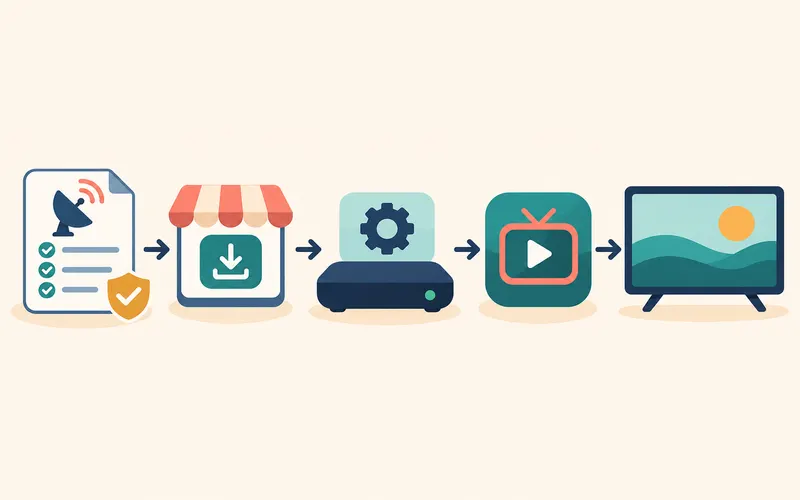
Begin with the service’s documented requirements and its authorized setup method. Then verify whether the intended player is available from that device’s official store or official developer. Finally, check the device’s operating-system version, available storage, and network connection.
Zenora’s public setup area currently provides general pages for Smart TV, Android, Fire TV, Apple TV, iOS, Windows, macOS, and MAG devices. Those pages should be used as high-level orientation; they do not independently verify every third-party player or service entitlement.
Operating-system support is the broadest layer: it means the device runs a platform for which an app publisher may choose to build or distribute software. It does not establish that the app appears in that device’s store, in the user’s region, or on an older OS release. App availability is the next check. An official listing can confirm that a particular version is offered for a stated device family, but it cannot by itself prove an account is entitled to use a service or that every input method is implemented. Confirm the publisher, minimum version, and documented sign-in or import method before installing.
Media playback compatibility is narrower still. After a player opens, it must be able to request the authorized source, handle any documented authentication, and decode the delivered audio and video on that model’s hardware and software. A device may therefore install an app and display a catalogue yet fail on a specific stream because the codec, profile, audio track, subtitle format, protection method, or network path is unsupported. Conversely, a compatible decoder cannot make an unavailable app or an unsupported provider workflow work. Treat each result as evidence about one layer, then test one documented authorized item and record whether failure occurs during sign-in, catalogue loading, or playback.
When troubleshooting, name the layer before changing settings. An app that is absent from the official store points first to distribution or device support; a rejected sign-in points to the documented account method or account status; a catalog that loads but a selected item fails moves the investigation toward playback format, delivery, or entitlement; and failures across several trusted apps make the local connection worth checking. These are working categories, not automatic diagnoses. Preserve the exact non-sensitive message, time, device model, player version, and one controlled comparison before reinstalling or resetting anything.
Choose the screen that fits your habits

A dedicated TV device can be easier to navigate at distance, while a phone or tablet is useful for personal viewing. Desktop playback can help with troubleshooting but does not prove that the same stream will work on a TV device.
Fire TV runs Fire OS and supports Android-compatible app development, but compatibility can still vary by app, model, region, and operating-system release. Apple documents HLS playback across Apple platforms; a particular service still needs to support the device and playback path.
For Android TV or Google TV, start with the exact product name and the operating-system version reported by the device, then check the player publisher’s official Google Play listing from that device or its documented support page. Google’s TV documentation explains that TV apps share Android foundations, but a publisher still has to make and distribute a TV-appropriate app. A phone listing, a web search result, or an Android installation package is therefore not proof that the player is offered for the television interface. Confirm that the listing is from the intended publisher, opens on the target device, and describes a supported sign-in or import method before relying on it.
On Android TV or Google TV, open Settings and record the product name, model identifier, and system version shown in the device-information or About area; the exact menu label varies by manufacturer. Then open Google Play on that same television device and search for the player by name. Treat the player as officially available only when the listing is presented to that device by the verified publisher, rather than relying on a phone listing or a generic web result. Compare the publisher name and the player’s own support documentation with the model and version you recorded, especially if the store says the app is unavailable or incompatible.
A successful installation confirms only that the store supplied the app to that device. It does not demonstrate that the player, its playback stack, and the hardware can handle every authorized item. The result can still differ with the video codec and profile, resolution, frame rate, audio track, subtitles, digital-rights requirements, or delivery method. Make one narrow playback test using a documented authorized item, and note whether it fails before playback, with video, with audio, or when subtitles are enabled. That record is more useful than assuming one working title proves support for every media format.
Fire TV requires the same model-specific check. Amazon publishes separate Fire TV device specifications and documentation for multiple Fire OS generations, and the family includes sticks, streaming players, built-in televisions, cubes, and other form factors. Record the model and Fire OS version shown by the device before comparing an app’s official Appstore availability or its publisher’s requirements. An app that installs on one Fire TV is not automatically supported on every earlier or later model, in every region, or with every remote and display setup. Treat a successful install as a first step only; playback still depends on the service’s documented method and on the device handling the delivered media.
For Fire TV, Amazon says the Software Version details are under Settings > Device > Fire TV; record those details with the model name before opening the Amazon Appstore. Amazon’s published tables map devices to different Fire OS and underlying Android levels, while its device specifications list hardware and media capabilities by product. Generation therefore matters: two products called Fire TV can expose different software baselines, receive updates on different schedules, and support different playback features. Check the exact Appstore listing and the publisher’s stated requirements for the recorded model instead of treating another household’s Fire TV result as a guarantee.
On Windows or macOS, distinguish a native desktop player from browser playback before entering account details. A native player uses its own supported-input and decoding path; a browser-based service depends on the browser, its media stack, and the site’s implementation. First confirm that the service documents the desktop app or browsers it supports, then compare the player version, operating-system release, and connection method with your computer. If browser playback is offered, test it in a supported, up-to-date browser without assuming that a playlist which opens in a desktop player will be accepted by the website.
Browser media support is not a single yes-or-no capability. A browser must support the relevant container, audio and video codecs, and—in many adaptive playback cases—the web media features used by the site. Mozilla’s web-media guidance notes that browsers can support different containers and codec selections, while Microsoft publishes the codecs included with Windows and notes that installed codecs can vary. Treat the service’s browser requirements and the player publisher’s format list as the evidence for your setup. A playlist can therefore work in one player yet fail in another when their input handling, authentication, adaptive-streaming support, or decoder paths differ.
Before you install anything
Use official app stores whenever possible. Verify the app’s publisher, permissions, update history, and support documentation. Do not sideload an APK merely because a forum post says it solves a playback issue.
If you are buying hardware specifically for a service, get written confirmation for the exact model first. A marketing label such as “smart TV” is not a compatibility specification.
After installation, test one authorized item through the player’s documented workflow rather than assuming the app icon confirms full compatibility. The app may launch and show a catalog while a particular video or audio format, subtitle type, authentication step, or stream delivery method remains unsupported on that hardware. Note the point of failure: an unavailable app, a rejected sign-in, a catalog that will not load, and a selected item that will not play are different problems. This narrow test gives the provider or app publisher evidence they can use, and avoids spending money on a replacement device before identifying which compatibility layer actually failed.
Use the same sequence before a purchase: record the exact model and operating-system release, confirm the official player listing in the intended region, check the authorized service’s documented sign-in or import method, and identify the return and support routes. If a device seller, app publisher, or service cannot document the relevant part of that chain, treat compatibility as unconfirmed rather than filling the gap with a forum report. Compare candidates with the same written checklist—store availability, update path, remote use, connection options, and the service’s stated requirements—rather than trying to infer support from a resolution badge or a processor claim.
A compatibility matrix you can build in five minutes
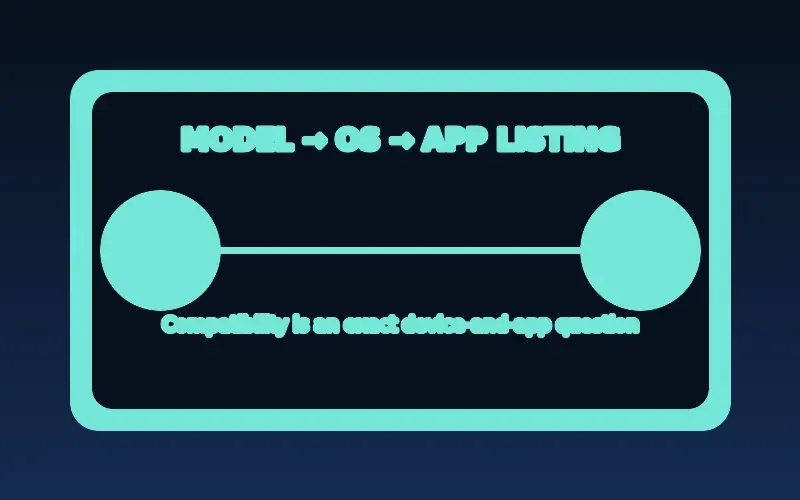
Write down the exact hardware model, operating-system version, app-store region, player name, supported login format, and network connection. A checkmark beside a broad platform such as Smart TV is not enough. For example, Samsung Tizen, LG webOS, Android TV, Google TV, and Apple tvOS have distinct application ecosystems.
Check the official store listing on the device itself. If an app is missing, the cause may be regional distribution, minimum software version, model support, or a publisher decision. Confirm with the developer before spending money on a replacement device.
Samsung Smart TV is not Android TV: Samsung documents Tizen applications for its 2016-and-later TV models, with model groups and platform versions that vary by product year. Before buying a television for a particular player, note the full model and sales region, then search the Apps area on that exact set and compare the result with the player publisher’s official Samsung support information. Samsung’s developer documentation also makes clear that app release countries are selected separately, so an app shown for one region or model group is not evidence that it will be offered on another. Verify the store listing before purchase, rather than treating “Smart TV” as a platform guarantee.
LG televisions use webOS and the LG Content Store, so availability can differ by TV model, webOS version, and service country. LG provides an official app finder where you can enter the country and model name, then check the app and the webOS versions it supports; use that result together with the listing on the television itself. If the player is absent, confirm the model, country setting, and publisher support before changing hardware or account details. Android APK instructions do not directly apply to a webOS TV: they describe Android packages, whereas LG directs webOS TV app installation through its own Apps or LG Content Store path.
Apple TV compatibility starts with the App Store listing for the specific Apple TV and the player publisher’s requirements. Apple states that Apple TV 4K and Apple TV HD can download App Store apps, while Apple TV (3rd generation) cannot download new apps; identify the hardware before assuming a tvOS player can be installed. Check the player’s minimum tvOS requirement and compare it with the version reported by the device, because the App Store uses an app’s minimum OS version to indicate the releases on which it can run. Even when the player installs, playlist and streaming-format support remains a player-level question: confirm its documented import method and supported playback formats with the publisher.
Codec support, remote control, and storage
Video decoding can depend on the device chipset, operating system, and the stream’s codec profile. A device that plays one HD video may struggle with another stream at a different codec, frame rate, or bitrate. On televisions, remote navigation is equally important: a touch-only phone app is not a usable ten-foot interface.
Check free storage and update availability. Limited storage can complicate app updates, while a poorly maintained device can exhibit crashes unrelated to the subscription. Do not assume that adding a faster network connection fixes a decoding limitation.
A 4K display label describes the screen’s output capability, not a blanket promise that the device can decode every 4K stream. The stream may use a codec, profile, frame rate, HDR variant, audio format, or protection method outside that model’s documented support. Use the manufacturer’s specification page for the exact model—not a similarly named later device—to compare supported video and audio formats with the player or authorized service documentation. Repeated audio-only playback, black video, dropped frames, overheating, or a player that becomes unresponsive during the same item are practical signs to record; they justify checking the decoding path before replacing the network or account.
Choosing between built-in TV apps and external devices
Built-in apps avoid an extra box and remote but may receive different updates across television model years. External streaming devices can make software replacement easier, but require a suitable HDMI input, power source, and sometimes an Ethernet adapter. Neither category is universally better.
Consider who uses the screen, how long the device will be supported, accessibility needs, remote ergonomics, and whether official app availability has been confirmed. Buying a device only because a forum calls it compatible is risky.
A built-in TV app can be the simplest option when its official listing, update path, and remote experience are already confirmed. An external device can be easier to replace or update, but it adds an HDMI input, power arrangement, and another interface to evaluate. Neither option is automatically more compatible. Put the exact candidates side by side and compare their official player availability, current software version, expected update support, documented media features, connection options, and return terms. This keeps a purchase decision tied to evidence that applies to the household rather than a broad claim that one category is always better.
How to test compatibility before subscribing
Install the documented player from a verified source if it is freely available, then confirm it launches, navigates correctly, and supports the stated connection method. Use a known-good authorized sample or documented trial only under the service’s actual terms. A successful app installation does not prove entitlement or content availability.
If a trial is offered, verify its price, duration, limitations, and refund terms. Record the exact model and player version so support can reproduce a problem without guessing.
Test the connection before replacing a device. Where practical, try the same authorized item first over the normal Wi-Fi connection, then over Ethernet or a known-stable alternative connection, changing only one variable at a time. Ethernet can remove the local wireless link from the test, but it does not by itself prove the internet path or source is healthy. If several devices fail at the same time on the same network, investigate the connection or service path; if one device alone fails while another plays the same authorized item, collect its model, OS, player version, and error details before concluding that new hardware is needed.
Contact the right support party with evidence that matches the failed layer. Ask the player publisher about its official listing, supported operating systems, remote behavior, and documented media or import formats. Ask the authorized service privately about account status, availability, and its documented connection method. Include the device model, OS, player version, time of the issue, network type, exact non-sensitive error, and the result of one controlled test. Do not include passwords, payment data, activation codes, or tokenized playlist addresses. A concise record lets support reproduce a problem without exposing access or forcing you to repeat every setup step.
Compatibility checks before you configure a player
| Check | Question to answer | Why it matters |
|---|---|---|
| Device model | Which exact hardware and operating-system version do you own? | App listings and media capability can vary within one product family. |
| Player availability | Is the official player listing available for this device and region? | A similar phone or TV app may not be built for the same interface. |
| Service format | Which documented sign-in or playlist format is supported? | A compatible device does not make every connection method interchangeable. |
| Baseline playback | Can the device play a known-good authorized stream on this network? | It separates general device or network issues from a new configuration. |
After completing these checks, use the IPTV device compatibility entry point on the Zenora IPTV homepage to compare device guidance, plan information, and support resources.
Frequently asked questions
Can one subscription be used on multiple devices?
That depends on the service’s terms and the number of simultaneous connections purchased; installed devices and simultaneous streams are not always the same thing.
Does Fire TV compatibility mean Android TV compatibility?
No. They share Android-related roots, but store availability, services, remote behavior, and app support can differ.
Why can a player open but a selected item fail?
Opening an app confirms only that it launched. The selected item can still fail because of the account method, media format, playback protection, delivery path, or network conditions. Record the exact point of failure before changing several settings.
What should I send to compatibility support?
Send the device model, operating-system and player versions, app-store region, network type, time of the issue, exact non-sensitive error, and one controlled test result. Never send a password, payment data, activation code, or tokenized playlist address.
Can I rely on a phone app listing for my Android TV or Google TV?
No. Check the official Google Play listing on the television device itself and confirm that the publisher documents a TV-appropriate, remote-navigable experience. A listing that installs does not by itself prove service entitlement or support for every media format.
Sources and further reading
- Amazon: Get started with Fire TV
- Amazon: Fire OS overview and device versions
- Amazon: Fire TV device specifications
- Google: Build apps for Android TV
- Samsung: Smart TV model groups and platforms
- Samsung: Smart TV specifications and feature support
- LG: Find supported apps in the LG Content Store
- Apple: Download apps on Apple TV
- Apple: MinimumOSVersion
- Microsoft: Supported codecs for Windows apps
- MDN: Audio and video delivery and browser compatibility
- Apple: HTTP Live Streaming
For a clear next step, visit Zenora IPTV to compare the relevant device guidance, plan information, and support resources before proceeding.