This guide explains IPTV player vs provider with practical, rights-aware checks you can use before changing a player, device, account, or network setting.
For the closest related workflow, continue with What Is IPTV? A Clear Beginner’s Guide; it addresses the next decision without replacing the checks on this page.
IPTV player vs provider: separate the roles before you troubleshoot
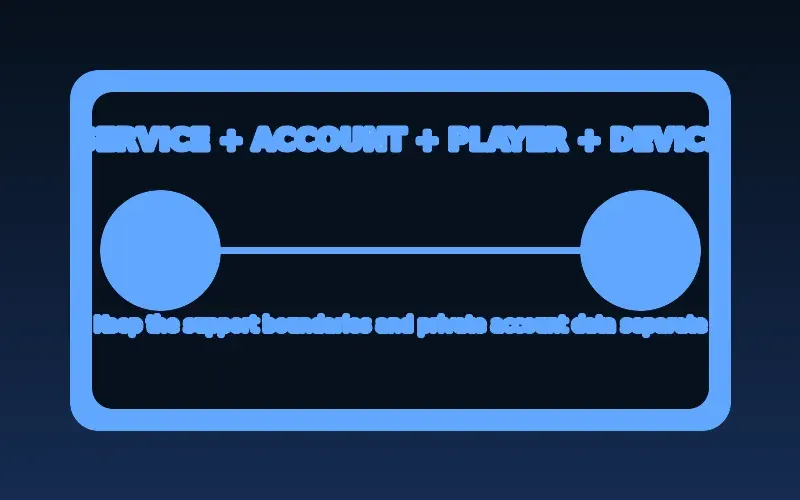
A player provides the viewing interface: it can organize entries, request media, and expose device controls. A provider or service controls the account, entitlement, source media, and its terms. The device and network are separate links in that chain.
That distinction matters when something fails. Installing a different player cannot by itself repair a provider-side entitlement, and a working player does not establish that a source is authorized.
An IPTV player is an application that interprets a supported input, builds a usable catalog, requests media, and hands audio and video to the device’s playback stack. Depending on the app, it may also display channel groups, favorites, recent items, search, multiple audio tracks, subtitles, parental controls, catch-up references, and program-guide data. None of those interface features creates programming. A player may ship completely empty until a user adds a permitted service or test source. If an app advertises channels as part of its purchase, examine whether the publisher is also acting as the content service and whether it explains authorization, territory, billing, and support. Do not assume the word “player” settles that question.
Troubleshooting becomes clearer when each role has an owner. The player publisher owns app bugs, supported import methods, interface behavior, and update guidance. The authorized service owns credentials, entitlements, playlist or portal endpoints, channel availability, and account terms. The device maker owns operating-system updates, store availability, permissions, and hardware specifications. The home network and internet connection affect delivery but do not control the account. Describe the failed stage before changing anything: installation, sign-in, import, guide matching, stream startup, decoding, navigation, or billing. That description points toward the party capable of answering it and prevents a player reinstall from being treated as a cure for every symptom.
What a compatible player needs
A player must support the stream format, authentication method, and device operating system involved. Adaptive HTTP streaming commonly uses a playlist or manifest that points to alternate media variants; the player selects and requests segments as conditions change.
Check the publisher, official store listing, supported operating-system version, privacy information, and documented import method before entering any account detail.
Configuration methods are not interchangeable. An M3U file or URL is a text playlist containing entries and media locations; an M3U8 file may also be an HLS playlist that indexes media segments or variants. Some services issue a username, password, and server address for an API-style login often marketed with the Xtream name, while others use a portal address plus a device identifier or activation flow. A player may support one, several, or none of these methods. Use only the method documented by the authorized service and player. Do not convert credentials through an unknown website, paste a tokenized URL into a public checker, or assume that fields with similar labels accept the same data.
Compatibility also depends on the exact device and operating system. Confirm that the app is officially offered for that model, region, and software version; phone availability does not prove television support. A TV interface must work with limited directional and select controls rather than a touchscreen. Android’s television guidance specifically emphasizes remote-friendly navigation, illustrating why a mobile APK can install yet remain unusable from a couch. Check storage, update support, screen orientation, remote focus, external keyboard expectations, and whether the app can access the device’s documented media decoders. An app store installation confirms distribution, not successful playback of every codec, container, audio track, subtitle format, or protection method.
Choose with a small, useful checklist
Start with the service’s documented requirements, then confirm the exact device model and player source. Prefer an official store or the developer’s documented distribution path. Keep playlist URLs and tokens private, and record the precise error message if setup fails.
Compare players against the household’s real tasks. List the required input method, exact device, remote or touch controls, live and on-demand organization, EPG format, favorites, search, captions, alternate audio, catch-up support, parental controls, multi-screen use, external-player option, backup or sync behavior, and accessibility needs. Mark each item documented, testable, or unsupported. A long feature list is not valuable when the two essential functions are absent. Treat claims such as universal format support, zero buffering, or compatibility with every service as marketing until the publisher defines the limits. Read the release history and support material to see whether the app is actively maintained for the operating system in question.
Then evaluate cost and privacy separately. Is the app free with advertising, a one-time purchase, a recurring license, or a feature-limited trial? Does payment cover only the interface, and can the license move between household devices? What account does the player itself require, what telemetry or identifiers does its privacy notice describe, and which permissions are requested? A paid app can still collect data, while a free app can be responsibly designed; price alone answers neither question. Prefer a player whose business model, publisher identity, update channel, and support route are understandable. Save the purchase terms and app version used in the test, especially when a premium feature is required for playlists, multiple profiles, or guide refresh.
Score the finalists with weighted requirements. Give essential items—official availability, the required input method, stable remote navigation, supported captions, and clear privacy terms—more weight than cosmetic themes or an oversized feature count. Reject a player when a non-negotiable requirement is unsupported, even if it is popular on another platform. Test the remaining one or two apps with the same permitted source, device, network, and short task list. Record import time, navigation clarity, stream startup, guide behavior, resume behavior, and any crash or error. This produces a repeatable choice instead of a recommendation based on screenshots or a different household’s setup. Keep the selected app’s support page and recovery information with the account record.
Consider maintainability after the first successful setup. Check whether the publisher documents update behavior, configuration backup, device transfers, license restoration, and account deletion. Confirm that a household member can reopen the app, find favorites, change audio or captions, and identify the support route without relying on the person who configured it. Avoid building the setup around an abandoned app, an unverified installation file, or a feature that works only through a fragile workaround. The best player is not universally the one with the most controls; it is the verified app that reliably supports the required source, device, privacy expectations, accessibility needs, and everyday viewing tasks with understandable support. Recheck those requirements before renewing a paid player license or replacing the viewing device, because app availability and operating-system support can materially change over time.
Player versus service versus operating system
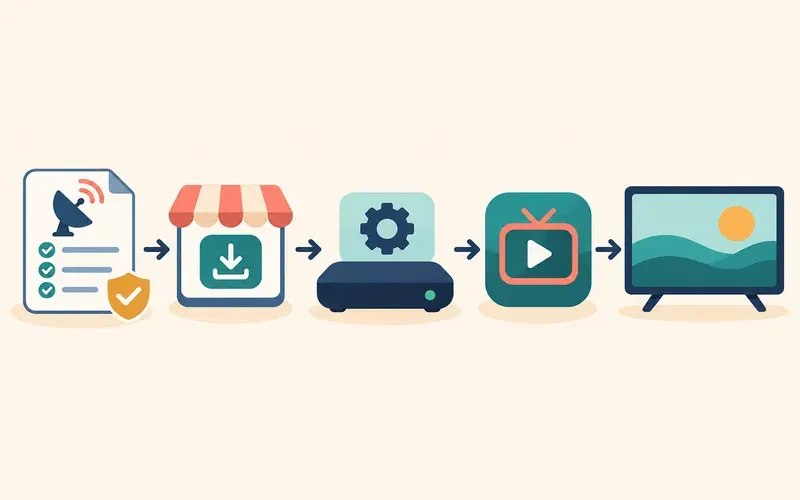
A player handles the interface and playback logic: lists, navigation, decoding integration, subtitles, and sometimes program guide display. The service supplies authorized media access and account entitlement. The operating system supplies app distribution, permissions, and device-level media capabilities.
These layers can fail independently. If an account is expired, a different player does not restore entitlement. If a player lacks a codec or import method, a valid subscription alone cannot make it compatible.
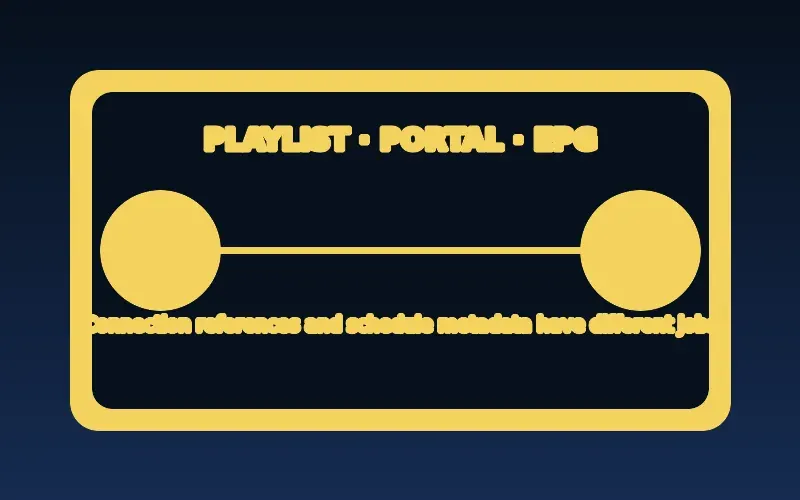
Add the playlist or portal as another distinct layer. It can reference channels, groups, logos, guide identifiers, media URLs, or API endpoints, but it does not guarantee that every reference is current or that the player understands every extension. The service may supply EPG data separately from the video list, and the player must match schedule entries to channels using compatible identifiers. A blank guide with working video therefore suggests a different investigation from a rejected account or black screen. Preserve that distinction when reporting a problem: state whether the list imported, entries appeared, guide data loaded, and a selected item started. Four precise observations are more useful than saying the player “does not work.”
The operating system mediates permissions, app lifecycle, storage, network access, and the media framework the player calls. Hardware decoders may support some codec profiles and resolutions but not others. A browser player can have a different support matrix from a native app on the same computer. An external receiver or soundbar can introduce another audio or HDMI constraint. For this reason, a successful playlist import is only an early checkpoint. The full path is service entitlement, valid input, player parsing, operating-system support, device decoding, output configuration, and stable network delivery. A change at one layer should be tested without claiming it repaired the others.
Formats and features worth checking
Before choosing a player, verify the documented input type: local M3U file, playlist URL, portal, or another supported account method. Check whether the player supports the required video formats, guide metadata, captions, audio tracks, remote navigation, and parental controls if needed.
Do not assume that an app supports every playlist simply because it advertises IPTV. Ask the authorized service which player and import method it supports on the exact device.
Separate container, codec, and delivery protocol when checking playback. A filename or URL ending does not fully describe the video and audio inside it. HLS commonly uses M3U8 playlists that direct a client to sequential media segments; Apple’s documentation also describes multivariant playlists containing alternate bitrates and CODECS information so a client can select an appropriate rendition. The player, operating system, and hardware still need to support the selected video and audio formats. Test captions, alternate audio, frame rate, HDR, and surround output only when the household needs them. A television labeled 4K does not guarantee that a particular player-device combination supports every 4K codec profile or audio format.
EPG and playlist management deserve their own comparison. Check whether the player accepts the guide format provided by the authorized service, how it maps channel identifiers, which time zone it uses, and whether refresh timing is documented. Useful list tools can include groups, hidden categories, favorites, search, custom ordering, recently watched items, multiple profiles, and duplicate handling. Backups or cloud synchronization can be convenient but may expose playlist URLs or viewing history to another account, so read the privacy terms before enabling them. A player cannot invent missing schedule data or repair an incorrect service-side channel identifier; it can only import, match, cache, and display what its supported workflow supplies.
Portal-based players can present categories, on-demand libraries, catch-up references, and EPG data through an API rather than a standalone file, but the player still needs the exact connection method and service-side support. Do not substitute a portal identifier, MAC-style device reference, playlist URL, and API username into one another. Confirm whether device activation can be revoked, how many devices may be linked, and what happens when hardware is replaced. If the player lets users export configurations, determine whether the export contains secrets before copying it to cloud storage or another device. A convenient backup that includes an access token deserves the same protection as the original credentials.
Privacy and the difference between free and paid apps
A free player may have advertisements or a different privacy model; a paid player may charge for interface features without including programming. Read the publisher’s terms and data practices. Payment for a player is not payment for channel rights or a service subscription.
Prefer verified distribution channels and keep the app updated. If a player requests contacts, SMS access, or unrelated permissions, investigate before granting them.
Install from the platform’s official store or the publisher’s authenticated distribution channel, then confirm that the publisher name and support domain match. Avoid packages reposted in forums, shortened download links, and instructions that require device protections to remain disabled. Review permissions through the operating system’s settings. Google documents that Android users can inspect permissions by app or by permission type and can change them later. A player normally needs network access and may need limited file access when importing a local playlist, but requests for contacts, call logs, SMS, microphone, accessibility control, or broad device administration require a clear feature-specific explanation. Deny unrelated access or choose another player rather than assuming every request is necessary.
Treat configuration details as credentials. A tokenized playlist URL, portal code, API-style username and password, or device activation code can grant access and may expose account identifiers. Store them privately, avoid screenshots that include the full value, and never send them to a public compatibility checker. When contacting support, provide the device model, OS, player version, input type, time, and redacted error. Ask the authorized service to rotate a disclosed token or password. If the player offers cloud backup, cross-device synchronization, analytics, or crash reporting, review what is transferred and whether it can be disabled. Privacy-conscious setup means supplying only what the documented function needs.
How to test a player methodically
Install one verified player, confirm the interface works with your remote, and use a permitted test source in the exact documented format. Check whether the catalog imports, whether a stream starts, and whether guide information appears when supplied.
If something fails, identify the stage rather than repeatedly reinstalling. Record the player version, device, error text, and whether another authorized source works. That evidence distinguishes app compatibility from service problems.
Use a staged acceptance test. First verify installation, launch, remote or touch navigation, and the app’s settings. Second add one permitted source through the documented method and confirm that expected groups or entries appear. Third test one known-good item, then another with different audio, subtitle, or quality characteristics if those features matter. Fourth verify EPG mapping and time zone when guide data is supplied. Finally restart the app and device to confirm the configuration persists. Change one variable per comparison. Testing several players, networks, and account fields at once can make a temporary success impossible to explain and can expose credentials to unnecessary apps.
Map common symptoms to the next safe check. An install or launch failure points toward store compatibility, OS version, storage, or the publisher. A rejected login points toward the exact account method, entry accuracy, device clock, or service status. An empty list points toward input syntax, access, or parsing. Working listings with failed playback suggest entitlement, source availability, codec, output, or network checks. Video without guide data points toward EPG supply, mapping, refresh, or time zone. A black screen with audio may indicate video decoding or output compatibility, while buffering across several trusted apps justifies a controlled network comparison. Preserve the original error before clearing app data, because a reset can remove both useful evidence and private configuration.
Escalate with a concise, redacted record. Give the relevant party the exact device and OS, player version and acquisition source, configuration method, approximate time and time zone, public error text, and results from one controlled comparison. Tell the player publisher when the app cannot install, parse a documented format, navigate correctly, or use a supported device decoder. Tell the authorized service when credentials, entitlement, a playlist endpoint, guide feed, or one source appears affected across supported players. Never post a full playlist URL, portal secret, password, activation code, payment detail, or recovery code. A good handoff identifies the responsible layer while preserving account security.
What an IPTV player can and cannot do
| Player task | What to confirm | What it does not establish |
|---|---|---|
| Read a supported format | The service’s documented sign-in, portal, or playlist method. | That any arbitrary link is safe or authorized. |
| Present video and guide data | The official listing supports your exact device and region. | That an account includes a specific title or guide. |
| Maintain app settings | Publisher updates and privacy details where available. | That reinstalling resolves account or upstream issues. |
| Report an error | The full non-sensitive message, version, and device model. | The root cause without a controlled comparison. |
After completing these checks, use the IPTV player vs provider entry point on the Zenora IPTV homepage to compare device guidance, plan information, and support resources.
Frequently asked questions
Does an IPTV player include channels?
Not necessarily. A player can be only the interface; content and access come from the specific service or source.
Can a player make any stream work?
No. Format support, account authorization, device capability, and network conditions still apply.
How do I know whether a player supports my device?
Check the official store listing and publisher documentation for the exact device model, operating-system version, region, remote-control support, and required input method.
Does paying for an IPTV player include a subscription?
Not unless the publisher explicitly and legitimately offers both. An app purchase commonly covers player features, while programming access and authorization belong to a separate service.
Sources and further reading
For a clear next step, visit Zenora IPTV to compare the relevant device guidance, plan information, and support resources before proceeding.