This guide explains IPTV on Android TV and Google TV with practical, rights-aware checks you can use before changing a player, device, account, or network setting.
For the closest related workflow, continue with IPTV Device Compatibility Guide; it addresses the next decision without replacing the checks on this page.
IPTV on Android TV and Google TV: understand the platform relationship
Google describes Google TV as an experience built on Android TV. That relationship does not mean every Android app is suitable for television or available for every device; TV apps need a remote-friendly experience and can have distribution requirements.
Treat the device name as a starting point, not a compatibility guarantee. Confirm the exact model, system version, and country or region where the app is offered.
Android TV OS is the underlying television platform, while Google TV is an interface and discovery experience supplied on some televisions and streaming devices. That distinction explains why two products can run related software yet have different home screens, settings paths, storage limits, update schedules, and preinstalled apps. It also explains why instructions written for a generic Android phone are a poor substitute for television-specific guidance. A TV normally relies on a remote rather than touch input, and its store catalog is filtered for the device and television form factor.
Start by opening the device settings and recording the manufacturer, exact model or product code, Android TV OS version, security-patch information if shown, and available storage. Do not rely only on a retail name such as “4K TV box,” because manufacturers may reuse similar names across generations. The model and software version give an app publisher or support team enough detail to check a compatibility report. They also let you compare the installed version with the manufacturer’s official update instructions instead of assuming every Android TV device receives the same releases.
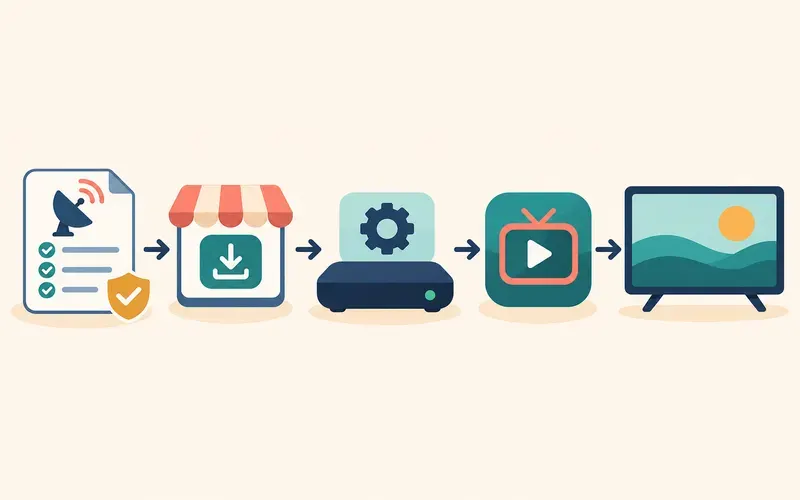
Compatibility is a chain: the authorized service must provide a supported configuration, the chosen player must accept that configuration, Google Play must offer the player to the device, and the hardware must decode the supplied media. A match at one link does not prove the others. For a broader pre-purchase check, use the device compatibility guide to document the entire chain before paying for a plan or replacing hardware.
Certification and update support deserve separate checks. An Android-based product can use familiar branding without offering the same Play catalog, security maintenance, or television certification as another device. Look for the manufacturer’s official product page and update policy, then confirm that Google Play is present and functioning on the actual unit. If a seller cannot identify the model, current OS, and support channel, postpone the purchase. Low price does not offset the risk of an abandoned device that cannot receive a required player update.
Verify the official path
Search the device’s official store or the player publisher’s official documentation. Compare the publisher name, update information, permissions, and support instructions before signing in or importing an authorized source.
Avoid treating a search result, video description, or downloaded package as proof of compatibility. If a service requires a particular player, ask it to document the supported version and setup method.
Search for the app on the television itself, while signed into the intended Google account and using the normal country or region. Google’s installation instructions say that an available app produces a store page from which it can be installed. If the listing does not appear, verify the spelling and publisher through the publisher’s official site, but do not interpret a web listing or a phone-store result as proof that the TV build is offered to this model. Availability can reflect the developer’s device targeting, store region, OS requirements, or temporary delisting.
On the listing, compare the developer name and support link with the publisher’s own site. Review the description for television support, the latest update date, privacy disclosures, and any subscription language. The IPTV player guide explains why a player application is not the same as a channel provider: installing a player should not be mistaken for buying content. Be wary of copied listings, unfamiliar developer identities, or claims that one download includes every premium service.
Review requested permissions in context. A media player may reasonably need network access, but access to contacts, precise location, microphone, or local files deserves an explanation tied to a feature you intend to use. Google Play lets users review and change permissions in device settings, yet removing a permission can disable the associated feature. Make the decision before entering a playlist address or account secret, and uninstall the app if its identity, distribution route, or data use cannot be verified.
Protect the Google account as well as the service account. Use a household profile appropriate for the device, enable the account’s available sign-in protections, and avoid reusing an IPTV password elsewhere. Do not let an unknown support operator take remote control of the television or ask for a verification code. A legitimate troubleshooting request can usually be handled with redacted model, version, error, and timing information. If credentials were exposed in a message or screenshot, change them through the provider’s verified portal rather than continuing to test the compromised details.
Make the first test useful
Update the device, confirm storage space, and test the home network before importing details. Use the TV remote to check that basic navigation is practical. If playback fails, capture the player version, error text, time, and network type before changing settings.
Use only configuration details issued by an authorized service. Players commonly accept a remote playlist URL, a provider-defined username and password workflow, or a portal-style address, but the labels and supported methods vary by app. Do not convert one format into another with an unknown website, and do not post a complete playlist URL in a forum or screenshot. Such URLs can contain account tokens. The M3U playlist guide describes how to handle authorized playlist locations without treating the file itself as proof of content rights.
For the first import, type the address exactly and preserve capitalization, punctuation, port, and protocol. A television keyboard makes transcription errors easy, so use a trusted phone remote or password manager only if the device and app officially support it. Test a small, known selection rather than changing several options immediately. Confirm that the playlist loads, one live item starts, one on-demand item starts if included, audio is present, and the program guide aligns with the expected channel. These checks separate account import from later playback or guide problems.
Keep a short test note with the model, OS version, app version, configuration type, connection type, and exact error wording. Record whether failure occurs at installation, sign-in, playlist import, item selection, or after playback begins. Change one variable at a time—for example, retest the same authorized item on Ethernet before changing the player. A controlled note is more useful to legitimate support than “it does not work,” and it prevents a temporary network fault from being misdiagnosed as device incompatibility.
Android TV and Google TV are related, not identical experiences

Google TV is a user experience built on Android TV technology, but device makers, operating-system releases, regional stores, and app publishers influence availability. A phone app that installs on Android does not automatically offer remote-friendly television navigation.
Check the model and system version in settings, then search the device’s official app store. Confirm the publisher and supported television platform rather than trusting a generic Android compatibility label.
Google’s developer guidance states that apps built for Android TV work on Google TV devices, but that statement applies to properly built television apps, not every mobile Android package. Google Play also applies TV quality and distribution requirements. This is why the most reliable consumer test is the official TV listing on the exact device. A publisher may support current certified models while excluding obsolete OS versions, unsupported processors, or markets where it does not distribute the app.
Manufacturer customization matters after installation too. Settings names, background-process policies, storage management, audio output, refresh-rate options, and update delivery can differ. An instruction that says “open Apps in Settings” may lead to a different submenu on another brand. Use the manufacturer’s manual for system-level steps and the app publisher’s documentation for player-level steps. If either source names supported models or minimum software, follow those limits rather than a generic tutorial.
Before purchase, request a trial only if its duration and cancellation terms are clear, then test the device you will actually use. A successful phone test does not validate the TV version, and a successful install does not validate every stream. Confirm remote navigation, playlist import, subtitles if needed, audio-track selection, resume behavior, and sign-out. Households using accessibility features should also test captions, focus visibility, text size, and remote reachability before making a long commitment.
Check how updates are delivered before depending on the setup. System updates normally come from the device manufacturer, while player updates come through Google Play or the publisher’s documented channel. After an update, repeat a short playback and remote test before deleting a known working configuration. If support ends for the OS version, the player may continue to open for a time, but future compatibility and security fixes are uncertain. Treat an unsupported version as a planning warning, not as proof that an immediate failure must occur.
Check remote navigation and playback formats
A TV player should support directional-pad navigation, back behavior, readable focus states, and media controls from a remote. Codec support also matters: different hardware can handle different resolutions, HDR formats, or audio tracks.
Test the player interface before entering sensitive account details. If an app expects touch input or crashes on launch, treat that as a compatibility issue, not evidence that the service credentials are wrong.
Google’s TV navigation guidance identifies the D-pad as the primary navigation method and recommends testing that every visible control can receive focus. Apply that test to search, playlist groups, the program guide, settings, subtitles, audio tracks, and the full-screen player. Focus should be visible, Back should move predictably to the previous view, and playback controls should not require taps or a pointer. A mobile app that can be forced to install may still be unusable from a sofa if these television interactions were never implemented.
Media compatibility is separate from interface compatibility. A playlist is an index of locations and metadata; it does not cause the hardware to support the video codec, audio codec, container, resolution, frame rate, dynamic-range format, or delivery protocol used by each item. Android’s official media-format table explicitly notes that support on form factors other than phones and tablets can vary. The device specification, operating-system decoder information, and player documentation are therefore better evidence than a broad “Android supported” claim.
When one item fails and another works, compare their technical properties if the authorized provider supplies them. A black picture with audio can indicate a video decoding or output issue; picture without sound can point to the audio track, decoder, or receiver path; stutter can reflect decoding load as well as the network. Test a lower-resolution authorized item and another known player version before concluding that the account is invalid. Do not promise that a 4K-labelled device will decode every 4K source, because codec profile, level, frame rate, HDR, and audio requirements still matter.
Install safely and test the network
Use the official store or the publisher’s verified documented route. Update the device, confirm storage, and test a known-good authorized streaming app on the same connection. Avoid random APK downloads offered as shortcuts to a missing app.
Enter only the format provided by the authorized service. If playback fails, compare one other title and note whether the error appears during import, sign-in, or decoding.
An APK is an installation package, not a compatibility certificate. Packages copied to download sites can be outdated, modified, falsely named, or built only for touchscreens and different processor architectures. Sideloading also bypasses the clearest device-specific signal: whether the publisher distributes a TV build through the official store. If a legitimate publisher documents an alternative installation route, verify the domain and cryptographic guidance it provides; otherwise, absence from the store should trigger a support question, not a random download.
For network testing, begin with the connection already used by a reputable streaming app. Restarting the app and device is reasonable, but avoid wiping data before recording the configuration. Compare Wi-Fi with Ethernet if the device has a supported adapter or port, or test temporarily nearer the router. Repeat the same item at roughly the same time. A clean wired test suggests investigating Wi-Fi signal, interference, or congestion; failure on both paths suggests looking next at the player, device decoding, account, or source.
Do not substitute a single speed-test number for playback evidence. A short test can miss packet loss, latency variation, roaming, crowded radio channels, or evening congestion. Observe whether all legitimate streaming apps fail, whether only this player fails, and whether only one item fails. Close unused apps, confirm free storage, and allow pending system updates to finish. These recommendations can reduce variables, but they are not bandwidth guarantees. Document the result before changing DNS, router firmware, decoder mode, or several player settings at once.
If the app offers hardware and software decoder choices, leave the documented default in place for the baseline. A decoder toggle can help diagnose a specific format, but changing it can also shift battery, heat, quality, and performance behavior. Record the item and symptom, change only that setting, and reverse it if there is no improvement. Similar caution applies to VPNs, custom DNS, frame-rate matching, and audio passthrough: each can alter the path, so none should be introduced during the first compatibility test unless the authorized service or device documentation requires it.
When a television box is not the right fit
A cheap device may lack software updates, sufficient storage, or a reliable remote interface. Consider security support, app availability, hardware decoding, Ethernet options, and household accessibility needs before buying.
An external device can improve app availability on some older TVs, but it cannot repair an unsupported service or create distribution rights. Verify the complete compatibility chain before purchasing hardware.
Evaluate a replacement by exact model and generation. Check the manufacturer’s official specifications for output resolution, codecs, HDR and audio formats, ports, wireless standards, storage, and update policy. Then check the intended player in Google Play on that device or obtain a written compatibility statement from its publisher. Marketing phrases such as “Android box,” “8K ready,” or “unlimited IPTV” do not establish certified software, current updates, licensed content, or reliable decoding.
A simpler certified streamer may be preferable when the built-in television OS is old, storage is exhausted, or required apps are no longer maintained. Conversely, changing hardware is premature when the same item fails across several current devices and networks, because the source or account may be responsible. Also consider whether an Ethernet adapter needs separate power, whether the remote controls television volume, and whether the setup supports captions and the household’s accessibility requirements.
Finish with a device-specific checklist: record model and OS; install only the verified TV player; review permissions; update the system and app; preserve free storage; confirm D-pad access to every control; import only an authorized configuration; test video, audio, guide, and captions; compare Wi-Fi with a trusted alternative when needed; and redact credentials from support evidence. If any required link remains unverified, pause the purchase or setup. A documented limitation is safer and cheaper than assuming that a familiar platform name guarantees the complete experience.
Android TV and Google TV setup checks
| Check | Question | Safe action |
|---|---|---|
| Operating-system interface | Is this Android TV/Google TV rather than a phone-oriented Android device? | Use a TV-compatible app listing and remote-friendly interface. |
| App source | Does the publisher provide an official Play Store listing for this device? | Avoid unknown packages offered as compatibility shortcuts. |
| Device updates | Are system and player updates current? | Update before treating a general platform issue as a service failure. |
| Connection format | Which fields does the authorized service document? | Enter only supplied details and keep tokens private. |
After completing these checks, use the IPTV on Android TV and Google TV entry point on the Zenora IPTV homepage to compare device guidance, plan information, and support resources.
Frequently asked questions
Is Google TV the same thing as Android TV?
Google TV is built on Android TV, but an app’s availability and behavior can still vary by device, version, region, and publisher.
Should I install an APK if an app is not in the store?
Not as a routine workaround. Prefer documented, official distribution and confirm support for the exact device.
Does installing a player prove that every channel will play?
No. Installation confirms only that the app can be installed. Each item still depends on an authorized account, a configuration the player accepts, and media formats that the app and hardware can decode.
How should I test an M3U URL on Android TV?
Use a URL issued by an authorized service, enter it only in a verified player, keep any embedded token private, and test a small known selection before changing playback settings.
Why does the player work on my phone but not my television?
The phone and TV can have different store builds, OS versions, processor support, decoders, input methods, and permissions. Verify the publisher’s television app on the exact TV model.
Sources and further reading
For a clear next step, visit Zenora IPTV to compare the relevant device guidance, plan information, and support resources before proceeding.