This guide explains Fire TV vs Android TV IPTV with practical, rights-aware checks you can use before changing a player, device, account, or network setting.
For the closest related workflow, continue with Fire TV IPTV Setup Checklist; it addresses the next decision without replacing the checks on this page.
Fire TV vs Android TV IPTV: why the names are not interchangeable
Amazon describes Fire OS as a fork of Android’s open-source project and notes that apps may need changes where they rely on Google services. Google TV is an experience built on Android TV. These relationships explain shared development roots, not identical user availability.
A player’s Android TV listing, for example, does not establish its Fire TV availability. Check the official store and the publisher’s support documentation for the exact platform.
For a household, the distinction appears at ordinary moments: where an app is obtained, how it signs in, which update channel supplies it, whether the publisher supports the remote interface, and which system services the application expects. Fire TV may run Android-related application code, but Amazon documents Fire OS as its own platform and app distribution path. Google’s Android TV guidance likewise targets television interaction rather than a guarantee of availability on every Android-derived device. Treat “Android-based” as background context, not a compatibility result.
Compare the decisions that matter
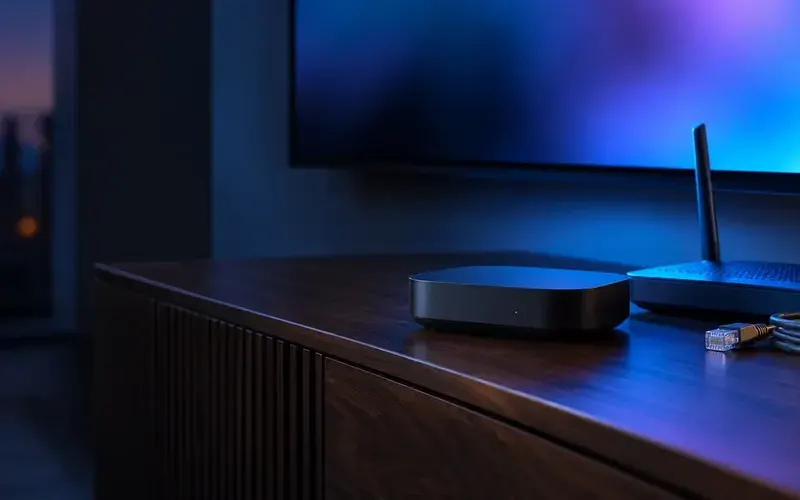
Start with the service’s supported device list, then check the exact hardware model, operating-system version, local store availability, remote-friendly operation, and update path. If you already own a device, test compatibility before purchasing another.
Avoid deciding from RAM, resolution, or a forum recommendation alone. Those specifications cannot verify account entitlement, player distribution, or source format support.
Search on the physical device before paying for a player or service. Open the official listing and check the publisher name, platform, minimum version, regional availability, privacy information, support link, purchase terms, and recent update history. A similar-looking mobile listing does not establish a remote-first television build. If the service supplies an authorized configuration, confirm that the selected player accepts its documented method—an app login, a portal, or a playlist URL—rather than assuming those methods are interchangeable.
Choose a supportable setup

Use an official app path, keep the device updated, and retain the exact model and player version for support. If a service cannot document compatibility for the device you are considering, do not treat a generic platform label as confirmation.
Installation should be recoverable and documented. Use the platform’s normal store, install only the verified publisher’s build, and read the player’s permissions and privacy notice before entering an account. Do not treat an Android package from a search result as a substitute for a missing Fire TV listing, or a Fire TV listing as proof that a Google TV device supports it. Unofficial installation routes can remove automatic update and publisher-identity assurances while adding a separate security problem.
Keep a simple support record: device model, operating-system version, player version, store region, connection type, and the input method the service documents. This makes a support conversation concrete. If the player fails after an update, compare a known-good app before resetting the device. If the service cannot name a supported device or player path, do not buy hardware on a generic recommendation; select a model and ecosystem it explicitly documents.
The platforms share roots but differ in distribution
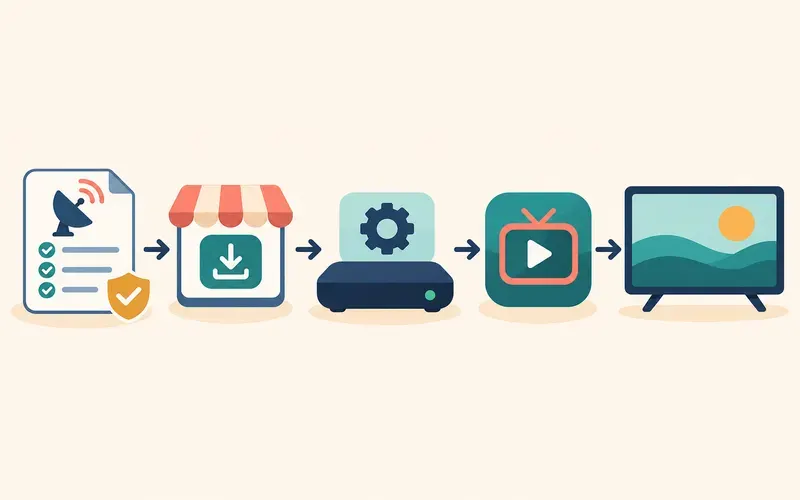
Fire TV and Android TV both have Android-related histories, but app-store ecosystems, device certification, user interfaces, operating-system releases, and publisher support can differ. Availability in one store does not guarantee availability in the other. Some newer Fire TV device families may also use different software foundations, so check the exact model.
Start with the player’s official supported-device list, not the assumption that every Android application can run on every television platform.
Store distribution is only one layer. A publisher can choose different minimum operating-system levels, subscription terms, sign-in methods, feature sets, or regional catalog rules for separate television platforms. A web page, forum screenshot, or phone installation does not override what the official device store offers today. If an application is visible but unavailable to install, check its listing on the exact device, the household’s normal country or region, and the publisher’s support page before changing account-region settings that can affect other purchases and subscriptions.
Compare the remote experience
A living-room app needs predictable directional navigation, playback controls, and readable focus states. Fire TV and Android TV devices can differ in remote layouts, voice assistants, and home-screen experiences. These details matter for children, older viewers, and shared households.
Try the app interface before entering account details when possible. A player that launches but cannot be navigated is not a practical compatible option.
Test from the normal sofa position with the actual remote: focus movement, select, back, home, play and pause, search, channel groups, guide, captions, audio tracks, and exit. Look for visible focus and predictable Back behavior. Voice features and assistant names can differ, but the everyday question is whether essential controls are usable without a touch screen or an extra keyboard. Include accessibility needs such as captions, readable focus, remote button placement, profile switching, and whether a second remote will frustrate the household.
Hardware and networking matter more than branding
Within either family, devices vary in processor, storage, Wi-Fi hardware, Ethernet options, decoding support, and update policy. A premium device on one platform may outperform an entry-level model on the other, but no platform label guarantees smooth playback. Use the device compatibility guide to compare the complete playback chain before treating a device specification as a verdict.
Compare the exact hardware model and the source’s video requirements. Test the intended connection in the room where the device will be used.
Start with the workload instead of benchmark folklore. A small library app with standard HD streams can be comfortable on modest hardware, while a household that switches quickly between large catalogs, uses subtitles and multiple audio tracks, or watches higher-resolution media may benefit from more current storage, decoding support, and wireless hardware. Verify the model’s published specifications and update policy. Do not equate a 4K badge with support for every codec profile, HDR mode, frame rate, or audio format; the app, display, receiver, and source remain part of the chain.
Network design can erase an apparent platform advantage. Test the exact room and time of day, not a speed test beside the router. Compare a reputable streaming app first, then the intended authorized source. If both pause, examine Wi-Fi placement, interference, household traffic, or a supported wired option before replacing the device. If only one player fails while another application works, retain the player version and item details. The Ethernet versus Wi-Fi guide describes a fair local-link comparison.
A purchase decision checklist

Verify official player availability, supported import format, expected software support, remote ergonomics, networking options, and return policy. Include accessibility features and whether the household already owns compatible equipment.
Do not buy a new device to solve an unverified account or source problem. Confirm the service-side requirements first, then select hardware that meets them.
Choose by scenario. A household already using Amazon accounts, a supported Fire TV app, and a familiar remote may value a simple Fire TV path. A household whose documented player is distributed for Android TV or Google TV may prefer that path. A person who needs captions, visible focus, a particular remote layout, or a maintained app ecosystem should test those needs before buying. Renters may prioritize reliable Wi-Fi and a compact device; a fixed living-room setup may prioritize a model with documented wired networking. None of these scenarios makes one platform universally better.
Privacy and account management belong on the same checklist. Use the normal platform account protections, review player privacy disclosures, limit installation to verified publishers, and keep service credentials separate from a television-store password. Avoid sharing tokenized playlist addresses, activation codes, or account screenshots. Before selling or moving a device, sign out where required and use the manufacturer’s documented reset procedure. The security and privacy guide covers credential handling and support scams in more detail.
Build a decision record rather than relying on a retailer description. List the exact model, retail region, official player listing, operating-system version, required account method, remote test result, network plan, display and audio equipment, accessibility needs, price, warranty, and return deadline. Mark each item as documented, tested, or unknown. A device is ready to buy when its required links are documented or tested, not when it has the most impressive generic specification. This also makes it easier to explain a decision to another household member and to avoid paying twice for a player or subscription that has platform-specific terms.
Consider the lifecycle after the first evening of playback. Who will install updates, remember a store password, recover a remote, manage a child profile, or contact publisher support? Is there enough storage for routine updates? Will the device remain ventilated behind the television? Does its remote permit simple volume and input control, or will the household switch between several controllers? A lower-cost stick that is supported, easy to navigate, and maintained can be more useful than a faster model whose documented player is unavailable. Conversely, a more capable box can be justified when it solves a clearly documented media, network, or accessibility requirement.
Use a conditional final decision. Choose Fire TV when the exact Fire TV model, store region, and documented player path meet the household’s needs and its remote/account workflow is familiar. Choose Android TV or Google TV when the exact supported player, device model, app availability, accessibility behavior, and update path fit better. Choose neither until a missing compatibility link is resolved. This avoids a false platform contest: a well-supported modest device can be a better outcome than a powerful device with no official player, and a current higher-capability device can be sensible when it meets an identified media or network requirement.
Compare support lifecycles in practical terms. An operating-system family does not make every member current; older models can stop receiving system updates, lose store compatibility, or remain technically functional while a publisher raises its minimum requirement. Before buying, find the manufacturer’s official model identifier, current software information, and app-store listing. Before replacing a device, check whether the existing model’s issue follows a service account, player version, or home network. A replacement is justified when the needed official app is absent, the model cannot meet a documented requirement, storage or updates are persistently limiting, or the remote/accessibility experience is genuinely unsuitable—not merely because another platform is fashionable.
Perform a realistic pre-purchase or return-window test. Keep the display and sound system unchanged, connect through the normal Wi-Fi or supported Ethernet path, install only the documented player, and test live playback, on-demand playback, subtitles, audio-track selection, guide navigation, sleep/wake behavior, and account recovery. Repeat during an ordinary busy evening. If playback stutters on both a new device and a reputable app, investigate the local link before assigning fault to the platform. If the new model works but an older one does not using the same setup, preserve the comparison; it may identify a hardware, software, or player-support boundary without proving a universal platform advantage.
Account hygiene keeps the decision supportable. Use a household-controlled platform account, enable available account protections, keep a unique service password, and never give a streaming support contact the store password or a verification code. Review whether a player offers profiles, parental controls, sign-out, and clear privacy disclosures, but do not assume platform profiles isolate every third-party app’s data. For a shared or rental environment, limit who can open account-bearing apps and remove accounts before transfer. A secure, supportable arrangement is more valuable than a clever installation shortcut that cannot be updated or explained later.
Compare total ownership costs over the period the household expects to use the device. Include a possible Ethernet adapter, replacement remote, storage expansion where supported, a second HDMI cable only when needed, power access, warranty, and the time spent maintaining applications. An inexpensive device that requires workarounds or loses the required official player can cost more than a supported model. Equally, replacing a functioning device solely for a platform label wastes money when the actual cause is an account, source, HDMI, or Wi-Fi problem. Keep receipts and return dates with the compatibility record so the choice can be revisited using evidence.
Zenora IPTV users should approach either ecosystem as a documented chain rather than a promise. Confirm authorized service terms, exact player distribution, input method, device software, remote controls, media support, home network, privacy, and support contacts. If a link cannot be verified before purchase, make it a question for the publisher or service rather than an assumption. This conditional method is slower than choosing by a headline specification, but it avoids the common outcome where a new streamer solves none of the original problem because the account or source was never in scope.
Before committing, run a short acceptance test that mirrors normal use. With the household’s normal display and sound equipment connected, install the verified television app, sign in using the documented method, and test remote focus, account recovery, live playback, on-demand playback, captions, audio tracks, and a representative viewing period. Record whether the device stays responsive after sleep and whether the normal network remains stable during other household activity. This test is not a benchmark and cannot certify every future stream; it simply establishes that the device, player, account, and room work together today. If a required function fails, return to the documented compatibility link rather than adding unofficial software or extra hardware at random.
A useful final recommendation is conditional. For someone who already owns a supported Fire TV model and can install the verified player from the Amazon store, keeping that path is usually simpler than replacing a working setup. For someone whose required player is officially distributed for Android TV or Google TV and whose preferred model meets the remote, update, and media requirements, that route can be the better fit. For a family with mixed needs, select the model that passes the written checklist for the least confident user. The operating-system brand is only one input; exact device support and repeatable household testing decide the outcome.
Revisit the record after a major player, operating-system, network, or household-equipment change. Verify that the authorized app is still distributed, that the account method and privacy choices remain appropriate, and that playback still works through the intended display and audio chain. This small maintenance step costs less than emergency troubleshooting on an important viewing night and keeps the device choice grounded in current documented support rather than an old store listing or forum recommendation.
Finish the acceptance checklist with a support rehearsal: confirm where the verified publisher publishes updates, which account owns the purchase, how to reach official help, and what redacted model/version details support will need. Keep the original configuration until the new arrangement has passed ordinary use. This makes a return, replacement, or later recovery straightforward and prevents an unsupported shortcut from becoming the household’s only way to watch.
Before the return window closes, repeat one deliberately simple comparison: use the same display input, audio path, player account, and representative program on the old and new setup. Record only observable results such as installation availability, remote navigation, startup, playback, and recovery after sleep. A clear difference supports a device decision; an identical failure points back to the account, source, local network, or output chain. Preserve that short, redacted record so official support can reproduce the problem without receiving passwords, activation codes, or private playlist links.
Compare Fire TV and Android TV without assuming equivalence
| Decision factor | Fire TV question | Android TV/Google TV question |
|---|---|---|
| App availability | Is the official listing available for this Fire TV model and region? | Is the TV-oriented Play Store listing available for this device? |
| Software support | Which Fire OS or platform release does the device use? | Which Android TV/Google TV version and manufacturer updates apply? |
| Setup method | Does the service document a compatible Fire TV player and format? | Does it document an Android TV/Google TV player and format? |
| Baseline test | Can a known-good authorized app play reliably? | Can the same comparison be made on the Android TV device? |
After completing these checks, use the Fire TV vs Android TV IPTV entry point on the Zenora IPTV homepage to compare device guidance, plan information, and support resources.
Frequently asked questions
Are Fire TV and Android TV the same platform?
No. They have Android-related roots but use different services and distribution paths.
Which is better for IPTV?
There is no universal answer. The appropriate choice is the one your authorized service and selected player explicitly support on the exact device.
Can the same IPTV player run on Fire TV and Android TV?
Sometimes, but an Android-related code base or a mobile listing is not proof. Check the official store listing and the publisher’s support page on the exact device, operating-system version, and household region.
Does hardware matter more than the operating system?
Both matter. The exact device, player, media format, display and audio chain, and home network determine the result. Compare them with the same authorized account and a controlled test instead of assigning every issue to a platform label.
Sources and further reading
For a clear next step, visit Zenora IPTV to compare the relevant device guidance, plan information, and support resources before proceeding.