This guide explains Samsung Smart TV IPTV compatibility with practical, rights-aware checks you can use before changing a player, device, account, or network setting.
For the closest related workflow, continue with IPTV Device Compatibility Guide; it addresses the next decision without replacing the checks on this page.
Samsung Smart TV IPTV compatibility: start with the TV platform
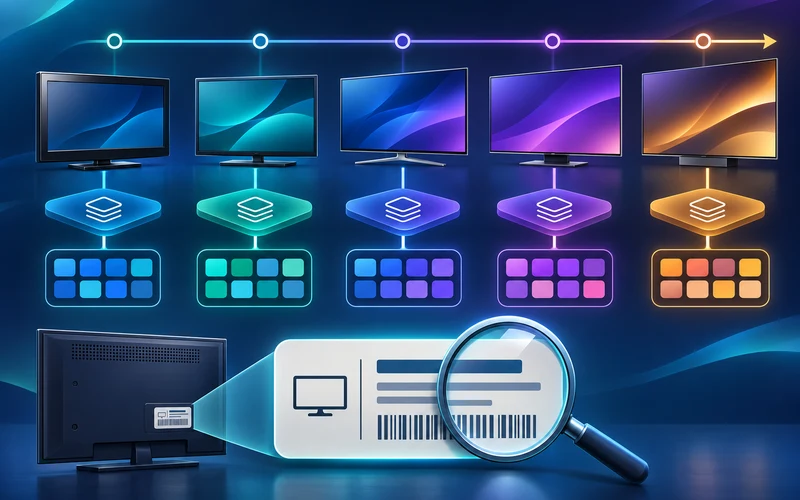
Samsung says its 2016-and-later Smart TVs run Tizen applications; older model groups use different application platforms. A generic ‘Samsung Smart TV’ label is therefore not enough to establish player availability or feature support.
Find the exact model and software version in the television settings, then use the official store and the player publisher’s documentation to verify availability for that model and region.
Samsung’s official model-group table maps television product years and lineups to their application platforms. That mapping matters because a player is packaged and distributed for a television platform, not for every screen carrying the same brand. Menu layout, application engine, supported media features, update path, and store catalog can change across generations. A tutorial recorded on a current model may therefore show options that do not exist on an older set, even when both products are described as smart televisions.
Do not equate Tizen with Android TV. Tizen television apps use Samsung’s television platform and distribution process; Android APK files are packages for Android and do not install directly on a Tizen television. A web search that finds an Android download is not a compatibility result. The practical evidence is an official television-store listing offered to the exact set, supported by the player publisher’s documentation for that Samsung platform and region.
Record the full model code rather than a family name from the bezel or receipt. Regional suffixes and closely related lineups can affect documentation and app distribution. Also record the installed software version and country in which the set is configured. Use the device compatibility checklist to verify the service, player, configuration, hardware, and network as separate links. No single “Samsung compatible” label proves the whole chain.
Updates deserve a model-specific check. Samsung’s general specification explains that platform versions vary by product year and that newer lineups can have an operating-system upgrade path, but owners should not assume every older set receives the same change. Follow the support page for the exact model, preserve stable settings, and retest the intended player after an update.
Keep the display specification separate from the application specification. A panel may accept a high-resolution HDMI signal while its built-in app platform supports a narrower set of streaming combinations. Conversely, a modest-resolution television can still have a maintained store and responsive player. Check Samsung’s model-year media table for the built-in path and the external device’s own specifications for an HDMI path. Do not combine the two into one unsupported promise.
Use an official compatibility chain
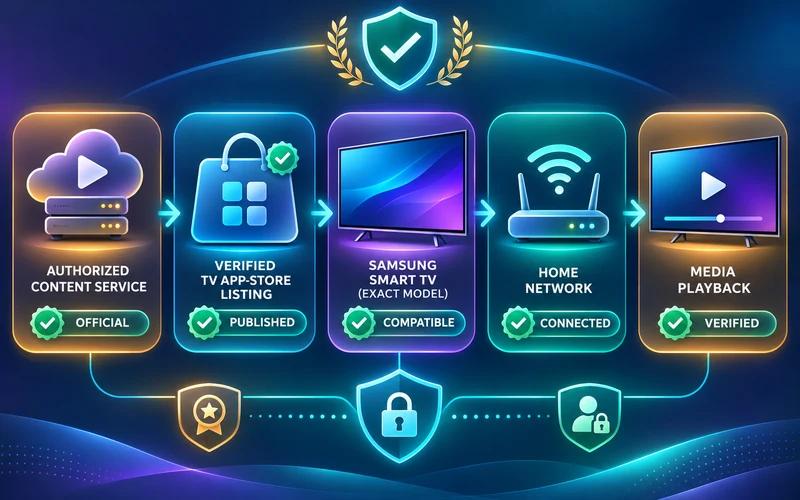
First confirm that the authorized service supports the intended TV path. Then verify the player’s publisher, official store listing, update history, and sign-in or import method. Finally, confirm that the TV can reach the intended home network reliably.
Do not assume an app listed for a different television year, country, or platform will be available on yours. Never expose a playlist URL or account token in screenshots while seeking support.
Begin with content authorization. A player app is software for organizing and playing media; it does not grant rights to channels merely because it appears in a store. Ask the service to identify its authorized Samsung setup method and supported input type. The IPTV player guide explains the boundary between player and provider. Avoid sellers who substitute a logo, download count, or vague “all TVs” statement for a written compatibility and licensing explanation.
Next, search the Apps area on the television itself. Samsung’s support instructions direct users to the Apps screen and search function, which applies the store catalog available to that TV and region. Compare the publisher name, support address, privacy information, update date, and subscription wording with the publisher’s official site. If the listing is absent, ask the publisher whether that exact model and region are supported instead of downloading packages from an unrelated website.
Then verify configuration. A legitimate service may supply a playlist URL, account fields, or another documented method that the selected player accepts. Those formats are not interchangeable merely because they contain similar information. Do not paste a protected URL into an online converter or send it to an unknown support account. Keep tokens and passwords private, use a unique password where the service supports one, and sign out unknown sessions through the verified account portal.
Finally, test media support and the network. Successful installation confirms only that the application can run; it does not prove the television will decode every video, audio, subtitle, container, or streaming profile. Samsung publishes year-specific media specifications and warns that playback can stall when media exceeds relevant specifications or network conditions are poor. Confirm representative authorized content before making a long purchase.
Make a support-ready first test
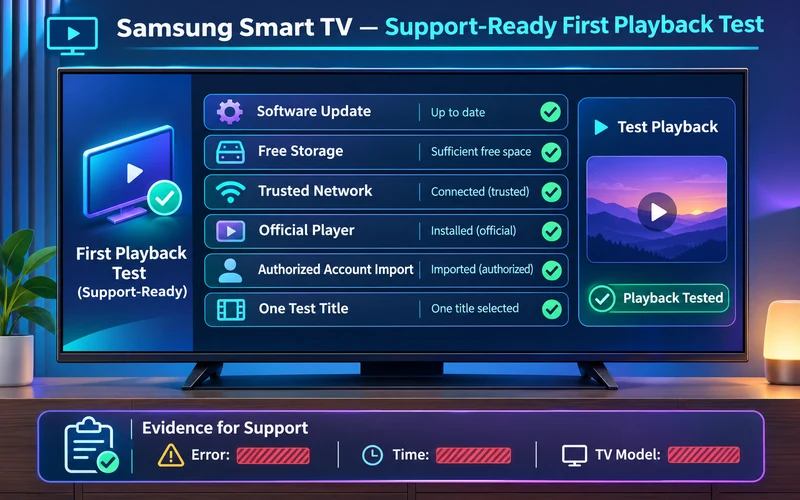
Update the TV software, test the connection with a known-good authorized app, and enter only the service details supplied for your account. If playback fails, record the model, software version, player version, error text, and time of the attempt before changing settings.
Prepare without erasing evidence. Confirm free storage, close unused applications, and allow pending system or app updates to finish. Restart the television normally if an update requests it, but do not factory-reset the Smart Hub or TV as a first step. Photograph or write down the current versions and configuration type with secrets redacted. A reset can remove working apps, network details, accessibility choices, and account information without proving why playback failed.
Test in stages. First open the player and navigate its main controls with the supplied remote. Next import only the authorized configuration and confirm whether groups or titles load. Then play one known live item and one on-demand item if the account includes both. Check picture, audio, captions, program guide, and Back behavior. A failure at import is different from a black screen after selection, and both are different from buffering after playback begins.
Record the exact stage, on-screen message, title, time and time zone, connection type, and whether another reputable streaming app works. If one authorized title plays while another fails, preserve that comparison. If every app fails on the same network, investigate connectivity. If only this player crashes while the television interface remains responsive, check the publisher’s current support notes. Change one variable per retest so the result remains interpretable.
Protect personal information in evidence. Crop screenshots to exclude email addresses, playlist URLs, tokens, QR codes, payment details, serial numbers, and household network names. Use only the player or service’s verified support route. An unsolicited person requesting remote control, a verification code, cryptocurrency, or your Samsung account password is not a normal requirement for diagnosing playback.
Find the exact Samsung model and platform
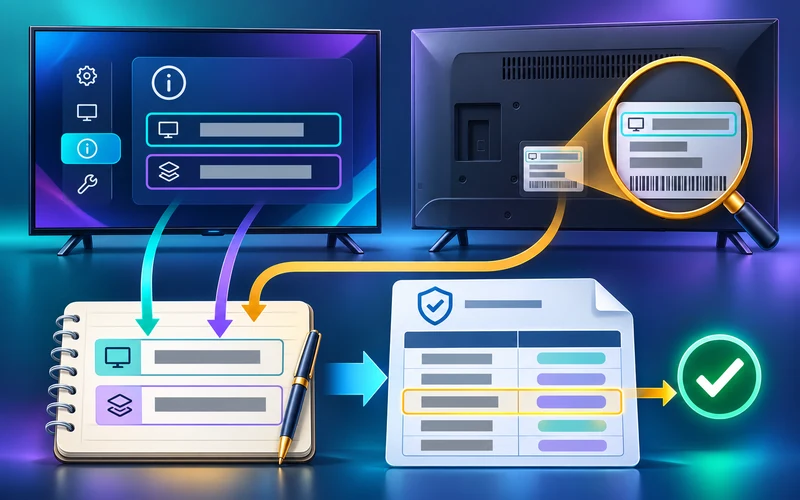
Samsung television models span different years and software generations. Tizen support and app availability can vary with model, region, and publisher distribution. A video tutorial made for a newer television may not match an older interface.
Find the model number and software version in the TV settings, then consult Samsung’s official documentation and the app publisher’s compatibility listing. Do this before buying a subscription or installing anything.
Samsung’s support guidance places this information under Settings, Support, and About This TV or a similarly named Contact Samsung screen, although menus can vary. The rear product label is a second source when the set is safely accessible. Do not move or unmount a heavy television merely to read the label; use the on-screen page, original documentation, purchase record, or authorized service help when physical access is unsafe.
Copy the full model code exactly, including letters and suffixes, plus the current software version. Keep the serial number private because support rarely needs it in a public post. Enter the model code on Samsung’s official support or downloads site to reach the correct manual, firmware notices, and specifications. A search-engine result for a similar family is weaker evidence than the product page resolved from the complete code.
Compare the product year and platform with Samsung’s model-group and general-specification tables, then compare that result with the app publisher’s supported list. Do not infer eligibility solely from screen resolution: two 4K televisions can belong to different platform generations, and an older premium model can have a different app environment from a newer basic one. Model identity, not picture resolution, drives the store and software question.
If the television reports a newer OS after an official upgrade, provide both model and current software to the publisher. Samsung notes that operating-system upgrades on newer lineups can change framework features. The model still matters because hardware and product support do not become identical to a newly manufactured set. Preserve both facts in any support request.
Use the television app store as the first check
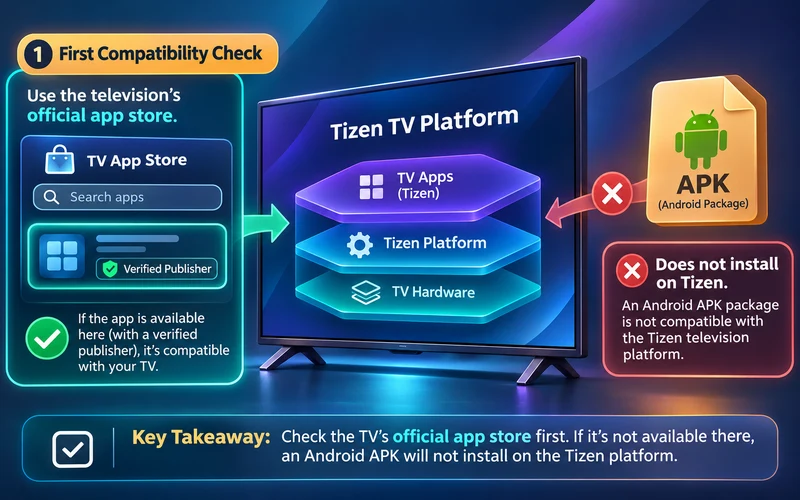
Search for the documented player through the TV’s official app store. Check the publisher name and whether the app is supported in your country. Do not assume an Android APK can be installed on a Tizen television; these are different platforms.
If the player is missing, ask the service for a supported Samsung route or consider an external device only after confirming that it meets your needs.
Search using the exact player name supplied by its verified publisher, not a generic phrase such as “free IPTV.” Similar names and icons do not establish the same developer. Open the listing and check its publisher, description, privacy terms, support link, update information, and any purchase requirements. The store presence is evidence of distribution to this television, but it is not a guarantee that the app accepts your service format or decodes every item.
Regional availability is a real constraint. A web page or screenshot from another country does not prove the app is offered to the TV’s configured region, and changing region settings can affect agreements, local services, accounts, and installed applications. Do not change region merely to imitate a tutorial. Ask the publisher whether it officially supports the model and normal region, then choose a supported route with clear terms.
Avoid USB packages, developer-mode instructions, DNS tricks, or Android APK downloads offered as shortcuts to a missing Tizen listing. Such routes can involve different application formats, unsigned or modified software, and unsupported device settings. They also make future updates and publisher identity harder to verify. If an enterprise or developer has a legitimate alternate distribution workflow, follow its own documented process; ordinary household setup should use the official consumer path.
After installation, review sign-in and data handling before importing a playlist. A player that asks for unrelated personal information, payment outside its published terms, or remote-control access deserves scrutiny. Delete a suspicious app through the television’s normal app management and change any exposed service credentials through the verified provider portal.
Storage can affect installation and updates. Remove only apps or downloads you recognize and no longer need, following the television’s normal management screen. Do not delete system components or working configurations simply to imitate a generic cleanup video. If the official player listing remains unavailable after verifying model, software, region, and free space, capture those facts for the publisher; repeated resets are unlikely to change a deliberate distribution limit.
Network and remote-control readiness
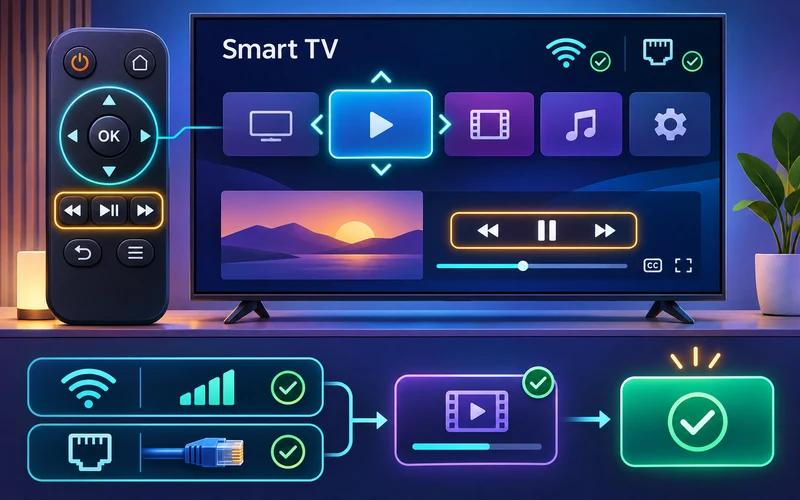
Smart TVs can have different Wi-Fi radios, Ethernet ports, storage constraints, and remote-control behavior. Confirm that a trusted streaming app plays normally and that the selected player can be navigated comfortably with the TV remote.
If a stream fails, distinguish an app installation problem from account import and media playback. Record the model, app version, error, and time before making disruptive changes.
Test every essential player control from the normal viewing position: directional focus, Select, Back, search, group list, guide, play and pause, subtitles, audio selection, and exit. Focus should remain visible and predictable. A player that expects touch input or traps focus may technically launch yet remain unsuitable for television use. Test accessibility requirements such as captions and readable focus before committing to a subscription.
For the network baseline, play a known legitimate service on the same TV. If both apps pause, compare Wi-Fi with the television’s supported Ethernet port when practical. Keep the title, device, time window, and other settings constant. The Ethernet versus Wi-Fi guide provides a fair test method. A wired improvement points toward local wireless conditions; equal failure leaves the router, internet path, device, and source in scope.
Do not rely on one speed-test number. Wi-Fi placement, interference, packet loss, latency variation, simultaneous household traffic, and upstream delivery can change streaming behavior. Samsung’s media specification also notes that network status can affect playback. Move the router or TV only when safe, pause optional transfers on equipment you own, and record the result. Avoid disabling network security or opening unknown ports for an IPTV player.
Media format and hardware limits can resemble network trouble. If one title fails while another works, compare resolution, frame rate, video and audio codecs, subtitles, and dynamic-range requirements when the authorized provider supplies them. Test a lower-demand authorized item and the player’s documented default decoder settings. A 4K panel does not guarantee support for every 4K profile or audio format.
When an external streaming device makes sense
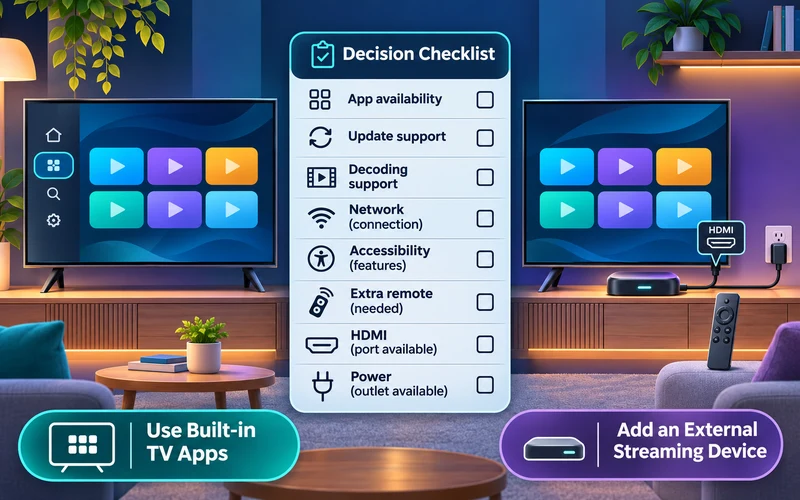
An external box or stick may provide access to a different app ecosystem and more frequent software updates. It also introduces an extra remote, power requirement, and HDMI connection. It is not automatically a better choice for every household.
Compare the official app availability and support lifecycle of both options. A new device cannot make an unauthorized service legitimate or guarantee that a particular stream will work.
Consider an external device when the required legitimate app is absent from the television store, the platform no longer receives needed updates, storage is persistently insufficient, or the built-in player cannot meet documented accessibility or media requirements. Verify the exact external model, generation, OS version, official app listing, codec support, and update policy before buying. “Android box” or “works with every TV” is not a usable specification.
Plan the physical setup. Confirm an available HDMI input, suitable power outlet or manufacturer-approved power method, ventilation, network path, remote-control arrangement, and whether HDMI control behaves as expected. Some households benefit from one simple TV remote; others accept a second remote for a maintained app ecosystem. Test volume, input switching, captions, wake behavior, and sign-out rather than focusing only on initial playback.
Compare total cost and support. Include adapter or Ethernet needs, replacement remote availability, account portability, warranty, and the effort of maintaining another device. A current external streamer can extend the useful life of a good display, but replacing the whole television is rarely the first troubleshooting step. If the same title fails across multiple supported devices and networks, send the evidence to the authorized service before buying hardware.
Keep the compatibility boundary clear. The external device supplies a different player platform; it does not grant content rights, fix expired credentials, or guarantee every media profile. Finish with a written checklist covering authorization, official app distribution, exact hardware, input format, representative playback, network, accessibility, privacy, and cancellation terms. Buy only when each required link is documented.
Retain the completed checklist with the receipt and return deadline. That record makes later support conversations specific and prevents a rushed purchase from becoming a permanent workaround.
Samsung TV checks before configuring a player
| Check | Why it matters | Safe next step |
|---|---|---|
| Exact TV model | App support can vary by model year and platform release. | Record the model and software version from TV settings. |
| Official app listing | A compatible app must be available in the relevant store and region. | Verify the publisher and listing before installing. |
| Network baseline | A general connection issue can resemble a player problem. | Test a known-good app before entering account details. |
| Connection format | Services can document different supported methods. | Use only supplied fields and keep account tokens private. |
After completing these checks, use the Samsung Smart TV IPTV compatibility entry point on the Zenora IPTV homepage to compare device guidance, plan information, and support resources.
Frequently asked questions
Will every Samsung TV run the same apps?
No. Samsung documents different platform groups by model year, and availability can also differ by region and publisher support.
Does Tizen compatibility prove a service will work?
No. The service, player, account, stream format, and network must all be compatible.
Can I install an Android APK on a Samsung Tizen TV?
No, not directly. APK is an Android package format, while Samsung Tizen televisions use their own app platform and official television store.
Why is an app shown online but missing from my Samsung TV?
The listing may target another model group, product year, platform version, or region, or the publisher may have changed distribution. Check on the exact TV and ask the verified publisher.
Does installing a player guarantee that every 4K stream will play?
No. Playback still depends on the player, television hardware, codec and profile, frame rate, HDR and audio formats, network path, and the authorized source.
Sources and further reading
- Samsung Developer: specifications and feature support
- Samsung Developer: TV model groups and platforms
- Samsung Developer: General specifications by model year
- Samsung Support: Find the TV model and software version
- Samsung Support: Use and install TV apps
- Samsung Developer: Television media specifications
For a clear next step, visit Zenora IPTV to compare the relevant device guidance, plan information, and support resources before proceeding.