This guide explains IPTV black screen no sound with practical, rights-aware checks you can use before changing a player, device, account, or network setting.
For the closest related workflow, continue with IPTV Buffering Fix: Causes and Troubleshooting Steps; it addresses the next decision without replacing the checks on this page.
IPTV black screen no sound: describe the symptom precisely
Note whether the player shows controls, whether audio continues, whether every source is affected, and whether another app plays normally. ‘Black screen’ can mean different things: an app interface that never loads, video without audio, audio without video, or a display-input problem.
This description determines the next test. A known-good authorized app can help establish whether the television, cable, audio output, or network is involved.
Describe what remains visible and audible before changing a setting. A player interface with working controls but no picture is not the same as a television input that shows no signal. Picture with silence is not the same as a player that never begins playback. Note whether the symptom affects all items, one item, or one application; whether subtitles or progress time advance; and whether the television’s own menus and another reputable app work normally. These observations separate the display chain, audio chain, player, media item, and account path far better than the label black screen alone.
Keep one representative authorized item for comparison. Test it at the time the failure is normally reported, with the same device, HDMI input, sound system, and network. Then test one other item or known-good app without moving cables or changing output modes. If a symptom follows one title across supported devices, preserve the title and time for the service. If it follows one device while another app works, focus on that device’s player, output, or format capability.
Test from the outside inward

First verify the TV input, volume, mute state, and any external audio device. Next restart only the affected player and test one other authorized source. Then check device updates, player updates, and the network without altering multiple settings at once.
If the issue follows one stream across devices, record the time and report it to the authorized service. If it follows one device, include the model and player version in the support request.
Work outside inward. Confirm the television is on the expected input and that its own interface is visible. Check mute and volume at the television, receiver, and soundbar rather than changing advanced audio formats first. Reseat HDMI connections only when the equipment is powered and accessible safely; a loose connection or a wrong input can imitate an app failure. Compare television speakers, if practical, before changing receiver settings. Make one reversible adjustment, retest the same item, and record the result.
A network comparison belongs later in this order. If the player launches and a stream repeatedly pauses or fails after playback begins, test a known-good app on the same connection. If both applications fail, follow the buffering diagnosis guide and keep the HDMI and audio settings fixed. If the trusted app works but one authorized source does not, network speed alone is not an adequate explanation; retain the exact symptom for the player or provider.
Avoid unsafe shortcuts
Do not install codec packs, unknown APKs, or unverified ‘fix’ tools because a video or audio symptom appears. They do not establish the source of the fault and can put credentials or the device at risk.
Avoid factory resets, hidden developer menus, and format-forcing tutorials as first responses. They can erase account configuration and change several variables at once. A player may depend on a licensed decoder, a documented DRM path, or a supported operating-system version; an unofficial package cannot create support for a protected stream or a hardware capability that the device lacks. Update the device and player through their official channels, then compare one representative source before considering a clean reinstall.
Black screen with audio versus no playback at all
If audio continues while video is black, the player may be receiving media but failing to display the video track. Codec, HDR, display handshake, or rendering compatibility could be relevant. If neither audio nor video starts, authentication, network, source, or app failure may also be involved.
First confirm whether playback controls respond and whether a known-good authorized title works. This simple distinction is more useful than reinstalling the app immediately.
Video decoding depends on the encoded video, profile, resolution, frame rate, dynamic range, and the device/player combination. Audio similarly depends on codec, channel layout, selected track, and the television or receiver output path. A 4K television label does not guarantee every HDR video profile, and an audio system can reject or downmix one track while handling another. Do not claim a codec diagnosis from a black frame alone; compare a second authorized title with known different characteristics if the service supplies one.
Audio output, HDMI, and external speakers
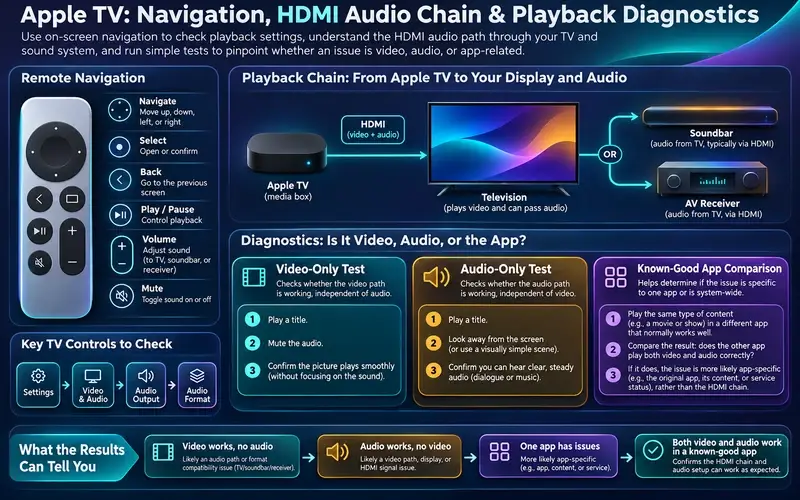
No sound can result from mute settings, a soundbar input, an unsupported audio format, or a device output configuration. Check the TV and external receiver before changing the player. Compare a trusted streaming app using the same HDMI and speaker path.
If other apps have sound but one source does not, record the title and player version. Avoid downloading unknown codec packs or audio-fix applications.
Treat the audio path as a chain: player, selected track, device output, HDMI link, television, and any soundbar or receiver. First verify the selected item has more than one audio track only if the player visibly offers that control; choose the documented default or another listed track and note the result. Then check mute and volume at every device that can control sound. A receiver can be on the wrong input while the television picture remains healthy, and a soundbar can be connected but not selected as the television output. Compare a trusted app using the unchanged chain. If it is also silent, work outward through the television and sound system before changing IPTV-player settings.
Advanced audio settings should be a controlled comparison, not a collection of guesses. Some devices can send decoded PCM, while passthrough sends a supported compressed audio format to downstream equipment for decoding. Whether either is appropriate depends on the exact device, player, television, receiver, and selected track. If the device manufacturer documents an output mode, test one supported alternative, replay the same item, and restore the previous setting if it does not help. Do not force an undocumented format or assume that a soundbar accepting one app’s audio will accept every codec, channel layout, or Atmos-style presentation. Record the original output setting for support.
HDMI carries both picture and sound, but display and audio handshakes can fail independently. Secure each cable and confirm the expected input without bending connectors or moving wall-mounted equipment unsafely. If practical, test television speakers with the same stream before involving the soundbar or receiver. A successful speaker test narrows the symptom to the downstream audio route; a persistent failure across speakers and external audio keeps the player, track, device output, and source in scope. Replace a cable only after a controlled comparison suggests the physical link, not because a generic troubleshooting list recommends buying one.
Device decoding and format compatibility
A device may support one codec or audio format but not another. A high-resolution or HDR source can expose hardware limits that are invisible with simpler video. Updating the player and device can improve compatibility, but cannot guarantee support for every encoding profile.
Compare another authorized stream with a different known format if the service provides one. Keep the same network and device so the result helps isolate the format variable.
A clean playback comparison changes one media variable at a time. Use the same player, television, output chain, and connection, then compare an authorized title that is known to work with one that fails. Note whether the difference follows resolution, HDR, frame rate, video codec, audio track, subtitles, or live versus on-demand delivery. Do not infer those technical properties from a title name; use only information the service or player exposes. A failure restricted to one item can be source-specific. A failure restricted to one device can be a player, decoder, or output limitation. A failure across devices and networks is evidence to provide the authorized service, not proof of a universal codec defect.
DRM and protected-media behavior require the same restraint. Protected playback can depend on the player’s approved implementation, current operating system, device security state, and an authorized account. An unofficial player, altered device, or generic codec package may fail without revealing which protection or entitlement requirement is involved. Update through official channels, verify the account through the provider, and use a supported player path. Do not attempt to bypass protection or convert protected media. The device compatibility guide explains why device labels alone do not guarantee a complete playback chain.
Evidence-based support escalation

Report whether the app interface appears, whether audio plays, whether other apps work, and whether the issue follows one title across devices. Include device model, operating system, player version, and exact time.
Do not include account credentials, playlist tokens, or payment details. A focused report gives support a better starting point than an unspecific black-screen complaint.
Use a safe decision order: define the symptom; confirm the television input and audio route; compare one known-good app; compare one authorized item; check official player and device updates; then compare a second supported device or trusted network only when useful. Stop after the first meaningful difference and preserve it. If picture returns after changing an HDMI input, keep network settings fixed. If sound returns after selecting television speakers, keep the stream and player fixed. This prevents an apparent fix from being attributed to the wrong layer.
A support report should say whether controls appeared, whether progress advanced, whether picture or sound was present, which output path was selected, what other app comparison passed or failed, and whether the result followed a title or device. Include model, system version, player version, local time, and a redacted screenshot of the error when appropriate. Do not include playlist addresses, passwords, QR codes, payment information, or remote-access invitations. If repeated sign-in attempts accompany the failure, pause and use the provider’s verified account route; the authentication-error guide covers that separate path.
A real-world walkthrough can keep the diagnosis honest. Imagine an app opens, its controls respond, and one live item produces picture but no sound through a soundbar. First replay the same item with television speakers selected if that is a documented, practical change. If sound returns, the stream and video path are already working; record the soundbar/receiver input, television output setting, and selected audio track. Next play a known-good app through the original soundbar path. If that app is also silent, investigate the output chain. If it sounds normal while only the first item is silent, preserve the item, track choice, and time for the player or provider. Do not change the network, reinstall the player, and alter receiver modes during this test because none of those changes answers the first question.
Reverse the walkthrough for video-only failure. If sound and progress continue while the frame is black, compare a trusted app on the same HDMI input and display mode. A working comparison leaves the input and cable less likely than the affected item, player renderer, HDR mode, or device decoder. Then compare a second authorized title in the same player. If that title renders, report the first title and time; if both remain black while other apps work, record the player and device versions and consult its official support route. If every app is black on the same input, return to the display, cable, and HDMI handshake path. The result of each controlled comparison identifies a boundary; it does not prove a component is defective without a repeatable pattern.
A stream that works on one supported device but not another is useful evidence, not a reason to copy settings blindly. Compare the operating-system version, player version, player input method, display and audio chain, and whether each device uses the same connection. The working device may support a codec, HDR profile, protection implementation, or audio output route that the other does not. The failing device may simply have stale app data or an output setting that differs. Update through official channels, repeat the same item, and keep a short results table. If the failure remains tied to one model after those controlled checks, send that model, software version, and the working comparison to the player publisher or legitimate service.
Temporary connection trouble usually varies by time, title, or household activity and may affect more than one reputable app. A compatibility problem is more likely to reproduce for the same item or format on the same device while a known-good comparison remains stable. Neither pattern is absolute, so avoid treating a single five-minute success or failure as a verdict. Test long enough to reproduce the normal symptom, note the time window, and stop if equipment overheats or repeated requests risk an account lock. The Ethernet versus Wi-Fi guide can support a controlled network comparison without mixing it into an HDMI or audio test.
Stop local troubleshooting when the evidence has identified an external boundary: one protected or authorized title fails consistently across supported devices; a provider account returns a clear entitlement message; a television, receiver, or player has a documented incompatibility; or a physical connection cannot be tested safely. Contact the responsible official channel with the redacted record rather than purchasing adapters, downloading repair tools, or changing security settings at random. A good escalation asks a narrow question—whether a model is supported, whether an item has a known delivery fault, or whether an account is active—and preserves the working setup while an answer is pending.
For a final controlled observation, create a compact matrix rather than repeating random tests. Put the same authorized item on one axis and the same device, player version, network, display mode, and audio route on the other. Mark picture, sound, controls, subtitles, and recovery after a pause. A pattern in that matrix can show, for example, that video fails only when HDR is enabled, that audio fails only through a receiver, or that one title fails on every supported device. The matrix does not diagnose the underlying codec or server implementation by itself, but it gives the official owner enough reproducible context to investigate.
Keep household changes proportionate. Restarting a single affected player is reversible; reconfiguring a router, changing account regions, disabling HDMI control, or factory-resetting a shared television is not a sensible first comparison. If a setting solves the symptom, retest the original representative item and one other item before declaring success. Record the setting and the prior value so it can be restored after an update. This disciplined closeout helps distinguish a durable output-path correction from a temporary recovery caused by a refreshed app or an unrelated network change.
If the symptom disappears before a comparison is complete, record that recovery rather than inventing a cause. Repeat the same title and output path during the next normal viewing window. A failure that cannot be reproduced may still be worth reporting with its exact time, but it is weaker evidence than a controlled, repeatable difference between devices, output routes, or items.
Separate a black screen from an audio or app failure
| Observation | First check | Possible layer |
|---|---|---|
| Controls respond but picture is black | Try another authorized title without changing output settings. | Source, decoding, or display negotiation may differ. |
| Audio continues without video | Record the device, player version, and title before restarting. | Rendering or decoding may be involved, not only bandwidth. |
| No sound on every app | Check TV/receiver output and a known-good app. | The system audio path may be independent of the player. |
| One title has no sound | Compare a second title with the same configuration. | The media track or source may be specific to that title. |
After completing these checks, use the IPTV black screen no sound entry point on the Zenora IPTV homepage to compare device guidance, plan information, and support resources.
Frequently asked questions
Why is there video but no sound?
The audio output path, player, device capability, and individual source can each be factors; compare one known-good source before deciding.
Does a black screen always mean the network is down?
No. It can originate in the display, player, device, source, or network path.
Why do I hear sound but see a black screen?
The audio track may be decoding while the video renderer, HDR mode, display handshake, or video format path fails. Compare another authorized title and app before changing multiple settings.
Should I set my player to PCM or passthrough?
Use only a device maker’s documented modes and test one alternative with the same item. The right result depends on the device, television, receiver or soundbar, selected track, and supported formats.
Sources and further reading
For a clear next step, visit Zenora IPTV to compare the relevant device guidance, plan information, and support resources before proceeding.