This guide explains Ethernet vs Wi-Fi for streaming with practical, rights-aware checks you can use before changing a player, device, account, or network setting.
For the closest related workflow, continue with IPTV Buffering Fix: Causes and Troubleshooting Steps; it addresses the next decision without replacing the checks on this page.
Ethernet vs Wi-Fi for streaming: what changes between wired and wireless
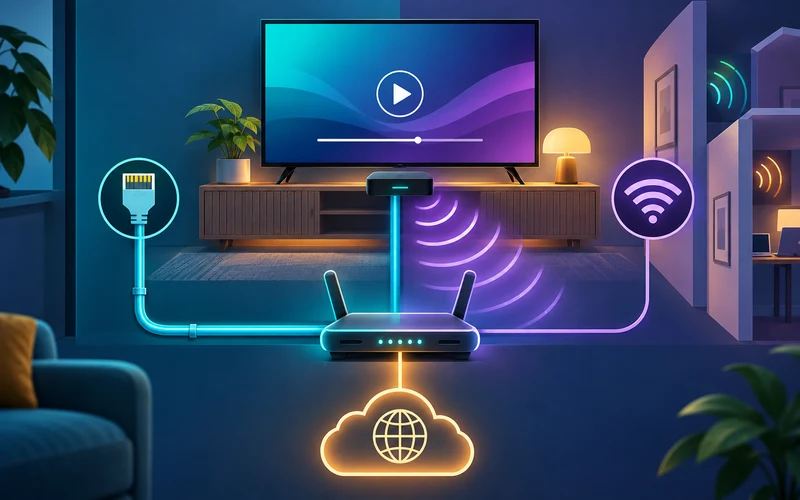
Ethernet uses a cable between the device and local network. Wi-Fi uses radio signals that can be affected by distance, walls, competing networks, and other interference. A wired connection can simplify diagnosis for a stationary TV device because it removes part of the wireless path.
That does not make every cable setup superior. Port speed, adapters, router capacity, and the upstream service still matter.
IEEE identifies Ethernet with the 802.3 family of wired local-network standards, while Wi-Fi uses the 802.11 wireless family. At home, both usually deliver the same internet connection through the same router. The practical difference is the final local link: dedicated copper or fiber between two ports versus a shared radio channel between the television device and an access point. Changing that link can change consistency without changing the media source, player, account, or internet route.
Wi-Fi must share airtime with compatible devices and contend with radio conditions. Distance, walls, metal, neighboring access points, channel use, and household activity can affect the link from moment to moment. Ethernet removes those radio variables when the cable, ports, and adapter are working correctly. It can therefore provide a stable baseline for a fixed television, but it cannot repair packet loss beyond the router, an overloaded source, an expired account, or unsupported video decoding.
Separate advertised link rate from useful streaming behavior. A Wi-Fi status screen or Ethernet port label describes a connection capability, not the sustained end-to-end delivery of a particular stream. Protocol overhead, retransmissions, competing traffic, device limitations, and the remote path reduce what an application experiences. Streaming also cares about variation: brief loss or delay can empty a player’s reserve even when an average speed test looks high. The buffering diagnosis guide maps those remaining layers.
Treat the choice as an engineering decision rather than a contest. Ethernet is attractive for a stationary device when safe cabling is easy; Wi-Fi preserves flexibility and may perform very well with compatible hardware and good placement. The right answer is the connection that stays secure, fits the room, and passes a controlled test on the exact television setup.
Pick the option that fits the room
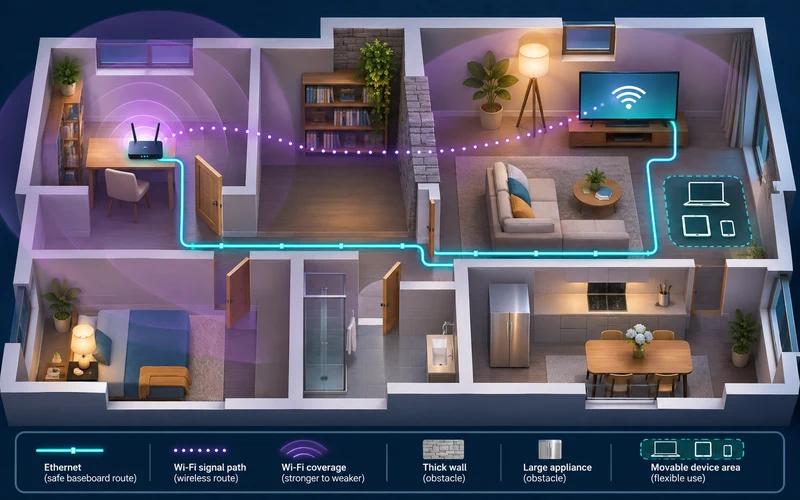
Choose Ethernet when a safe, tidy cable run is practical and you need a stable baseline for testing. Choose Wi-Fi when the device must move or cabling is unrealistic, then prioritize router placement, signal strength at the viewing position, and a current security configuration.
Do not buy equipment based only on a headline speed. Test the same authorized stream at the time and location where the problem occurs.
Walk the actual route before buying a cable. A safe run should avoid loose spans across doorways, stairs, rugs, heaters, and ventilation openings. It should reach the router or a properly connected network switch without pulling on either connector. If installation would require drilling, outdoor exposure, in-wall cabling, or work near electrical wiring, follow local rules and use a qualified installer. A convenient wireless link is preferable to an unsafe improvised cable.
For Wi-Fi, evaluate the television’s position rather than the signal beside the router. Cabinets, a wall-mounted television, metal appliances, mirrors, masonry, and floors can alter radio performance. Apple’s interference guidance identifies physical obstructions and devices such as microwave ovens, cordless phones, wireless cameras, and other equipment using the same band as possible factors. Place the access point in an open, elevated location when its manufacturer permits, with ventilation and a clear path toward the viewing area.
Household needs affect the decision too. A rented room may prohibit cabling, a mobile projector may need wireless access, and an accessibility setup may need a simple remote with no extra adapter or power lead. In a busy entertainment cabinet, confirm that another powered accessory will not block ventilation or overload a USB port. Document how the device will be used, then choose the least complicated secure arrangement that meets it.
Consider resilience rather than only maximum rate. A clean Wi-Fi link close to a current access point may be more practical than an old low-speed adapter, while a built-in Ethernet port may remain consistent in a crowded apartment. If either option already works reliably for representative viewing periods, replacement may provide no visible benefit. Purchase after testing or after confirming the exact port and radio specifications—not from a generic promise that one technology is always faster.
Run a simple comparison
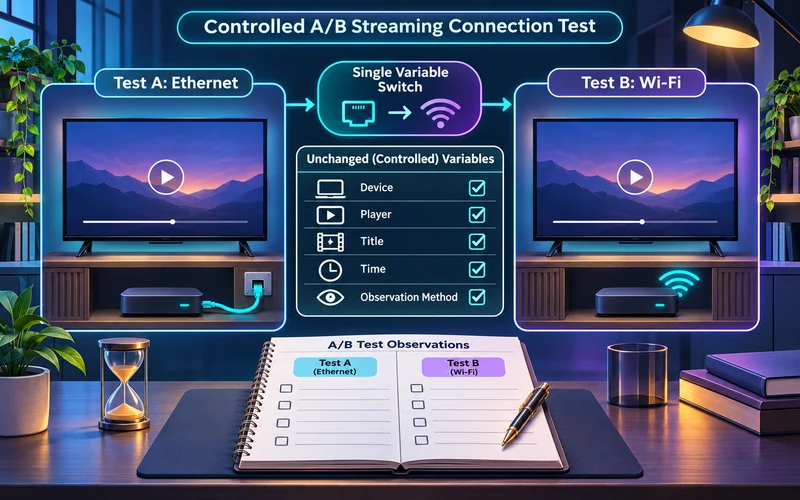
Use the same device and player, test one stream for a comparable period on each connection, and write down playback interruptions and error messages. Change only the connection method. This produces more useful evidence than changing router settings and player settings at once.
Prepare the baseline before switching. Record the television or streaming-device model, operating-system and player versions, router model, current network, test time, and exact authorized title. Close optional downloads on devices you control, but do not disable security protections. Start with the connection normally used and watch long enough to include the usual failure pattern. Note startup delay, quality changes, pauses, error text, and whether playback recovers without intervention.
Change only the local connection. If moving from Wi-Fi to Ethernet, disable Wi-Fi on the test device or confirm in its network status that traffic uses the wired link. Keep the same device, player, account, title, quality selection, and approximate time window. Restart the title from a comparable position. The streaming-quality checklist explains why controlled evidence is stronger than changing DNS, decoder, player, and network simultaneously.
Interpret the result narrowly. Stable Ethernet alongside repeatable Wi-Fi interruptions points toward the wireless segment, including placement, interference, access-point load, or the device’s radio. Identical failures on both links make Wi-Fi less likely but leave the router, internet route, device, player, account, and source in scope. If both work, the original event may have been temporary; do not claim a permanent fix after one short success.
Repeat unexpected results. A loose cable or unsupported adapter can make Ethernet look worse, while testing Wi-Fi at a different time can hide peak-hour conditions. Verify the connection status, swap only a known-good cable when needed, and retest during the original problem window. Write down negative results as well as improvements so support can see which branch has already been checked.
What Ethernet removes from the equation
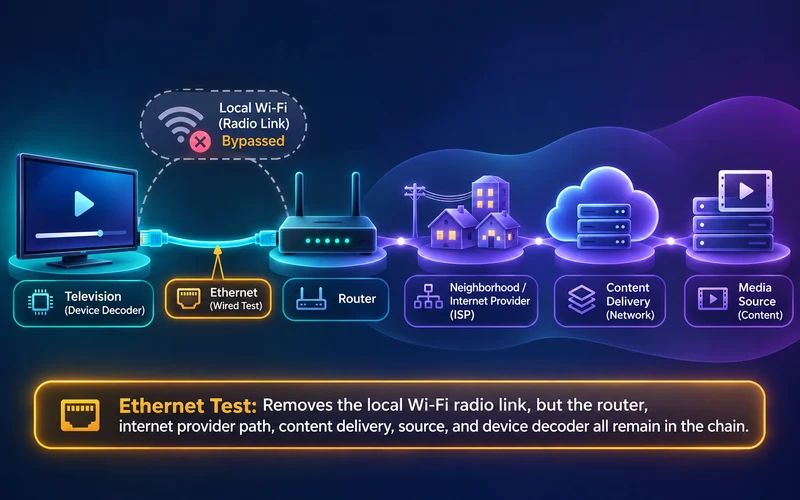
Ethernet avoids the radio link between a device and access point, which can reduce variability from walls, distance, and neighboring wireless traffic. It does not bypass the router, internet provider, media server, or limitations of a USB network adapter.
For a fixed television device, a wired test is useful because it isolates one major variable. Do not assume that every Ethernet adapter is faster than every Wi-Fi connection; check the hardware specifications.
A wired link still negotiates between two endpoints. The television port, streaming-device port or USB adapter, cable, router or switch port, and any intermediate dock all constrain the link. An adapter advertised with a high Ethernet rate may be limited by the device’s USB generation, driver support, power budget, or operating system. Confirm the exact device model and the manufacturer’s supported adapter list before purchase. A physically matching plug does not guarantee driver or power compatibility.
Cable condition matters more than marketing category alone. Connectors should click securely, cable jackets should be intact, and tight bends or crushed sections should be avoided. Link lights or the device network screen can confirm connection, but they do not prove error-free streaming. If a wired test fails, try another known-good router port or cable one at a time. Do not replace in-wall wiring or reset the router until the simple endpoints have been checked.
Ethernet may improve latency consistency on the local segment because it avoids radio contention and retransmission caused by weak Wi-Fi conditions. It does not make internet latency disappear. Packets still pass through the router, access network, ISP, and remote delivery infrastructure. A stream can buffer over a perfect local cable when upstream segments arrive late or the source cannot deliver them. This boundary is why Ethernet is a diagnostic tool as well as a connection choice.
Also verify which interface is active. Some devices retain Wi-Fi after a cable is inserted, and others prioritize Ethernet automatically. Check the operating system’s network status and IP information rather than assuming. Remove or disable the unused link only for the controlled test, then restore the preferred configuration. Avoid network loops by never connecting two router or switch ports together without understanding the topology.
Choosing Wi-Fi bands and placement
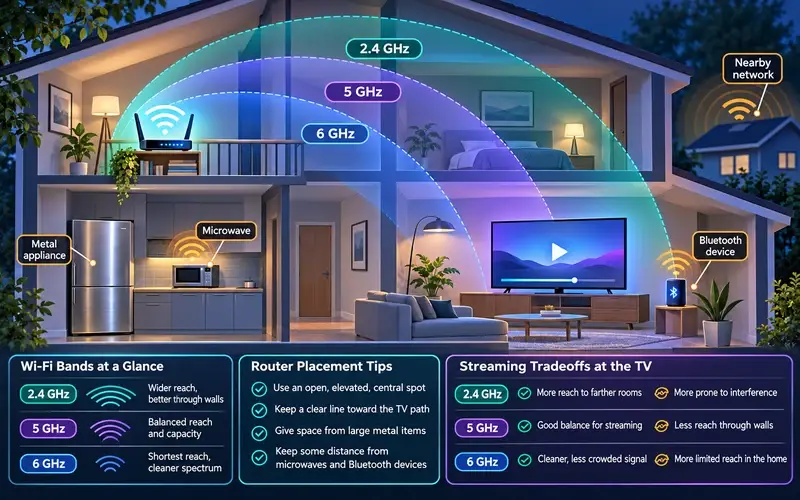
The 2.4 GHz band can provide useful reach but is often congested. The 5 GHz band can offer more capacity at shorter ranges, while 6 GHz availability depends on compatible hardware and local regulations. Walls and device placement matter as much as the band label.
Test at the actual viewing location, not beside the router with a phone. Keep wireless encryption enabled and avoid public or untrusted networks for account setup.
Apple’s current router guidance treats 2.4, 5, and 6 GHz as separate radio bands and recommends enabling the bands supported by the router. The television must support a band before it can use it, and regional rules affect channel availability. Do not infer 6 GHz support from a “Wi-Fi 6” label; check whether both the access point and client specifically support the required band. Likewise, an older television may connect reliably on 2.4 or 5 GHz even if newer devices use another option.
Band selection is a tradeoff. FCC consumer guidance notes that 5 GHz can offer faster, less crowded connections but covers a shorter range than 2.4 GHz. Higher frequency paths are generally more sensitive to distance and obstacles, so the best band beside the router may not be the best behind several walls. Automatic steering can work well, but if the manufacturer allows a diagnostic band choice, compare at the television and restore the documented normal setting afterward.
Interference is local and changes over time. Apple lists nearby routers, shared channels, Bluetooth, microwave ovens, wireless cameras, power cables, fluorescent lights, and cordless phones among possible factors. Move the router or the interfering device only when safe, and retest the same stream. Do not hide an access point inside a metal cabinet, place it on a hot amplifier, or block its ventilation. A modest placement change can be more useful than buying an extender blindly.
Keep security intact during performance testing. Use the router manufacturer’s supported encryption setting and current firmware, a unique administrator password, and a trusted private network. CISA guidance emphasizes securing wireless networks; an open or obsolete-security network is not an acceptable streaming optimization. Avoid exposing service credentials on hotel, café, or unknown guest networks. If a device cannot use the network’s maintained security configuration, replacement may be safer than weakening the whole network.
A fair A/B test for your television
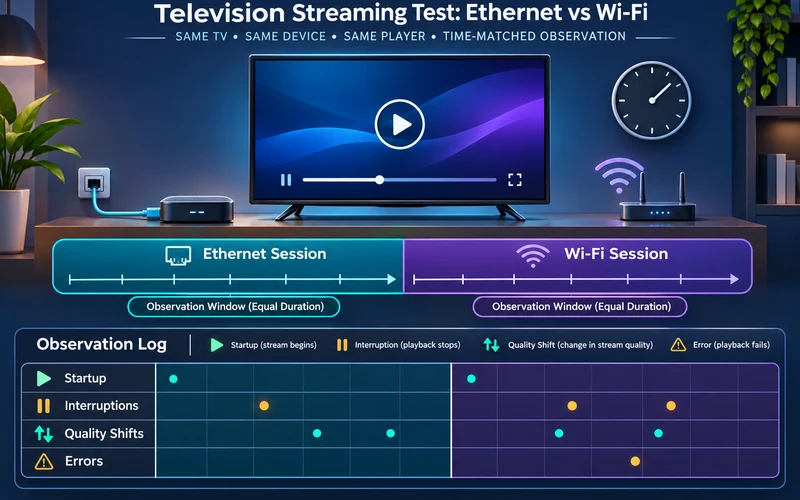
Use the same player, source, device, and viewing time. Test over Wi-Fi for a meaningful interval, then switch only the connection method to Ethernet and repeat. Record startup time, interruptions, quality changes, and any errors.
If Ethernet improves stability, investigate local Wi-Fi conditions. If both connections fail identically, consider the device, player, service, or upstream internet path rather than assuming cabling will help.
Match the observation window to the symptom. If failures occur only after forty minutes, two five-minute tests cannot answer the question. If they occur only in the evening, compare both links during equivalent evening periods on adjacent days, acknowledging that no two live internet conditions are identical. For an on-demand title, restart from the same point. For live content, record the exact time and time zone because the underlying segment is changing.
Track stability as events, not a single score. Count visible pauses, note quality reductions, record error codes, and state whether the player recovered. If the device exposes trustworthy network statistics, capture signal strength, negotiated link, latency, or packet loss without posting network passwords or media tokens. The FCC’s broadband reporting treats download speed, latency, and packet loss as separate performance dimensions. None alone proves streaming quality, but together they can explain an unstable path better than a peak rate.
Household traffic should be documented. Run one normal-use test to reflect reality, then one controlled test with optional large transfers paused on equipment you own. If the result changes, investigate scheduled backups, game downloads, cameras, or multiple simultaneous streams through the router’s official management interface. Do not disconnect medical, security, work, or other critical equipment for an entertainment test. Network management must remain safe and proportionate.
End with a decision rule established before testing. For example: retain Wi-Fi if it completes both observation windows without interruption; use Ethernet if the supported wired setup is repeatably stable and can be installed safely; investigate beyond the local link if failures are the same. A prewritten rule reduces confirmation bias and keeps one unusually good or bad session from deciding an expensive purchase.
Practical cabling and adapter considerations
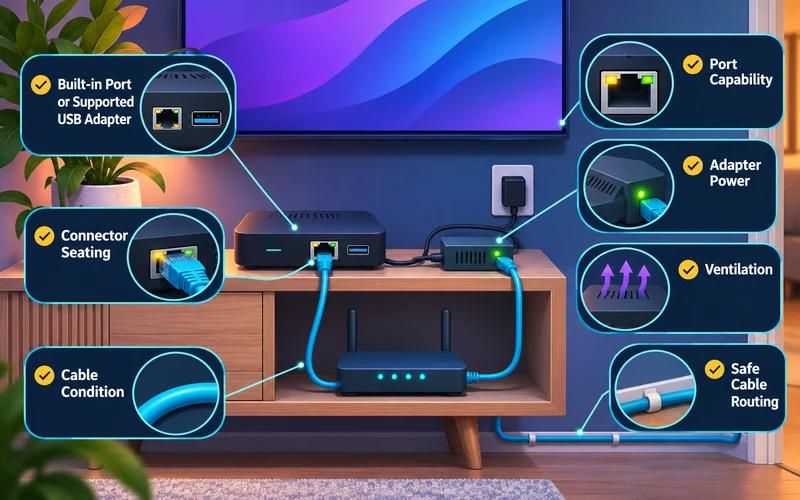
Check whether the device has a built-in Ethernet port or needs an officially supported adapter. Consider port speed, USB power requirements, cable length, and safe routing around doorways or heat sources. A tidy cable installation matters in a shared living space.
When wiring is impractical, improve access-point placement or consider a supported mesh system. Test improvements instead of buying equipment solely from advertised maximum speeds.
Start with official specifications for the exact model. Confirm whether the USB port supports networking, whether the manufacturer names a compatible adapter, and whether an external hub or power supply is allowed. Some television USB ports are intended for media or service use and may not load a network adapter. A supported adapter can still negotiate below its headline rate because of the host interface. Compatibility is more important than buying the highest number on the package.
Inspect the physical chain with power safely managed. Seat each connector until it latches, keep the adapter ventilated, and avoid stacking it on a hot streaming device. Replace a visibly damaged or intermittently disconnecting cable. Route the cable along a protected edge with appropriate removable clips rather than under a closing door or loose across a walkway. For permanent in-wall or long-building runs, use correctly rated materials and professional advice where required.
If the link does not appear, restart only the affected device after confirming the adapter and cable, then check the network screen. Test one known-good router port and cable. If another device works on that cable while the television does not, return to the television’s adapter support. If no device works, investigate the router port or cable. This one-change sequence prevents an unsupported adapter from being misdiagnosed as an ISP failure.
For Wi-Fi alternatives, reposition an existing access point before buying a repeater or mesh kit. Additional wireless hops can improve coverage but introduce placement, roaming, backhaul, firmware, and security considerations. Check that any new system supports current encryption and the television’s radio capabilities. A wired access point can be useful when cabling reaches partway but not the television, yet it should be configured through the manufacturer’s documented topology.
Finish with a compatibility and safety checklist: exact device model, supported Ethernet interface, adapter and power requirements, router port, known-good cable, active-interface status, secure Wi-Fi settings, ventilation, and safe routing. Record the result of the controlled test. The device compatibility guide can help when the network adapter is only one part of a larger player and decoding decision.
Choose Ethernet or Wi-Fi from the actual constraint
| Situation | Useful comparison | What not to conclude |
|---|---|---|
| Device is far from the router | Retest closer to the router with the same title. | That proximity alone identifies every cause of a pause. |
| A supported wired adapter is available | Compare the same device and title over Ethernet. | That Ethernet fixes account, player, or source issues. |
| Several household devices stream at once | Pause one large download for a single test. | That one quiet test guarantees peak-hour performance. |
| Only one title fails | Compare a second authorized title before changing the connection. | That Wi-Fi is responsible for a title-specific problem. |
After completing these checks, use the Ethernet vs Wi-Fi for streaming entry point on the Zenora IPTV homepage to compare device guidance, plan information, and support resources.
Frequently asked questions
Is Ethernet always faster than Wi-Fi?
Not necessarily. It often removes wireless interference from the local path, but actual results depend on the hardware and network.
Can I use this test to diagnose every playback issue?
No. It helps isolate the local connection. Source, player, account, and device factors can remain.
Does a good Wi-Fi speed test prove streaming will be stable?
No. It measures a particular server and moment. Streaming can also be affected by signal changes, interference, latency, packet loss, household traffic, device decoding, and the media delivery path.
Will any USB Ethernet adapter work with a smart TV or streaming stick?
No. The device must support network adapters through that port, the adapter must have compatible drivers and power, and the host interface can limit its negotiated capability. Check the exact manufacturer specifications.
Which Wi-Fi band should I use for television streaming?
Use a band supported by both the router and television, then test it at the viewing location. Distance, obstacles, interference, regional availability, and automatic band steering can change the result.
Sources and further reading
For a clear next step, visit Zenora IPTV to compare the relevant device guidance, plan information, and support resources before proceeding.