
This guide explains IPTV Buffering Fix with practical, rights-aware checks you can use before changing a player, device, account, or network setting.
For the closest related workflow, continue with IPTV Troubleshooting Guide; it addresses the next decision without replacing the checks on this page.
IPTV Buffering Fix: why buffering can happen

Adaptive streaming players request short media segments and may change between available quality variants. A pause can therefore originate upstream, in local connectivity, in the device, or in the player’s handling of the stream.
A fast speed-test result alone does not prove the complete playback path is healthy. It measures a different destination and moment than the stream you are trying to watch.
Apple’s HLS documentation explains that a player can switch among variants as network conditions change. That adaptive behavior can reduce interruptions, but it cannot remove every failure caused by a congested local network, a device that is struggling, an incorrect player configuration, or an upstream delivery issue.
Start by describing the symptom precisely. Does playback pause on one title or all titles? Does it happen only at a particular time, only on Wi-Fi, or only after the device has been running for a while? A useful report distinguishes a recurring pattern from a one-off pause.
Streaming is a sequence of timed requests rather than one complete download. The player needs media segments to arrive and decode before its reserved playback data runs out. A pause may follow slow segment delivery, lost or delayed packets, a manifest that no longer points to available media, an authentication interruption, or a decoder that cannot keep pace. The spinning indicator describes what the player is doing; it does not identify which link failed.
Adaptive quality can make the symptom look inconsistent. Apple documents multivariant HLS playlists in which the client selects among encodings based on measured network conditions. A visible drop in quality can therefore be the player trying to avoid a stall. Repeated pauses at the lowest available variant, however, still require diagnosis. The streaming quality guide explains how to evaluate the whole delivery path without treating resolution as the only measure of success.
Use a controlled isolation order

First note the time, title or channel, device, player version, error message, and network type. Then test one known-good, authorized stream on the same device. Next, repeat the affected stream on a different trusted network if that is practical and allowed.
If the symptom follows one source across devices and networks, provide those observations to the authorized service. If it follows one device, check updates, storage, heat, and player settings. If it changes with the network, inspect Wi-Fi signal, router placement, congestion, and wired options.
For a Wi-Fi test, keep the device in the same room as the router for one controlled retest. If the symptom changes, distance or interference is worth investigating; if it does not, do not assume Wi-Fi is the sole cause. A wired connection can be a useful comparison where the device supports it, but it is not proof that every upstream issue has disappeared.
For a device test, close other apps, apply pending device and player updates, and allow an overheated device to cool before retrying. Do not delete account details until you have recorded the original error. For a player test, confirm its documented format and account fields instead of guessing at advanced settings.
Use a matrix rather than a pile of changes. Keep the affected title constant and compare it with a second authorized title on the same player. Then keep the title constant and change only the network, player, or supported device. If every title fails in one app but works in another on the same device, investigate player version and configuration. If one title fails everywhere while other titles work, preserve the evidence for the service rather than resetting the household network.
A wired comparison removes the Wi-Fi radio link but not the router, internet connection, delivery network, source, or device decoder. The Ethernet versus Wi-Fi guide shows how to run that comparison with the same device, title, player, and viewing period. If wired playback improves, return to wireless placement, interference, roaming, and access-point load. If it does not, continue outward through the remaining layers instead of buying a new router automatically.
Retest long enough to cover the original failure pattern. A five-minute success is weak evidence when pauses normally occur after an hour or only during an event. Note startup time, quality changes, the timestamp of each interruption, and whether playback resumes by itself. Keep testing proportionate: stop if a device overheats, a cable is unsafe, or an account locks after repeated attempts. Controlled diagnosis should reduce risk, not create a new one.
Avoid noisy fixes

Do not simultaneously reinstall the player, change DNS, add a VPN, reboot every device, and switch networks. That removes the evidence needed to identify the cause. Make one change, retest, and keep a short record of the result.
A VPN is not a general IPTV buffering fix. It changes the route between your device and a service and can add its own overhead. Use it only when you understand why it is relevant and it is permitted by the service; it should not replace checking account status, the player, local Wi-Fi, or a known-good comparison stream.
Likewise, do not rely on invented minimum-speed rules. Video bitrate, simultaneous household traffic, Wi-Fi conditions, device capability, and the service’s delivery path all matter. The strongest troubleshooting result is a short record that tells support what failed, where it failed, and which single comparison changed the outcome.
Keep the final support note short and reproducible: the affected title, time and time zone, device model, player version, network type, exact error, and each comparison result. That is more actionable than saying that playback was slow, and it avoids exposing credentials.
DNS changes are another common distraction. DNS helps translate a host name to an address, but changing resolvers does not add decoding power, repair a malformed playlist, increase Wi-Fi signal, or guarantee a faster media route. A resolver problem has its own evidence, such as name-resolution errors or a service host that cannot be reached while other hosts work. Preserve the original setting and change it only when the device, network administrator, or authorized service documentation gives a defensible reason.
Clearing a cache or reinstalling can help when the app’s local data is corrupted, but those steps destroy evidence and may remove saved configurations. First record the version, export settings if the player supports it, and confirm that credentials can be recovered securely. Reinstall only after less disruptive comparisons point to the application. Avoid unofficial “optimizer” utilities that promise to clean memory, unlock bandwidth, or find hidden streams; they introduce new permissions and software without proving the cause.
Router restarts can clear a temporary fault, yet a restart is not a diagnosis. Record the symptoms and status lights first, then observe whether the improvement persists and whether other devices were affected. Repeatedly factory-resetting the router can erase security, ISP, telephone, or mesh settings. If multiple reputable services fail across devices, consult the router manufacturer or internet provider using the evidence collected rather than applying settings copied from an unrelated model.
Distinguish buffering from a frozen app
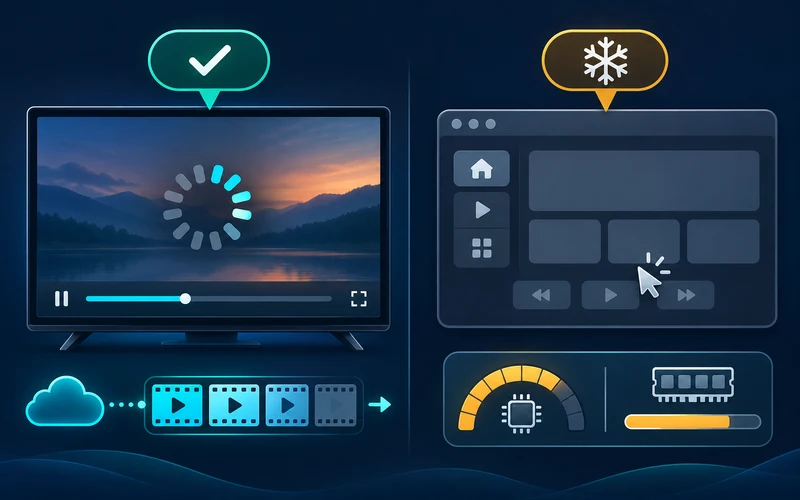
Buffering usually means the player is waiting for enough media data to continue, while a frozen interface may indicate an app crash or device resource problem. Audio continuing while video stops can suggest decoding or rendering trouble rather than a simple bandwidth shortage.
Watch whether playback controls respond, whether the quality changes before a pause, and whether the same title behaves differently on another supported device. A precise symptom description narrows the investigation.
Begin with the controls. If Back, pause, settings, and the home interface remain responsive while a loading indicator appears, the app is alive and waiting on media or its processing path. If the entire interface ignores the remote, returns to the home screen, or triggers a system warning, record it as a hang or crash. Force-closing an app may restore use, but first note whether the failure follows a particular title, decoder mode, subtitle track, or duration of use.
Audio and video symptoms provide additional clues. Audio continuing under a frozen picture can indicate video decoding, rendering, refresh-rate, or HDMI-output trouble. Video continuing silently can indicate an unsupported audio track, passthrough problem, or receiver negotiation issue. A black screen, login error, and a spinning loading icon are not interchangeable; use the IPTV troubleshooting workflow to classify the stage before applying a fix.
Check device resources without relying on third-party cleaner apps. Use the operating system’s storage and update screens, close unused applications, and allow a hot device to cool in an unobstructed location. Confirm that its ventilation and power supply meet the manufacturer’s guidance. Low free storage, outdated system components, or thermal throttling can make a player unreliable even when the network is healthy. Compare the same item after a normal restart, then document whether the improvement lasts.
Finally, test another reputable streaming app on the same device and network. If its interface also freezes, the device or operating system deserves attention. If only one player freezes while another authorized app remains responsive, check the player’s release notes and support channel. Do not infer that a different player is permanently superior from one test; the two apps may use different formats, decoders, or sources.
Test peak-hour congestion carefully
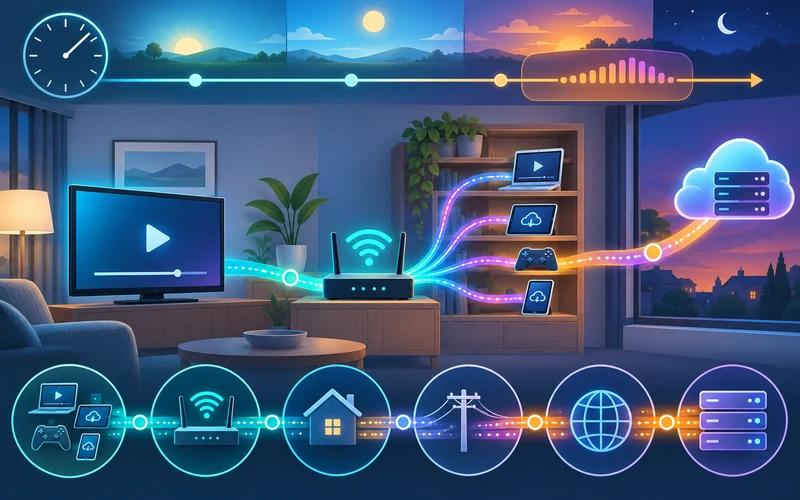
A stream that works in the morning but pauses every evening may be affected by local household demand, wireless interference, internet routing, or upstream capacity. That timing is a clue, not proof that a particular provider is overloaded.
Repeat a comparable authorized stream at the same time and location. Pause large downloads for one test and record whether the symptom changes. Avoid changing several router settings simultaneously.
Build a small time log over several days: start and end time, affected title, connection, household activity, and whether a second reputable streaming app showed the same issue. Repeat at least one morning or afternoon baseline and one evening comparison. This distinguishes a recurring window from random interruptions. It also avoids blaming an upstream service when a scheduled backup, game download, security camera upload, or crowded local radio channel is consuming capacity at home.
For one test, pause optional transfers on devices you control while leaving ordinary network security in place. Do not disable encryption, firewalls, or automatic security updates. If playback improves, reintroduce activities individually or use the router’s documented traffic view to identify demand. If nothing changes, the timing may relate to neighborhood access, ISP routing, a content-delivery path, or source capacity. Only the responsible operator can confirm those upstream conditions.
Compare Wi-Fi and a supported wired connection during the same problem window if practical. Improvement over Ethernet is evidence about the local wireless segment, not proof of internet congestion. Identical failures over both connections make the radio path less likely but do not rule out the router. Similarly, a speed test to a nearby server can look excellent while the route to the media host has different latency, loss, or congestion. The FCC’s broadband measurement work treats speed, latency, and packet loss as distinct metrics, which is why one headline number is incomplete.
Live events are especially sensitive because the player cannot fetch media that has not yet been produced, and low-delay modes intentionally keep less reserve. Compare an on-demand title and another authorized live item during the event. If only one event fails across networks and supported devices, provide the exact time and item to the service. Resist repeated refreshes or simultaneous logins that could trigger account limits and obscure the original symptom.
Understand buffer size and adaptive quality
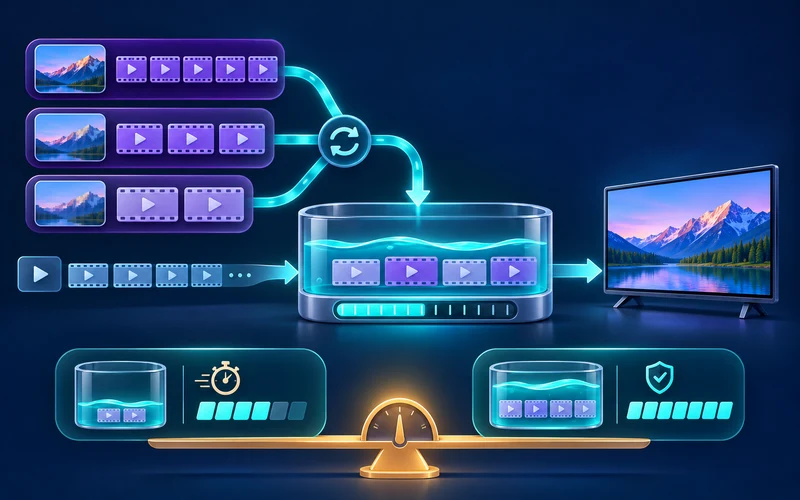
Adaptive streaming may switch between encoded variants when network conditions change. A larger playback buffer can sometimes absorb short fluctuations, but it also increases startup delay and cannot solve a persistently unavailable source. Not every player exposes a buffer control.
Use documented player settings only, and compare one adjustment at a time. Do not rely on universal claims that a specific bitrate, DNS server, or VPN eliminates buffering.
The buffer is a reserve of media prepared ahead of the current playback position. When segments arrive faster than they are consumed, the reserve can grow; when delivery or decoding falls behind, it shrinks. If it reaches zero, playback stalls. Increasing a configurable buffer can mask a brief interruption, but it may delay startup, channel changes, seeking, and live playback. It also uses additional memory and does nothing when the requested segments are missing, unauthorized, or unsupported.
Adaptive bitrate logic makes a different tradeoff. A multivariant stream offers versions encoded at different rates, and the client selects a representation using its observations and playback state. Google’s Cast documentation describes DASH representations that carry codec and bandwidth information, while Apple describes HLS clients switching among variants. The exact algorithm belongs to the player; users should not assume that a temporary quality drop proves the television changed resolution incorrectly.
For diagnosis, return quality selection and buffer settings to their documented defaults, then observe automatic behavior. If the player exposes a statistics panel, record the selected variant, dropped frames, and buffer health without posting protected URLs or tokens. Test one lower-quality option only as a comparison. If it runs reliably while higher variants fail on the same path, the result identifies a capacity or decoding threshold to investigate; it does not establish a universal bandwidth requirement.
Live playback deserves special care. A larger reserve moves the viewer farther behind the live edge, while a low-latency mode keeps less media ready and can expose short network variations. Choose according to the legitimate service and player documentation. Do not force undocumented manifest parameters or install modified players to chase a latency number. Stable, authorized playback with known delay is preferable to a fragile setup whose buffer behavior cannot be explained.
A reproducible escalation report
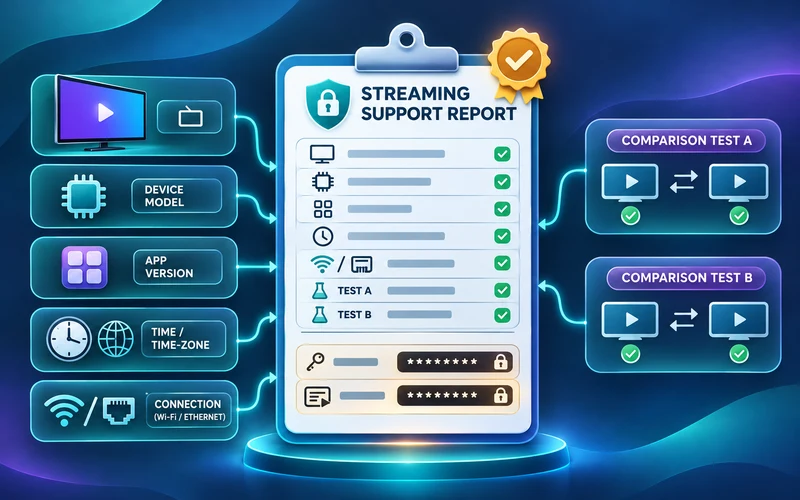
Give support the title or channel, exact time and time zone, device model, app version, connection type, and whether another authorized title works. If a second trusted network or supported device changes the outcome, include that comparison.
Never attach unredacted playlist URLs or passwords. A concise evidence-based report is more useful than a long list of speculative fixes.
Lead with the failure stage and pattern: installation, sign-in, playlist refresh, startup, recurring pause, quality switching, or application freeze. State whether the issue affects one item, one category, or everything. Include the first and most recent occurrence rather than saying “always” unless every controlled test failed. If an on-screen code appears, transcribe it exactly and attach a screenshot only after checking that no account identifier, token, email address, or payment detail is visible.
List comparisons in a compact sequence: same title on another connection, same title on another supported device, and another authorized title on the original setup. For each, report pass, fail, or not tested. Do not manufacture a result to complete the list. Include recent changes such as an OS update, player update, new router, or audio receiver only when the timing is relevant. This gives support enough structure to reproduce or route the case.
Use only the service’s verified support channel. Scammers monitor public complaints and may impersonate a provider, demand remote access, request cryptocurrency, or ask for a full playlist URL. A legitimate investigation should not require your Google, Apple, Amazon, or banking password. If a credential has already been exposed, revoke or replace it through the verified account portal, sign out unknown sessions where available, and mention the reset without sending the new secret.
Close the loop after support responds. Record the change they requested, apply only that change, and test the original item under comparable conditions. If the result improves, retain the previous configuration and evidence long enough to confirm stability. If it fails, restore reversible settings and return the new observation. A reproducible report turns buffering from a vague complaint into a bounded technical question while protecting the account and preserving evidence.
Match buffering symptoms to the next test
| What you observe | Possible layer | Least disruptive next test |
|---|---|---|
| Only one title pauses | Source, encoding, or account-specific delivery. | Compare another authorized title on the same device and network. |
| All apps fail on Wi-Fi | Signal, interference, router load, or internet access. | Try a known-good app and then one controlled location or connection change. |
| One device pauses | Device resources, heat, player version, or settings. | Update, cool, and retest the same title without changing other variables. |
| Quality changes before a pause | Adaptive playback reacting to changing conditions. | Record time and network type; do not assume a fixed bitrate rule applies. |
After completing these checks, use the IPTV Buffering Fix entry point on the Zenora IPTV homepage to compare device guidance, plan information, and support resources.
Frequently asked questions
Will a VPN always stop buffering?
No. A VPN changes routing and can add overhead; it is not a universal diagnosis or fix.
Why does buffering happen even after a good speed test?
A speed test measures a different destination at a particular moment. Playback also depends on the device, player, local network conditions, and the delivery path for the stream being watched.
Should I reinstall the player first?
Not first. Record the error and compare one known-good stream. Reinstalling can remove useful settings without identifying whether the issue is local, account-related, or upstream.
When should I contact support?
After a controlled comparison: include the time, title, device and player version, network type, exact error, and whether the symptom follows the source across a second trusted network or device.
Does buffering prove my internet plan is too slow?
No. The symptom can come from several points in the playback path. Compare controlled tests before drawing that conclusion.
Sources and further reading
For a clear next step, visit Zenora IPTV to compare the relevant device guidance, plan information, and support resources before proceeding.