This guide explains IPTV login authentication errors with practical, rights-aware checks you can use before changing a player, device, account, or network setting.
For the closest related workflow, continue with IPTV Security, Privacy, and Legal Considerations; it addresses the next decision without replacing the checks on this page.
Understand IPTV login authentication errors
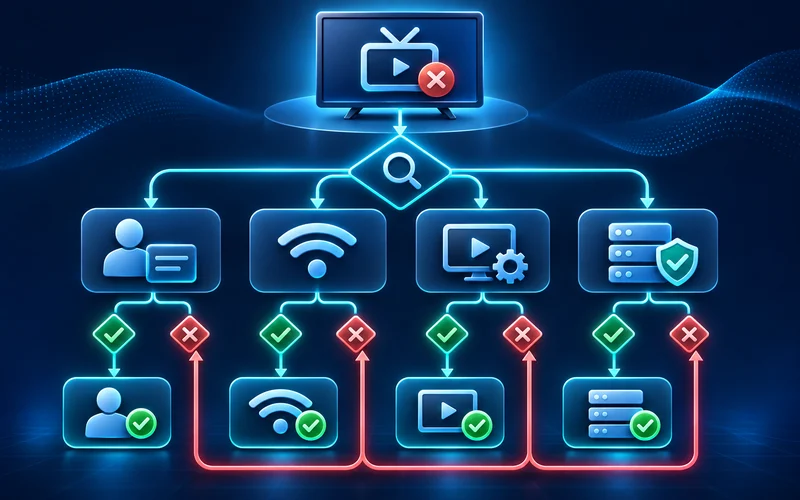
An IPTV login problem is a symptom, not a diagnosis. Authentication asks whether the service can verify the identity or access credential presented by a player. Authorization happens after that check: the service may recognize the account but decline a particular catalog, device, or playback request because its published rules are not met. A player may also display a broad message such as “login failed” when it could not reach a server at all. Start by recording where the flow stopped rather than treating every failure as an expired subscription.
Credential failures usually appear immediately after submitting a username and password, a portal identity, an activation code, or a private playlist address. They can result from a mistyped character, an old credential, a copied invisible space, or an entry method that the player does not support. A true rejection is different from a slow spinner or a connection timeout: in the first case the service responded with a refusal; in the second, the player may not have received a usable response. The HTTP standard distinguishes an authentication challenge from other response conditions, but individual players often simplify that detail for viewers.
Network failures can look convincing because the player often needs a server response before it can decide whether an account is valid. A DNS lookup failure, captive portal, blocked local connection, expired certificate caused by a wrong device clock, or temporary provider-side outage can therefore be labelled as an account error. Player failures add another layer: an outdated app can mis-handle a valid response, a damaged stored session can loop back to sign-in, and an unsupported format can fail after a catalog loads. Similar text on screen does not prove similar causes.
Use controlled comparisons. If the same authorized account works on another supported device on the same home network, the account is not automatically cleared, but the result makes the first device or player more interesting. If a trusted unrelated app cannot connect either, investigate the local connection before repeatedly entering credentials. If a player signs in and only one title fails, that is usually no longer a basic login event; keep the account, entitlement, media, and player stages separate. This approach protects the account and prevents an unnecessary reset from erasing useful evidence.
Check Credentials and Login Formats
First identify the exact format the authorized service supplied and the exact format the player expects. A username and password belong in dedicated account fields; an Xtream-style setup may separately request a server address, username, and password; an M3U playlist is normally entered as one private URL; and a portal workflow may request a portal address plus a device-specific identifier. These are not interchangeable. Do not split a playlist URL into username fields, append an address path a provider did not give, or paste an account password into a portal field just because the labels seem similar.
Re-enter supplied values privately once, slowly, from the original legitimate message or account page. Check leading and trailing spaces, smart punctuation substituted by a mobile keyboard, letter case where the service documents it as significant, and characters confused in some fonts, such as zero and O. Avoid taking a screenshot that exposes the full value. A password manager or the device’s secure paste function can reduce transcription mistakes, but verify that it has not added a space or filled credentials for the wrong site. Do not keep retrying after a clear lockout or rate-limit notice.
Server addresses deserve the same care. Use the scheme, hostname, port, and path exactly as documented. Changing http to https, adding a trailing path, substituting a search-engine result, or replacing a hostname with an IP address can send the player somewhere different. For playlist URLs, the query string may contain an account token; removing it, shortening it, or posting it into an online validator can break access and expose the account. If an address was copied through a chat app, compare only its non-sensitive structure with the provider’s directions and ask legitimate support for a fresh private copy when uncertain.
Portal authentication is especially player-specific. Some legitimate services bind a device during activation, while others use an account login, and a player may show fields that do not apply to a chosen provider. Follow the authorized service’s instructions for the named player and device rather than internet screenshots. If a login works in a browser account area but not in a player, do not conclude that the password is wrong; record the player name, version, input method, and exact non-sensitive error. The M3U playlist loading guide explains safe checks when the connection method is a playlist rather than a conventional sign-in.
Troubleshoot Network and Server Connectivity
Before changing account information, establish a small network baseline. Confirm that the device has an ordinary internet connection by opening a known-good, unrelated app or the device’s documented network test. Check whether the device has joined the intended home network rather than a guest network with client isolation, a hotel or apartment captive portal, or a stale mobile hotspot. A good baseline only tells you that some internet access exists; it does not prove that every service endpoint or media path is available. It does, however, keep a Wi-Fi outage from being misread as a password problem.
DNS is the directory layer that turns a server name into an address. When it fails, a player may never reach the login service, even if a saved screen still calls the event “authentication.” Restarting a router can be a reasonable, reversible check when other devices also have name-resolution or connection trouble, but do not repeatedly reset network equipment after one app error. Note the time, network type, and whether a different supported device or trusted connection produces the same result. A comparison that changes only one variable is much more informative than several simultaneous changes.
A timeout is not the same as a confirmed rejection. A timeout means the player did not receive a usable response within its limit; possible causes include local signal conditions, DNS, routing, a firewall, server load, or an outage. A refusal arrives after some form of communication, but even then the player’s wording may be imprecise. Do not use an unauthorized account checker, scan a provider’s systems, or attempt to bypass a block to distinguish the two. Instead, use the provider’s status or support channel and supply the exact time and redacted message.
If a service works on mobile data but not home Wi-Fi, that observation narrows the issue to a path difference but is not a license to leave a device on an untrusted network or install a workaround. If every supported device fails at the same time and a provider reports an outage, wait for the official update. If only one device fails while its other legitimate apps connect, move on to player and device checks. The Ethernet versus Wi-Fi guide offers a controlled local-link comparison; it should not be used to infer account status.
Fix Player and Device Configuration Problems
A player is an interface, not the account itself. Confirm that the installed application is the official listing for the exact television, streaming device, phone, or computer and that it supports the documented connection method. Android TV and phone-oriented Android apps are not necessarily equivalent; Google’s TV guidance notes that television interaction has a distinct remote-driven model. Likewise, a player available on one device store is not automatically available or supported on another. Do not install an unknown APK merely to test whether a login works.
Check automatic date, time, and time zone before deeper changes. A substantially wrong clock can interfere with secure connections and can make session expiry appear confusing. Then check the player and device for normal updates, available storage, and any documented service-maintenance notice. Take note of the version before updating so a later comparison is meaningful. A player update can repair a compatibility defect, but it cannot activate an account or override a service rule, so do not promise a result it cannot deliver.
Stored session information sometimes becomes stale after a password change, account renewal, server migration, or app update. Use the player’s documented sign-out, refresh, or clear-cache path if it has one, and preserve the exact error first. Clearing cache is less disruptive than deleting the app; deleting app data may remove a carefully entered configuration. Reinstall only after basic checks and only from the verified publisher or store. Never use a reset as a substitute for asking an authorized service whether a credential, connection limit, or device binding is in effect.
When one device works and another does not, compare the player version, operating-system version, clock, network type, and entry method side by side. Make sure both devices use the same authorized account only if the service permits that use. A device-only pattern can point toward configuration or compatibility, but it does not prove that the failing device is defective. The IPTV player guide separates the player’s job from the provider’s account and content responsibilities.
Investigate Subscription and Authorization Restrictions

A successful account lookup does not guarantee access to every later request. An authorized service can legitimately enforce its published subscription period, activation state, simultaneous-connection allowance, device registration policy, regional availability, or parental setting. Those are authorization or subscription-status questions, not necessarily a password error. Read the account area and terms that apply to the specific service, and ask support to confirm the account’s status through a verified private route. Do not infer a restriction from a generic player message alone.
Connection limits are commonly misunderstood. A limit can concern concurrent playback, active player sessions, registered devices, or another policy defined by the service; the wording and behavior vary. Signing out of an old supported device through the documented account process may help when the service provides that option. Guessing, repeatedly logging in from many devices, sharing access, or trying to evade a limit is unsafe and may violate terms. Record whether the issue appears before catalog load, at playback, or only after a second device joins; this is useful evidence for support.
Subscription activity should be confirmed, not assumed. A payment receipt, renewal email, old playlist, or a player that once worked cannot establish current entitlement. Conversely, an error during a temporary outage does not prove that a plan expired. Use the official account page or a verified support channel to ask whether the account is active and whether it is eligible for the device and format being used. Keep payments, identifiers, and recovery codes out of ordinary chat messages and public screenshots.
Device binding, when a legitimate provider documents it, is another distinct case. It may mean a player or hardware identifier must be registered or changed by support, rather than that credentials have failed. Do not copy a device identifier from someone else or use third-party activation pages. Give the authorized support team the non-sensitive model, player version, and only the identifier it explicitly asks for through its authenticated channel. The subscription guide explains why terms, connection limits, and documented support matter before and after purchase.
Protect Credentials and Troubleshoot Safely
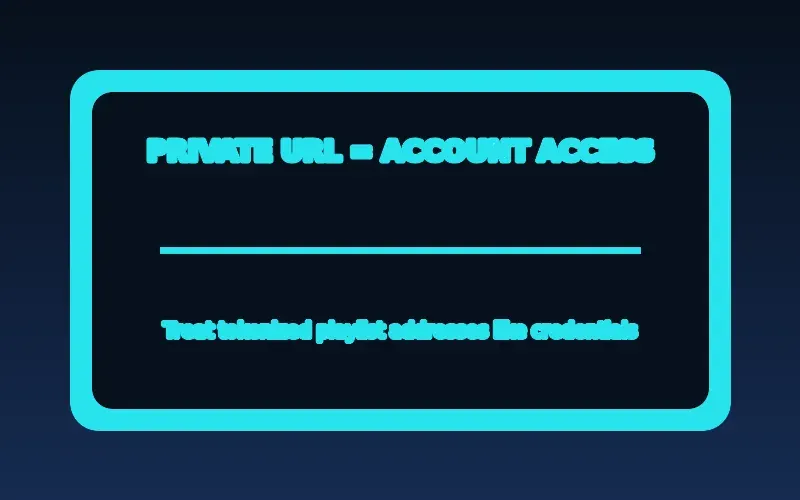
Treat passwords, activation codes, portal addresses, and full playlist URLs as credentials. A playlist URL can contain a token that grants access without revealing a familiar password, so it deserves the same care. Do not paste it into public validators, social posts, screen recordings, or a stranger’s remote-support tool. When sharing a screenshot, crop or mask usernames, email addresses, account numbers, QR codes, URL query strings, payment details, and device identifiers unless legitimate support specifically needs one through a secure case portal.
Find support from the provider’s authenticated account page, a documented website, or a contact method you independently verified. Be wary of search advertisements, unsolicited direct messages, urgent account-expiry notices, and lookalike login pages that ask for a password or one-time code. CISA’s phishing guidance recommends pausing before engaging with suspicious messages and reporting them through trusted channels. A legitimate support request should not require your store password, bank-card number, or multifactor authentication code simply to inspect a player error.
Avoid unofficial APKs, modified players, VPN-based bypass suggestions, credential checkers, and “activation” sites offered as universal fixes. They can collect access data, prevent normal updates, or obscure the original problem. Even a legitimate VPN does not establish that a service supports its use, and changing several privacy or routing settings at once makes diagnosis weaker. Use the normal device store, the documented player, and the provider’s stated recovery process. If an app asks for unexpected permissions or payment after a supposed fix, stop and verify the publisher.
If you believe a secret was exposed, change or rotate it through the official account path where available, end sessions if the service documents that control, and tell legitimate support only what occurred. Do not send the exposed secret again as proof. Zenora IPTV users should use the same cautious process: protect the credential first, then share a redacted error, device model, player version, and time through a verified route. The security and privacy guide has broader account and app-source safeguards.
Use a Step-by-Step Recovery Checklist
Begin with the least disruptive sequence. Record the exact error and the point where it appears. Confirm device date, time, and normal internet access. Recheck the documented connection format once, privately, without changing unrelated fields. Test one known-good unrelated app on the same device, then, if practical, one supported device or trusted connection with only one variable changed. This order avoids turning a simple copied-space error into a lost configuration and helps identify whether the failure follows the account, the device, the player, or the network.
Classify the result before attempting a fix. An immediate refusal after one careful re-entry suggests credentials or format and merits checking the official account route. A long spinner, DNS warning, or failure across unrelated apps suggests connectivity. A problem confined to one outdated player or device suggests configuration. A successful login followed by a catalog, device, or playback restriction suggests authorization or subscription status. These are working hypotheses, not verdicts; document the observation that supports each one and do not claim a provider policy you have not confirmed.
Prepare a safe support report when the reversible checks do not resolve it. Include the device make and model, operating-system version, player name and version, connection type, time and time zone, exact non-sensitive wording, stage of failure, and results of one or two controlled comparisons. State whether a catalog loaded and whether the issue affected all access or one item. Omit passwords, full URLs, activation codes, card data, one-time codes, and unredacted screenshots. This report lets legitimate support examine its own systems without asking you to repeat risky tests.
Confirm recovery deliberately. Sign in once through the documented method, verify that the expected account area or catalog loads, and test a permitted title on the usual device and network. If the original problem involved a second device or a particular player, repeat only that relevant comparison. Record what changed—such as corrected format, app update, restored service, or confirmed account action—so a recurrence is easier to explain. If no official route can confirm the service or its terms, do not pursue workaround sites; pause rather than exposing credentials or bypassing restrictions.
Handle login and authentication errors without exposing credentials
| Symptom | Safe check | Keep private |
|---|---|---|
| Incorrect credentials | Re-enter the supplied details once and confirm the account’s documented status. | Passwords, activation codes, and tokenized URLs. |
| Account not recognized | Confirm the player uses the exact documented connection format. | Screenshots containing account data or payment information. |
| Login works elsewhere only | Compare device time, player version, and supported device status. | Assuming a reinstall renews or changes an account. |
| Repeated authentication prompt | Record the error and contact the authorized service privately. | Third-party account checkers or public forums. |
After completing these checks, use the IPTV login authentication errors entry point on the Zenora IPTV homepage to compare device guidance, plan information, and support resources.
Frequently asked questions
Why does my IPTV player say my username or password is incorrect?
It may be a real credential mismatch, but it can also reflect the wrong login format, an invisible copied character, a server-reachability problem, or a player that simplifies its error message. Recheck the documented format once, then use the legitimate account route rather than repeated retries.
Can a network problem look like an IPTV authentication error?
Yes. A player that cannot resolve or reach the login server may display a generic sign-in failure. Check normal connectivity, DNS-related symptoms, and whether another trusted app works before treating the message as proof that the password is wrong.
What should I check if my IPTV login works on one device but not another?
Compare the official player and its version, device operating system, automatic time and time zone, network type, and the exact documented input method. Also ask the provider to confirm any documented device-registration or simultaneous-use rules; do not assume one device’s success proves every other device is authorized.
How can I troubleshoot IPTV login problems without exposing my credentials?
Keep passwords, activation codes, and complete playlist URLs private. Record the non-sensitive error, time, device model, player version, and results of controlled checks. Use an independently verified support channel and redact screenshots before sharing them.
When should I contact my IPTV provider about an authorization error?
Contact verified support after you have confirmed the documented format, normal device connectivity, and the exact stage of failure. Ask it to confirm account activity, subscription eligibility, connection limits, or any documented device binding. Never use third-party account checkers or bypass tools.
Sources and further reading
For a clear next step, visit Zenora IPTV to compare the relevant device guidance, plan information, and support resources before proceeding.