This guide explains Apple TV IPTV compatibility with practical, rights-aware checks you can use before changing a player, device, account, or network setting.
For the closest related workflow, continue with IPTV Device Compatibility Guide; it addresses the next decision without replacing the checks on this page.
Apple TV IPTV compatibility: know what platform support means
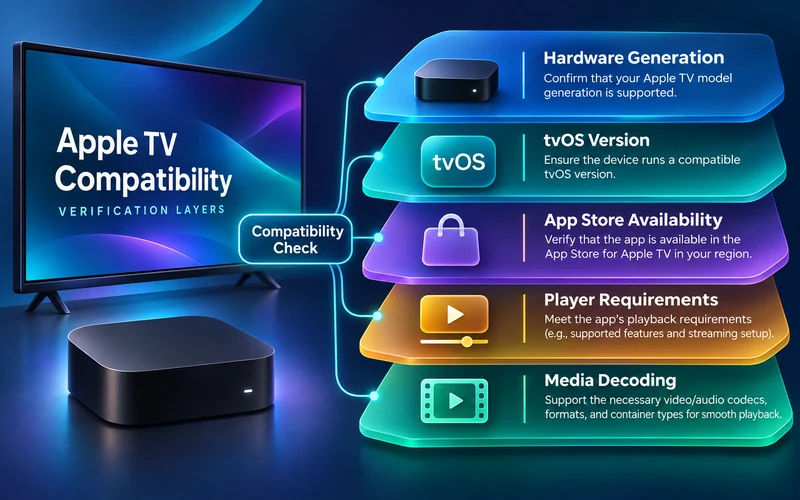
Apple documents HLS playback across iPhone, iPad, Apple TV, and macOS. That establishes a supported delivery technology, not that every provider, playlist, authentication method, or third-party player is available on every Apple TV.
Check the exact Apple TV model and current tvOS version, then verify the chosen player from its official App Store listing or its publisher’s documentation.
Compatibility has several layers: hardware generation, current tvOS support, App Store access, the player’s minimum OS and device requirements, the service’s authorized account format, media decoding, HDMI output, and the home network. Success at one layer does not prove the rest. A television box can support HLS while the chosen player lacks the service’s sign-in method, or an app can import a catalog while one audio format fails in the connected receiver.
Identify the device before purchasing. Apple lists model numbers, generation details, ports, wireless capabilities, and output features in its Apple TV identification guide. The model number is available in Settings, General, About, on the device label, or on the original box. Keep the serial number private. Record the model, storage when relevant, current tvOS version, connection type, and display/audio equipment so a publisher can evaluate the exact path.
Model generation affects the app path. Apple’s support guidance says Apple TV 4K and Apple TV HD can download apps from the App Store, while Apple TV third generation does not provide that App Store for new downloads and can update only built-in apps. This is a fundamental compatibility boundary, not a storage or network problem. A web listing cannot add an App Store to hardware that does not support one.
Use the device compatibility guide to document the complete chain. Check Apple’s current software-support page for the exact generation rather than assuming every black Apple TV box receives the same tvOS release. If the intended player requires a newer release than the device can run, choose a supported device or player path instead of searching for unofficial packages.
Verify the service before configuring
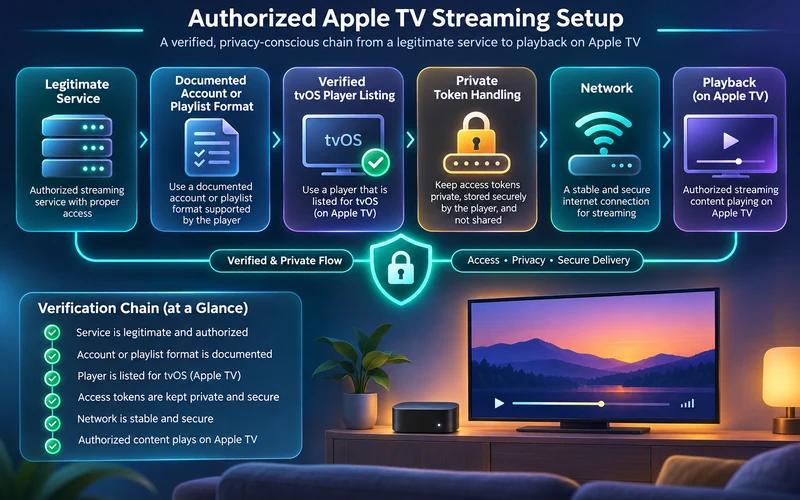
Ask the authorized service which Apple TV path it supports and use its documented account or playlist format. A player can provide a viewing interface without providing programming, rights, or account entitlement.
Use unique account credentials where possible. Treat a playlist address as sensitive because it may contain a token that grants access.
Begin with authorization and terms. Ask what content the service is permitted to provide, which countries it serves, what Apple TV player it documents, how billing renews, and how cancellation works. Avoid claims that a player download automatically includes every premium channel. The IPTV player explainer separates the software interface from the content provider and account entitlement.
Confirm the configuration type before choosing an app. A service may issue an M3U URL, a username and password with a server address, a portal workflow, or its own tvOS application. Those methods are not automatically interchangeable. Compare the player’s published input methods with the service instructions. Do not paste an account URL into a converter website or share it in a forum; query parameters can contain a reusable token.
Search the App Store on the Apple TV itself. Compare the developer identity, supported platforms, minimum tvOS requirement, privacy information, support URL, in-app purchases, and subscription terms with the publisher’s official site. A listing for iPhone or iPad alone is not proof of a television version. Region also matters: an app visible on a website or another person’s device may not be distributed in the account’s normal country.
Protect both accounts. Use a unique service password, enable the Apple Account protections available to the household, and never provide a verification code or account password to streaming support. If a playlist token or password appears in a screenshot, replace it through the authorized service before continuing. A legitimate diagnosis normally needs model, versions, time, error, and redacted comparison results—not control of the entire Apple Account.
Keep the first test narrow
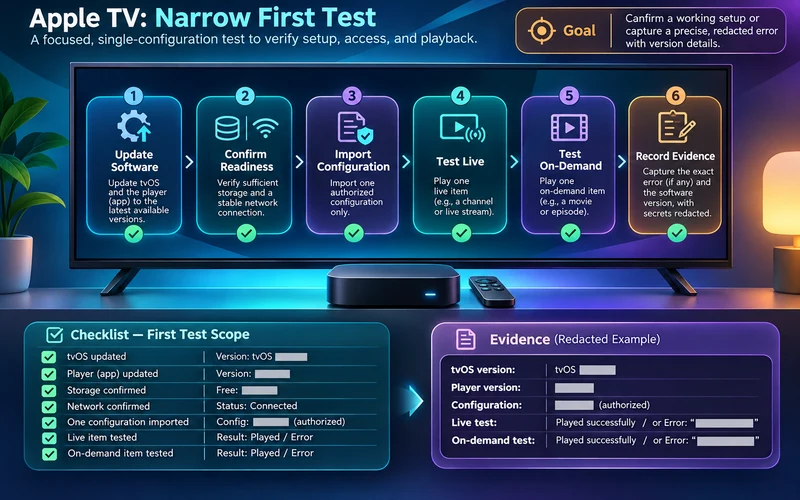
Install updates, connect to the intended network, and test one authorized source. If there is a problem, capture the app version and exact error before reinstalling or changing multiple network settings. That preserves useful evidence for support.
Prepare the baseline. Record the model and tvOS version, update the player through the App Store, confirm available storage, and test a reputable streaming app on the intended Wi-Fi or Ethernet connection. Keep the HDMI and audio setup unchanged. Do not erase the device, change DNS, add a VPN, and reinstall the app at the same time; that destroys the comparison needed to identify the failing layer.
Import one authorized configuration exactly as issued. Preserve the protocol, capitalization, punctuation, and any required port. A television keyboard makes transcription errors easy, so use a trusted input method supported by Apple TV rather than sending credentials through an unknown website. Confirm whether the catalog or groups load before selecting an item. Failure during import points to a different investigation than failure after video begins.
Test one known live item and one on-demand item if both are included. Check picture, sound, subtitles, audio-track selection, remote navigation, and the program guide. Then compare another authorized title. If one fails while another works, preserve the item and time for service support rather than resetting the device. If all items fail but another reputable app works, investigate the player, configuration, account, or source.
Make the evidence safe and specific: exact error text, time and time zone, item, app version, model, tvOS version, network, and the pass/fail result of each comparison. Redact emails, playlist URLs, tokens, QR codes, passwords, and payment details. Reinstall only after the evidence points to damaged app data and the credentials can be recovered securely.
Let the test run long enough to cover the reported symptom. A five-minute success cannot disprove a pause that normally appears after an hour, and a morning test may not reproduce evening congestion. Keep the observation window reasonable, note interruptions and recovery, and stop if equipment overheats or repeated sign-in attempts risk locking the account. Testing should generate useful evidence without creating a second problem.
Confirm tvOS support rather than iPhone support
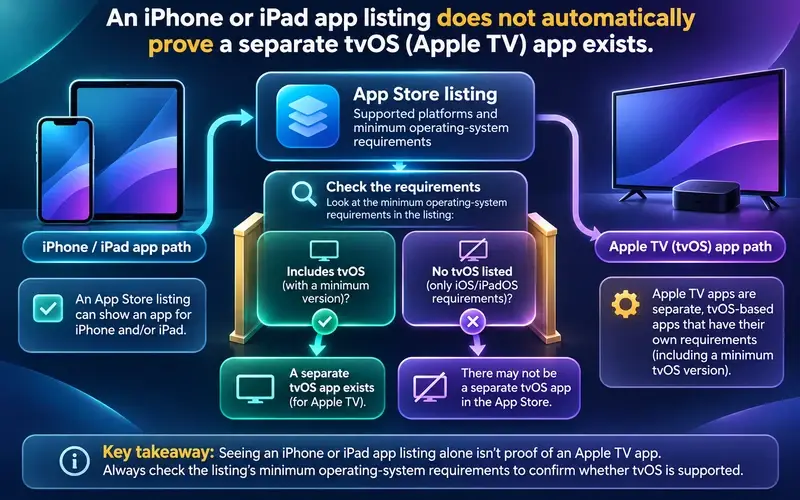
Apple TV uses tvOS, and an iPhone or iPad app is not automatically available as an Apple TV app. Verify the publisher’s separate App Store listing and minimum system requirements. Some applications offer different features or purchase terms across Apple platforms.
Record the exact Apple TV model and tvOS version. Update the device before setup, and verify that the service documents a supported player and account method for Apple TV.
Apple’s developer documentation defines MinimumOSVersion as the minimum OS release an app requires and says the App Store uses it to indicate where the app can run. Consumers should therefore read the television listing’s compatibility information rather than assuming an app with the same name across devices is one identical build. A publisher may choose different features, purchases, authentication, and release schedules for iOS, iPadOS, and tvOS.
Search on the Apple TV and open the developer’s support link. If the listing shows a minimum tvOS later than the device can install, the result is an OS compatibility limit. Check whether the device has a pending official update and whether Apple still supports that model. Do not install configuration profiles or packages from unknown sites to bypass the limit; tvOS distribution and signing are not equivalent to downloading a desktop installer.
Region and account state can also affect visibility. Confirm that the Apple Account uses the normal country or region and that purchases or restrictions allow app installation. Do not change region casually because it can affect subscriptions, payment methods, media availability, and store agreements. Ask the publisher whether it distributes the tvOS app in that region and supports the exact model.
After installation, compare feature claims specifically for tvOS: supported playlist or login formats, favorites, guide import, subtitles, multiple audio tracks, parental controls, synchronization, and purchases. A phone feature page may mention touch gestures, background behavior, local files, or casting that is absent or different on television. Test the remote-first workflow before paying for a long-term player upgrade.
HLS compatibility is only one part of playback
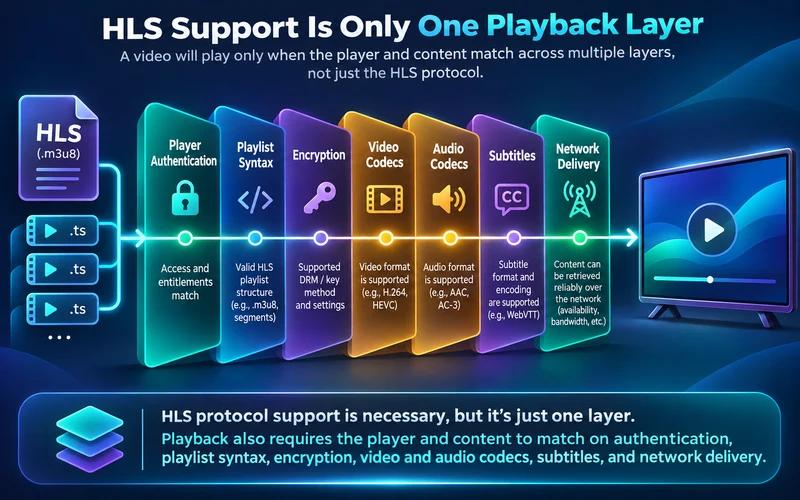
Apple’s HTTP Live Streaming technology is widely used across Apple platforms, but a player still needs to handle the service’s authentication, catalog, subtitles, audio tracks, and any relevant protection mechanisms. A device supporting HLS does not imply support for every arbitrary playlist or stream.
Test an authorized source through the documented app. If the catalog appears but playback fails, note whether the failure affects one title or all titles before changing network settings.
HLS separates a playlist or manifest from timed media segments. Apple documents multivariant streams that offer different encodings and let the client switch according to network conditions. This can improve resilience, but the playlist must still be valid, segments must remain reachable, and the app must support the authentication and protection method. An M3U file containing arbitrary addresses is not necessarily an HLS multivariant stream and does not inherit compatibility merely from its extension.
Media properties remain decisive. The player and hardware must handle the video codec and profile, audio codec and channel layout, container, resolution, frame rate, dynamic range, subtitles, and encryption used by an item. HDMI display and audio equipment add their own capabilities. A 4K output specification does not guarantee every 4K combination. Consult Apple’s technical specifications for the exact generation and the player’s documentation rather than relying on a broad format label.
Use symptom patterns. A catalog that loads but every title returns an authorization error suggests account or token investigation. One title failing while others play suggests item-specific delivery or encoding. Audio without picture points toward video decode or display output; picture without audio points toward the track or audio path. Repeated pauses can arise from the network, delivery source, device, or player buffer. Keep the test narrow before assigning cause.
Do not transcode protected or unauthorized content to force compatibility. If a legitimate service supplies an unsupported format, ask it for a documented Apple TV representation or supported player. Converting URLs through third-party services exposes account tokens and can violate terms. Compatibility work should preserve authorization and privacy as well as picture quality.
Adaptive quality is evidence rather than a promise. Apple describes HLS clients switching among stream variants as conditions change. A temporary resolution drop can show the player preserving continuity; repeated stalls even at a lower variant require further investigation. Record whether quality changes before the pause, whether another title adapts normally, and whether the same item behaves differently on a trusted connection. Do not force an undocumented bitrate or buffer value as a universal remedy.
Check remote navigation and home audio
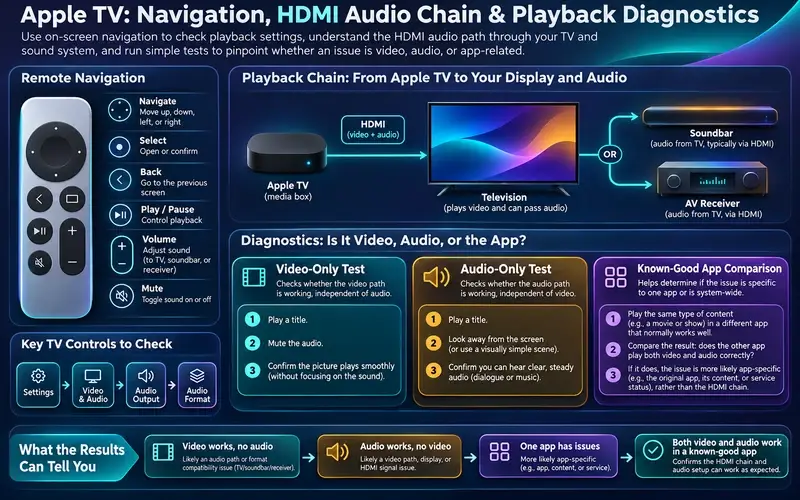
Apple TV’s remote, HDMI connection, television settings, and external audio system can affect the viewing experience. Missing sound may involve audio-output configuration even when video is healthy. Likewise, a black screen may relate to the display path rather than account access.
Compare a known-good app, check volume and audio output, and keep the test narrow. Avoid changing multiple display and network settings at once.
Test the player entirely from the Apple TV remote: directional or clickpad focus, Select, Back, search, category list, guide, play and pause, subtitles, audio selection, and exit. Focus should be visible, and Back should behave predictably. A player that launches but requires touch input or makes essential controls unreachable is not a practical tvOS solution. Check VoiceOver, captions, contrast, motion, and other accessibility needs relevant to the household before subscribing.
Map the signal chain. Apple TV sends video and audio through HDMI to the television or receiver; the television may then pass audio to a soundbar or receiver. Record which device switches inputs, controls volume, and performs audio decoding. Secure the HDMI connections and use cables that meet the connected equipment’s documented requirements. Do not infer an account problem from a display handshake or audio-output failure.
For missing sound, first confirm mute, volume, and the intended output, then compare a known-good app. Test the television speakers if safe and practical before changing advanced audio format settings. For a black screen with sound, compare another app and a documented display mode. For an unresponsive remote, verify navigation in the home screen. Change one setting per test and restore it if the result does not improve.
The network remains a separate layer. If the player starts but buffers, compare the same authorized item on Wi-Fi and Ethernet only when the model includes or supports the intended port. Keep the HDMI and audio settings constant. A network improvement does not prove the earlier black screen was bandwidth-related, and an HDMI fix does not repair an expired token.
Privacy and account handling on shared screens
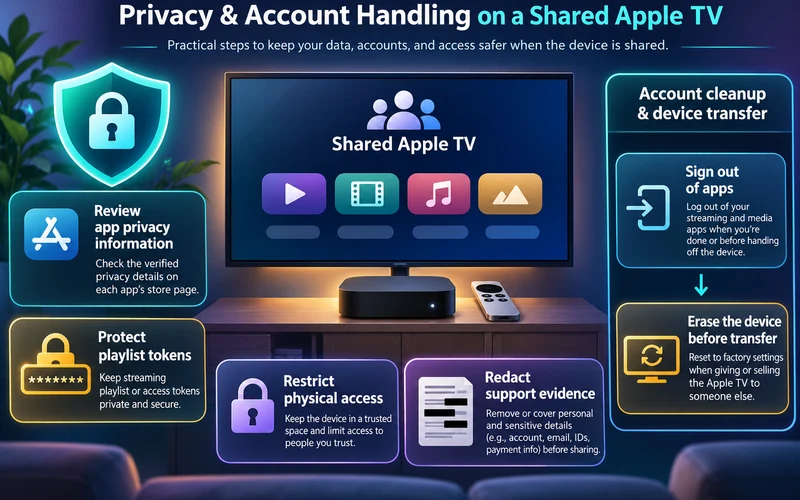
A household Apple TV may be used by several people. Treat playlist URLs and sign-in tokens as private, review who can access the device, and sign out before selling or transferring it. Use the app’s official privacy documentation when deciding what to install.
For support, share model, tvOS version, player version, and redacted error text. Do not post account links in public forums.
Review the App Store privacy information and the publisher’s policy before importing a playlist. Determine what account identifiers, viewing activity, diagnostics, advertising data, or device information the app says it collects and whether data is linked to identity. Store disclosures are a starting point, not a reason to grant unknown support agents access. Install only the verified publisher’s app and keep tvOS and the app updated through official channels.
Control physical and household access. Anyone able to open a player on the television may see recent items, favorites, account names, or a visible playlist address. Use the app’s lock or profile controls when they are documented, but do not assume Apple TV profiles isolate all third-party app data. Sign out of sensitive apps when the device is used in a rental, shared workspace, or other environment where access cannot be limited.
Make support evidence privacy-conscious. A screenshot should show only the error and necessary context. Cover playlist query strings, email addresses, account identifiers, network names, QR codes, subscription details, and payment information. Use the service or publisher’s verified support page rather than replying to unsolicited messages. If a token was exposed, revoke or replace it before sending more evidence.
Before selling, giving away, returning, or permanently moving the Apple TV, sign out where required and follow Apple’s official erase or reset guidance for the exact model. Confirm that the device no longer shows household accounts or app data. Keep proof of purchase and model details separately, not on the device. The IPTV security and privacy guide provides a wider checklist for credentials, scams, and incident response.
Review this arrangement after a major tvOS update, a household change, or a provider migration. A short repeat check of account access, remote navigation, audio output, and privacy settings catches drift before an important viewing session. Keep any revised service instructions with the device record rather than relying on an old screenshot.
Apple TV compatibility checks
| Check | Question | Why it matters |
|---|---|---|
| tvOS and model | Is the device updated and is the app available for this Apple TV? | App support and media capabilities depend on the actual hardware and software. |
| Player source | Is the app from its verified App Store publisher? | A player’s presence does not validate an entered source. |
| HLS playback | Does a known-good authorized stream play on the same network? | It provides a baseline before changing service-specific settings. |
| Account details | Which documented format does the service support? | Avoid guessing fields or sharing tokenized addresses. |
After completing these checks, use the Apple TV IPTV compatibility entry point on the Zenora IPTV homepage to compare device guidance, plan information, and support resources.
Frequently asked questions
Does Apple TV support HLS?
Apple documents HLS playback on Apple TV and its other platforms.
Can I assume an iPhone player is available on Apple TV?
No. Confirm the separate Apple TV listing and supported device requirements.
How do I know whether an app supports my tvOS version?
Check the app’s Apple TV App Store compatibility information and minimum operating-system requirement, then compare it with the tvOS version the exact device can officially run.
Does Apple TV HLS support mean any M3U playlist will work?
No. HLS is one delivery technology. The player must also support the playlist structure, authentication, protection, codecs, subtitles, network delivery, and account authorization.
Why do I have picture but no sound on Apple TV?
The selected audio track, codec, Apple TV output, television, soundbar or receiver, HDMI path, or app can be involved. Compare a known-good app and change one documented audio setting at a time.
Sources and further reading
For a clear next step, visit Zenora IPTV to compare the relevant device guidance, plan information, and support resources before proceeding.